Disclosure: Kalend is ours.
Short answer
Our pick is Kalend — carrying tasks, calendar, habits and a journal onto a flight in one app with nothing to sign into. Completely free. No paid tier, no subscription, no ads; the only purchase is an optional tip. The closest alternatives are Apple Calendar, Things 3 and OmniFocus 4. All 9 are compared below, each with a stated drawback.
Kalend is our own app and it is listed first here, which is worth saying plainly before you read anything else. The ordering is not a verdict on quality; it is our product, in our list, at the top. Every other entry is a competitor, and each one is described only from what its own App Store listing or its own documentation states.
The test applied to all nine is the same. Can you open the app cold, on a plane or in a basement, and see your day? Can you create and edit — a task, an event, a habit tick, a journal line — without waiting on a spinner? Does any part of the interface block on a server round trip, such as a login check or a shared list? And when the connection returns, does it reconcile the changes sensibly instead of handing you a pile of duplicates?
Where an app publishes a clear statement about offline use, that statement is quoted below. Where it does not — and several of the apps here do not — that is said rather than guessed. A missing statement is not proof that an app fails underground; it means nobody has committed to the behaviour in writing, which is a different sort of risk to carry onto a long flight.
At a glance
| App | Best for | Pricing |
|---|---|---|
| Kalend (ours) | Carrying tasks, calendar, habits and a journal onto a flight in one app with nothing to sign into | Completely free. No paid tier, no subscription, no ads; the only purchase is an optional tip |
| Apple Calendar | Pulling work, personal and school calendars into one grid without adding another account | Free, included with iOS |
| Things 3 | People who want the offline behaviour written down and the sync conflicts handled without being asked | One-time purchase, charged separately for each platform; sync through Things Cloud is provided at no charge |
| OmniFocus 4 | A projects-and-tags task system where the whole database sits on the phone and syncing is optional | Free to download, then a one-time in-app unlock sold in Standard and Pro tiers, with upgrade paths between them and a subscription listed as an alternative |
| Structured | Laying a day out as a visual timeline rather than a flat list of tasks | Free tier plus a Structured Pro subscription, offered monthly, yearly or as a lifetime purchase |
| TickTick | Keeping one task list in step across a phone, a computer and a work machine | Free tier plus a Premium subscription |
| Sorted³ | Putting tasks, events and notes on one timeline and letting the app slot the tasks between meetings | Free to use, with an optional one-time PRO in-app purchase; PRO for iOS and PRO for macOS are sold as separate purchases, with a combined option |
| Pocket Informant | Calendar, tasks and projects in one screen, with the offline position stated on the listing | Free tier plus a Premium subscription, offered monthly, quarterly or yearly |
| Calendars by Readdle | Running Google, iCloud and other accounts in one calendar that also carries tasks and habits | Free to download, with a Calendars PRO subscription offered monthly or yearly and further in-app purchases listed |
The apps in detail
Kalend
Ours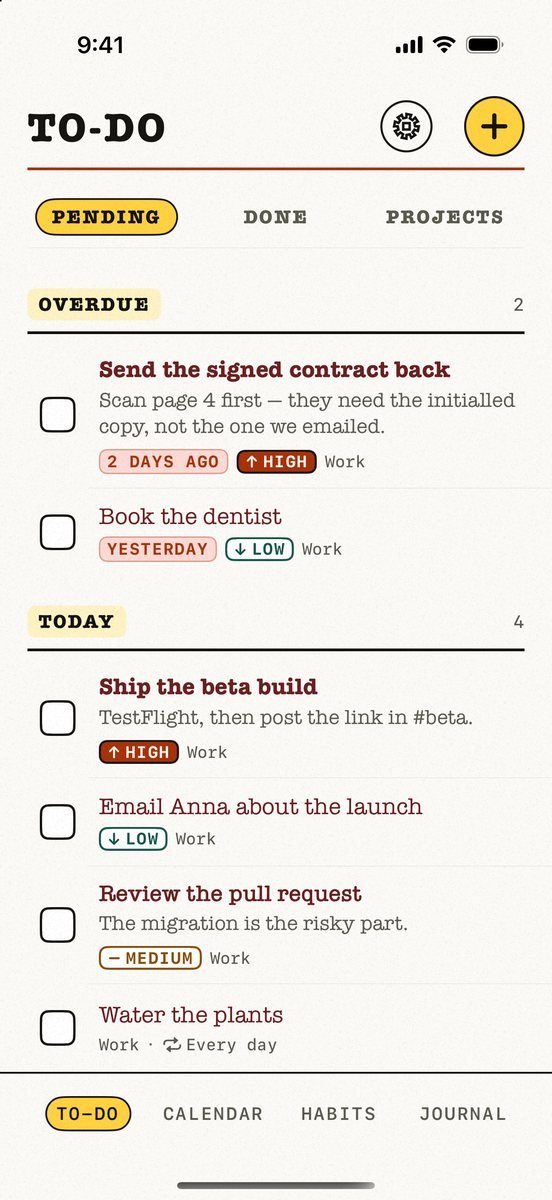
- Best for
- Carrying tasks, calendar, habits and a journal onto a flight in one app with nothing to sign into
- Highlights
- Four tools in one app — tasks, calendar, habits and a journal — so a day with no connection does not fragment across four separate downloads
- Offline-first: every feature works with no connection, and the app opens, reads and writes without one
- Syncs through your own iCloud. There is no Kalend account and no server of ours holding your data, so there is nothing to sign into when you have no signal
- Because there is no account, there is no login check standing between you and your own day
- Pricing
- Completely free. No paid tier, no subscription, no ads; the only purchase is an optional tip
- Watch out
- Apple platforms only — no Android and no web — and it needs iOS 18 or later. Because it syncs through your personal iCloud there is no sharing and no collaboration of any kind: you cannot assign a task or share a list with anyone. It is also brand new, released on 17 August 2026, so it has no ratings, no reviews and no track record to weigh.
Apple Calendar
- Best for
- Pulling work, personal and school calendars into one grid without adding another account
- Highlights
- Apple's listing describes connecting accounts from iCloud, Exchange, Google and others in one app
- List, Day, Week and Month views, with events from all your calendar accounts shown alongside each other
- Events carry an alert, a location that notifies you when it is time to leave, a link to a video call, attachments and notes
- Reminders sit in the same place: the listing describes creating, viewing, editing and completing reminders alongside your meetings and appointments
- Pricing
- Free, included with iOS
- Watch out
- The listing describes sharing an iCloud calendar with family, colleagues or friends, so anything you want another person to see is a connected feature by definition. The App Store listing for Calendar does not state what the app does with no connection, and subscribed calendars from other services are only as current as the last successful refresh.
Things 3
- Best for
- People who want the offline behaviour written down and the sync conflicts handled without being asked
- Highlights
- Cultured Code states it directly: "Devices store your full database locally so that you can work offline – it'll automatically sync up later without a hitch"
- On conflicts the same page says "With logic inspired by version control systems, conflicts resolve automatically. Simultaneous edits? No problem"
- Areas, Projects and Headings organise the work, with Today and Upcoming as the two daily views
- The App Store listing says "Sync is provided for free via our Things Cloud service"
- Pricing
- One-time purchase, charged separately for each platform; sync through Things Cloud is provided at no charge
- Watch out
- Cultured Code sells Mac, iPhone with Apple Watch, iPad and Vision Pro as four separate purchases, so a phone-and-iPad setup is bought twice. Cultured Code lists Apple platforms only, so there is nothing to fall back on if you switch phones.
OmniFocus 4
- Best for
- A projects-and-tags task system where the whole database sits on the phone and syncing is optional
- Highlights
- Omni's sync FAQ says "a sync connection isn't required in order to use OmniFocus", and that changes made without one are compared by the server "the next time the app syncs"
- The same page says "each device has a full copy of your database in the form of a list of changes", so the phone is not showing a cached view of somewhere else
- The OmniFocus 4 manual covers turning sync off entirely: if syncing to a remote server "is either not allowed or simply not desired, you can choose to leave sync disabled"
- Forecast, custom Perspectives, tags and Review, with the App Store listing describing a free sync service "protected with end-to-end encryption"
- Pricing
- Free to download, then a one-time in-app unlock sold in Standard and Pro tiers, with upgrade paths between them and a subscription listed as an alternative
- Watch out
- Omni's own manual notes that "OmniFocus doesn't actively encrypt data while it is stored on your local device, instead deferring to any system-level encryption you have in place", so your device passcode is doing that work. The free download is a way in rather than a free tier — the app is unlocked by a substantial in-app purchase in two tiers — and Omni describes it as a task manager built on projects, tags and Perspectives, so a full day plan means pairing it with a calendar.
Structured
- Best for
- Laying a day out as a visual timeline rather than a flat list of tasks
- Highlights
- A day planner built around a drag-and-drop timeline, with Live Activities and interactive widgets carrying the current task onto the lock screen
- An Inbox to capture ideas quickly and sort them later, so undated items have somewhere to sit until you place them
- Sub-tasks with notes, colour-coding and icons, plus a Pomodoro focus timer
- Accessibility support the listing names directly: VoiceOver, Voice Control, a dyslexia-friendly font and multiple languages
- Pricing
- Free tier plus a Structured Pro subscription, offered monthly, yearly or as a lifetime purchase
- Watch out
- Calendar and Reminders integration, recurring tasks and routines, Replan and the AI day-planning feature sit behind the Pro subscription. The App Store listing does not state what the app does with no connection, and the getting-started guide in Structured's help centre covers syncing across devices without addressing offline use.
TickTick
- Best for
- Keeping one task list in step across a phone, a computer and a work machine
- Highlights
- TickTick's download page lists apps for iOS and iPadOS, Android, Windows, macOS, Linux, a browser extension and the web, so it is the one entry here that is not Apple-only
- Calendar views for the year, month and week, plus agenda, multi-day and multi-week views
- A habit tracker, with "Detailed statistics and feedback help you develop good habits"
- A Pomodoro timer, an Eisenhower Matrix, and List, Kanban and Timeline views for the same tasks
- Pricing
- Free tier plus a Premium subscription
- Watch out
- Collaboration is described as sharing lists with friends and colleagues and assigning tasks, so that half of the app depends on reaching another person. TickTick's own feature pages and App Store listing describe sync across devices without stating what happens when there is no network, so treat offline behaviour as unstated on the pages cited here rather than promised.
Sorted³
- Best for
- Putting tasks, events and notes on one timeline and letting the app slot the tasks between meetings
- Highlights
- Sorted describes it plainly: "Sorted³ combines your tasks, calendar events and notes into a unified timeline so you can hyper-schedule your entire day in one place"
- Auto Schedule places tasks into the gaps in the day, with a Time Ruler and Magic Select for moving several items at once
- Formatted notes, attachments and drawings attach to events and tasks, alongside repeat rules and natural-language input
- iCloud Sync keeps the same timeline on iPhone, iPad and Mac
- Pricing
- Free to use, with an optional one-time PRO in-app purchase; PRO for iOS and PRO for macOS are sold as separate purchases, with a combined option
- Watch out
- Neither sortedapp.com nor the App Store listing states what the app does with no connection, so offline behaviour is unstated rather than promised. PRO is bought per platform — the iOS unlock and the macOS unlock are separate in-app purchases — and the listing covers Apple platforms only.
Pocket Informant
- Best for
- Calendar, tasks and projects in one screen, with the offline position stated on the listing
- Highlights
- The App Store listing states the position outright: "Offline access. Access all your data, all the time. Internet connection only required for syncing."
- Reads native Apple calendar and reminder data directly, so iCloud, Exchange, Outlook.com, Microsoft 365, Google Calendar, Yahoo and AOL accounts all appear in one place
- A one-day planner view, a seven-day stacked week and a thirty-day month, with tasks and calendar shown together in one view
- Informant Sync is offered as a cross-platform option covering iPhone, iPad, Android, Outlook and Mac, described as "cross-platform, fast, and efficient on mobile networks"
- Pricing
- Free tier plus a Premium subscription, offered monthly, quarterly or yearly
- Watch out
- The free tier is essential calendar functionality only — tasks, projects, contacts, email integration and multiple calendars are all listed as part of the subscription, so the part of the app that makes it a planner rather than a calendar is the paid part.
Calendars by Readdle
- Best for
- Running Google, iCloud and other accounts in one calendar that also carries tasks and habits
- Highlights
- Readdle commits in one line, and only in one line: "Just drag and drop your tasks and events to reschedule an appointment. You can do that both online and offline."
- Daily, weekly and monthly views of the same calendar, with colour-coded events and up to five reminders on an event
- Events and to-dos can be added with natural language, and tasks take due dates and recurrence
- Habits and routines are tracked in the same app, and you can join a Zoom, Google Meet or GoToMeeting call from the calendar entry
- Pricing
- Free to download, with a Calendars PRO subscription offered monthly or yearly and further in-app purchases listed
- Watch out
- That one offline sentence covers rescheduling by drag and drop; neither readdle.com/calendars nor the App Store listing states what the rest of the app does with no connection. Its contents come from connected accounts such as Google and iCloud, so what you can see underground is whatever last synced, and a Calendars PRO subscription sits on top of the free download.
What is still missing
The first thing this category gets wrong is silence. Search the help centre of a well-known planner for the word offline and you will often find nothing at all — no statement, no article, no line in the App Store description. Four of the nine apps here commit in writing — Kalend included — and they do it in a sentence each; a fifth, Calendars by Readdle, commits only for dragging an item to a new time. The rest leave you to discover the answer at 30,000 feet, which is the worst possible place to find out that a list will not load.
The second problem is that offline is treated as a degraded mode rather than the ordinary one. Features that genuinely need other people — a shared list, an assigned task, an invitation — sit in the same menus as features that need nothing but the phone, with no marking to tell them apart. Assistant features that draft or reschedule a day make this sharper, because they are increasingly the headline of a paid tier and none of the listings here says whether that work happens on the phone or somewhere else. An app can be honest about all of this and simply label which buttons require a connection. None of the nine listings surveyed here does.
Kalend, ours, works offline-first and syncs through your own iCloud, so there is no account of ours to reach and nothing to log into when the signal drops. That design has a real price attached. There is no sharing and no collaboration of any kind — you cannot assign a task or share a list with a partner or a colleague — it runs on Apple platforms only, with no Android and no web version, and it is brand new, released on 17 August 2026, so it has no ratings and no track record yet. A household that plans together is not served by it, and being offline-first does not fix that.
Common questions
Which of these planners state in writing that they work with no connection?
Four of the nine. Cultured Code says Things devices store your full database locally so you can work offline. Pocket Informant's App Store listing says an internet connection is only required for syncing. Omni's sync FAQ says a sync connection is not required in order to use OmniFocus, and each device holds a full copy of the database. Kalend, our app, is offline-first, with every feature working with no connection. Calendars by Readdle commits for one thing only — rescheduling by drag and drop, which it says works both online and offline. For the rest, nothing is published either way on the pages cited here.
What is the difference between offline-first and just cached?
A cached app shows you what it downloaded last time and often refuses to write until it can reach a server. An offline-first app keeps the real database on the phone, treats the server as a copy, and writes locally whether or not there is signal. The practical test is whether you can create something new — not just read — with the connection off. Reading a stale list is not the same as planning your day.
What happens if I edit the same task on two devices with no signal?
That is a sync conflict, and the answer depends entirely on the app's reconciliation logic. Cultured Code states it directly, saying conflicts resolve automatically with logic inspired by version control systems. Omni describes a database held as a list of changes that the server compares at the next sync. Most apps in this list say nothing at all, and in that case the safe habit is to open the app on one device, let it finish syncing, and only then open the second.
Does a habit streak still count if I tick it off with no connection?
It depends on whether the tick is recorded on the phone or sent to a server. If the app writes locally with a timestamp, the tick belongs to the day you made it and the streak survives the flight. If the app only counts a completion the server has acknowledged, a day underground can read as a miss. None of the listings surveyed here spells this out for its habit tracker, so if the streak matters to you, test it once in aeroplane mode before you rely on it.
Do I need an account to use a planner offline?
Needing an account and working offline are separate questions that get confused often. Kalend has no account of ours at all, because it syncs through your own iCloud, and Omni's documentation says a sync connection is not required to use OmniFocus, so sync can be left off entirely. An account only matters offline if the app checks the login before it will let you in — and none of the listings cited here states whether it does.
Published · Updated · No affiliate links











 MMA.
MMA. Trending
 Bold
Bold Top
Top