Disclosure: Kalend is ours.
Short answer
Our pick is Kalend — holding the tasks, habits and notes that feed a blocked day, at no cost and with no account. Completely free — no subscription, no paid tier, no ads; the only purchase is an optional tip. The closest alternatives are Structured, TimeBloc and Align. All 9 are compared below, each with a stated drawback.
Kalend is our app, and it is listed first below. That is a placement decision rather than a ranking one, and it is the only entry on this page we have any stake in, so it answers the same three questions as everything else and its real limits are written out in full. Every other app here was checked against its own App Store listing or its own site, and those URLs are attached to each entry.
Most of this post is method, because the app is the smaller half of the problem. Blocking a day on an iPhone comes down to four moves. Estimate first: write a number of minutes beside each thing before you go anywhere near a clock, and assume your first week of numbers is about half of what the work will actually take. Place second: put the item on a calendar at a real time, because a list with times typed beside it is still a list, and a calendar is the only surface that will refuse to hold more than twenty-four hours. Buffer third: leave ten or fifteen minutes empty between blocks so the day can absorb a phone call instead of folding. Recover last: when a block overruns, do not push everything down by an hour. Delete a block instead, and decide which one, because that is the decision the overrun has already forced on you.
So the apps below are rated on three things, all of which fall out of that method. Can you drag a block to a new time and resize it, or do you have to retype start and end times? Can something already written down become a block without being typed a second time? And when a block is placed, does it land somewhere the rest of your phone can read, or only inside the app that drew it? Every app listed can be used without paying. Where a feature that matters to blocking sits behind a payment, it is named.
At a glance
| App | Best for | Pricing |
|---|---|---|
| Kalend (ours) | Holding the tasks, habits and notes that feed a blocked day, at no cost and with no account | Completely free — no subscription, no paid tier, no ads; the only purchase is an optional tip |
| Structured | Turning a written list into a timeline you can drag around | Free tier, with an optional Pro subscription or a one-off lifetime purchase |
| TimeBloc | Blocking a day to the minute and then repeating it as a routine | Free tier, with in-app purchases covering both subscriptions and a lifetime option |
| Align | Blocks that resize and refuse to sit on top of each other | Free tier, with an optional Align Plus subscription or lifetime purchase |
| Sorted³ | Letting the app arrange tasks around commitments that are already fixed | Free version, with a one-off PRO purchase — no subscription |
| Tiimo | Seeing the shape of a day rather than reading it | Free tier, with a Tiimo Pro subscription |
| Apple Calendar | Blocks that every other app on the phone can already see | Free — built into iOS, nothing to install |
| Google Calendar | Blocking personal time on a phone when work already runs on Google | Free app; optional paid Google storage and AI plans exist separately |
| TickTick | Keeping the list and the calendar inside the same app | Free tier, with a Premium subscription billed monthly or annually |
The apps in detail
Kalend
Ours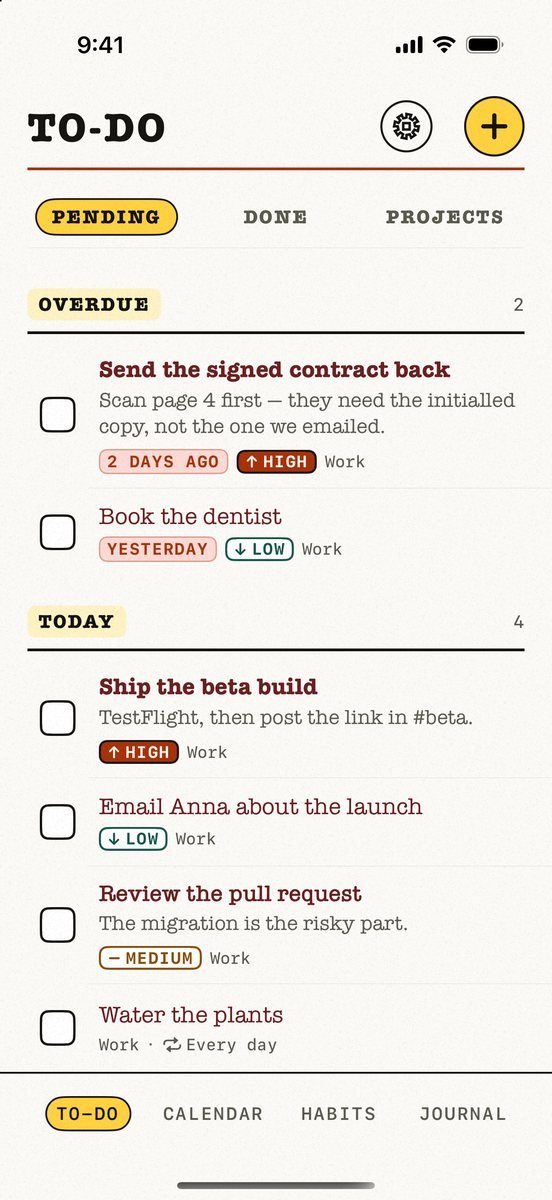
- Best for
- Holding the tasks, habits and notes that feed a blocked day, at no cost and with no account
- Highlights
- Tasks carry projects, priorities and due dates, and repeating tasks roll forward rather than simply closing — so the work you want to block out is already written down before you start placing it.
- The calendar view shows your system calendar events alongside task due dates, which is the view you need before adding blocks: what the day already owes you, in one place.
- Habits can be scheduled daily, on chosen weekdays, a set number of times a week, or every N days, which covers the recurring blocks most days are built from.
- Syncs through your own iCloud with no Kalend account and no server of ours, and every feature works with no connection at all.
- Pricing
- Completely free — no subscription, no paid tier, no ads; the only purchase is an optional tip
- Watch out
- Three limits, stated plainly. It is Apple-only — there is no Android version and no web version, and it needs iOS 18 or later. Because it syncs through your personal iCloud there is no sharing and no collaboration of any kind, so you cannot assign a task or share a list with anyone. And it is brand new — version 1.0 reached the App Store on 17 August 2026, so there are no ratings, no reviews and no track record yet. On the method specifically: Kalend displays your calendar events but never copies them into its own storage, so it is where the day's material lives, not the surface you drag blocks on.
Structured
- Best for
- Turning a written list into a timeline you can drag around
- Highlights
- The listing describes mapping your tasks and calendar onto a visual timeline, with drag-and-drop available on the free tier — which is the placing step of the method done directly with your thumb.
- An Inbox for capturing ideas, so items can be written down first and given a time later rather than both at once.
- Free syncing across iPhone, iPad, Apple Watch and Mac, so a block placed on one device is on the others.
- A Pomodoro focus timer with Live Activities and widgets, plus VoiceOver and Voice Control support and a dyslexia-friendly font.
- Pricing
- Free tier, with an optional Pro subscription or a one-off lifetime purchase
- Watch out
- Connecting your calendars and Reminders is a Pro feature, as are recurring tasks and routines and Replan, which reschedules missed or forgotten items. That maps awkwardly onto the method: on the free tier your timeline is Structured's own and separate from the calendar the rest of your phone writes to, the recurring blocks that make up most mornings have to be recreated by hand, and recovery from an overrun is entirely manual.
TimeBloc
- Best for
- Blocking a day to the minute and then repeating it as a routine
- Highlights
- Drag-and-drop time blocks, set by the hour or by the minute — useful when your estimates stop being round numbers.
- Routines: the listing says you plan one once and it is integrated into your timeline from then on.
- Calendar integration brings existing events into the plan, so blocks are placed around what is already fixed.
- Icons and coloured tags to tell block types apart, with a notification for each event.
- Pricing
- Free tier, with in-app purchases covering both subscriptions and a lifetime option
- Watch out
- Unlimited routines, unlimited calendars, advanced notifications and the statistics view all sit behind Premium. The statistics point matters most here: reviewing how your estimates held up is the one habit that makes the estimating step improve, and on the free tier you cannot do it. The number of routines and connected calendars is also capped.
Align
- Best for
- Blocks that resize and refuse to sit on top of each other
- Highlights
- The listing's own wording: drag and resize visual time blocks when plans change, without rebuilding your day. That is the recovery step, handled directly.
- Recurring time blocks for habits and routines, and unlimited blocks on the free tier — the listing's free-features list names both.
- Calendar sync with your existing calendars, also named in the listing's free-features list.
- Home Screen and Lock Screen widgets, notes inside a block, and icon suggestions drawn from the block's title.
- Pricing
- Free tier, with an optional Align Plus subscription or lifetime purchase
- Watch out
- Align is described on its listing as a layer on top of the calendar system rather than a standalone database, so it never becomes the single place your day lives — though the listing notes you can create a dedicated calendar just for Align and hide it from your main calendar app. Two features that matter directly to the method are Align Plus rather than free: overlap avoidance, which resolves collisions when you resize a block, and block locking, which stops a real appointment being shuffled. Subtasks and custom day start and end times are also Align Plus.
Sorted³
- Best for
- Letting the app arrange tasks around commitments that are already fixed
- Highlights
- Tasks, calendar events and notes sit in one unified timeline, so there is no second list to reconcile against the day.
- Drag-based rescheduling via the Time Ruler, which is what you reach for the moment a block overruns.
- Auto Schedule arranges tasks around existing commitments using their estimated durations, which makes the estimate an input to the schedule rather than a note beside it.
- Syncing with the native calendar.
- Pricing
- Free version, with a one-off PRO purchase — no subscription
- Watch out
- Sorted³ marks a number of its scheduling tools PRO on its own site, including Auto Schedule, the Time Ruler and Magic Select, so check the current free-versus-PRO split before relying on any one of them — the automatic arranging in particular is usually the reason people install it. PRO is a one-off purchase priced separately for iOS and macOS, with a bundle for both, and the listing states there is no subscription.
Tiimo
- Best for
- Seeing the shape of a day rather than reading it
- Highlights
- A visual schedule planner with a colour-coded daily overview and drag-and-drop tasks, built for a day you take in at a glance.
- A focus timer described as a calming countdown, which covers the block you are currently inside.
- Syncs with Apple Calendar and Reminders, so blocks sit next to appointments rather than in a parallel universe.
- Home and Lock Screen widgets, and an AI Co-Planner described on the listing as a personal planning assistant.
- Pricing
- Free tier, with a Tiimo Pro subscription
- Watch out
- The free version includes limited AI chats, so full AI access and the advanced planning tools sit behind Tiimo Pro. If the drafting assistant is the part you want, the free version is a preview of it rather than the thing itself.
Apple Calendar
- Best for
- Blocks that every other app on the phone can already see
- Highlights
- Creating and editing events, and changing how events are displayed, are the two documented operations the method actually needs.
- Multiple calendars, so intended blocks can be kept on a separate calendar from real appointments and switched off when you want a clean view.
- Shared iCloud calendars and invitations, for the blocks other people need to know about.
- Events can be scheduled or displayed in a different time zone, and events are searchable.
- Pricing
- Free — built into iOS, nothing to install
- Watch out
- It holds a schedule but it will not help you build one. Nothing estimates a duration for you, nothing offers a pool of unplaced work to draw from, and nothing moves the block you overran — every block is entered by hand, and every recovery is a manual edit. That is the trade you are making for blocks that live where the rest of your devices can read them.
Google Calendar
- Best for
- Blocking personal time on a phone when work already runs on Google
- Highlights
- Month, week and day views, plus a Schedule view that scrolls continuously through what is coming.
- Tasks appear alongside events, so a to-do and a block are visible in the same column.
- Consolidates multiple calendars in one app, including Exchange and iCloud accounts.
- Events are created automatically from Gmail for things like flights, hotels and restaurants, and calendars can be shared.
- Pricing
- Free app; optional paid Google storage and AI plans exist separately
- Watch out
- The scheduling features it is best known for — booking pages, checking teammates' availability, working locations, Meet integration — arrive with Google Workspace rather than a personal account. For the method itself there is no duration estimate and no inbox of unscheduled work waiting to be placed; you supply start and end times yourself.
TickTick
- Best for
- Keeping the list and the calendar inside the same app
- Highlights
- Calendar views including a month view with pinch-to-zoom and a yearly heatmap, sitting next to the task list rather than in a separate app.
- Four priority levels, subtasks, checklists and flexible recurring tasks, so the material for a blocked day is structured before it is placed.
- A Pomodoro timer and a habit tracker with statistics, both inside the same app as the schedule.
- Officially available on iOS and iPadOS, Android, Windows, macOS, Linux, the web and as a browser extension, all listed on TickTick's own download page.
- Pricing
- Free tier, with a Premium subscription billed monthly or annually
- Watch out
- The grid calendar view and subscribing to external calendars are Premium features, as are custom smart lists and the higher list and task limits. The app's centre of gravity is the list: the calendar shows your tasks against time rather than being the surface where you build the day, so the placing step feels more like tagging than drawing.
What is still missing
Every app in this category is built around the middle of the method. Placing a block is the part that demonstrates well, so that is the part that gets the drag handles, the colours and the icons. Estimating is where the day is actually won or lost, and almost nothing here helps with it. Sorted³ at least uses estimated durations as an input to its automatic arranging, and TimeBloc keeps statistics behind its paywall, but nothing on this page will tell you at the end of a week that the task you keep budgeting forty minutes for has taken seventy every single time. Until an app closes that loop, your estimates stay guesses, and a neatly placed day of bad guesses still falls apart before lunch.
The second unresolved problem is where a block is stored. Some of these apps keep their timeline in their own database and read your calendar in as a background layer, which means the block you carefully placed is invisible to the calendar a colleague checks, to your Watch face, and to anything else on the phone. Others go the other way and write into the system calendar, which fixes visibility but fills a real calendar with intentions you may not keep. Both choices are defensible. What is not defensible is how rarely the choice is stated up front, so most people find out a fortnight in, usually at the moment someone asks why an appointment is not showing.
And the free tiers gate the wrong things. Recurring blocks, connecting a calendar, resolving collisions when you resize, statistics — the features that get charged for are exactly the ones that let a method survive contact with a real week, while the part left free is the drawing. Kalend, which is ours, is free with no tier at all and works offline through your own iCloud, and it does the estimating side no better than anything else here: it holds the tasks, projects and habits that feed a blocked day, but it displays your calendar rather than being the surface you draw blocks on, it is Apple-only with no Android or web version and needs iOS 18 or later, it cannot share or assign anything to another person, and it is brand new on the App Store with no ratings or reviews yet. If a block needs handing to someone else, no free tier on this page is the answer, and ours least of all.
Common questions
What do I do when a time block runs over?
Do not push every later block down by an hour, because that quietly rewrites a day you already thought about and you will abandon it by mid-afternoon. Let the overrunning block end where it ends, then delete one later block outright and decide which one. The overrun has already made that decision for you; all you are doing is recording it. Apps with drag-and-resize handles — Align and Structured both describe dragging blocks on a visual timeline, and Sorted³ calls its version the Time Ruler — make the edit take five seconds rather than five taps per block, which is the difference between fixing the day and giving up on it.
How many time blocks should I plan in a day?
Fewer than feels satisfying. Three to five substantial blocks is a realistic day for most people once meetings, messages and travel are accounted for, and anything past about six tends to be a wish list with times attached. A useful check: add up the minutes you have assigned, add your buffers, and if the total exceeds the hours you will genuinely be working, the plan is already broken before the day starts. The point of putting blocks on a calendar rather than in a list is precisely that a calendar makes this arithmetic impossible to ignore.
Can I time block on an iPhone for free without installing anything?
Yes. Apple Calendar is already on the phone and supports the two operations the method needs — creating and editing events, and changing how you view them. Make a second calendar called something like Blocks so intended work is visually separate from real appointments, and switch it off when you want to see only what is genuinely committed. What you give up is help: nothing estimates durations, nothing offers a pool of unscheduled work, and nothing reshuffles the day when a block overruns.
Should time blocks go in my real calendar or a separate one?
A separate calendar, in almost every case, but on the same account so both are visible at once. Blocks are intentions and appointments are commitments, and mixing them means anyone who checks your availability sees a wall of fake meetings, while you lose the ability to glance at what is actually fixed. Apple Calendar and Google Calendar both handle multiple calendars natively. Align is described on its listing as a layer on top of the calendar system, and the same listing notes you can create a dedicated calendar just for it and hide that calendar from your main calendar app — the same arrangement by a different route.
Why does time blocking stop working after a few days?
Usually because of the estimating step rather than anything to do with the app. The first few days are planned with optimistic numbers, the day overruns, the plan is abandoned, and the app gets blamed. Keep the same blocks for a week and write down what each one actually took, then re-plan using those numbers instead of your original ones. The second reason is missing buffers: a day of blocks placed back-to-back has no capacity to absorb one unexpected phone call, so a single interruption invalidates everything after it.
Published · Updated · No affiliate links











 MMA.
MMA. Trending
 Bold
Bold Top
Top