Disclosure: Kalend is ours.
Short answer
Our pick is Kalend — anyone who wants the whole day — tasks, appointments, habits and a diary — behind one icon, with nothing to pay and nothing to sign up for. Free; no subscription, no ads, no paid tier; the only purchase is an optional tip. The closest alternatives are Apple Calendar + Reminders + Journal (built in), Structured and TickTick. All 7 are compared below, each with a stated drawback.
Every guide to this question ends on the same sentence: use Calendar for appointments, use Reminders for tasks, done. That advice is correct as far as it goes, and it stops exactly where the interesting part begins — the bit where you have followed it for three weeks and something is still not working.
So this is a how-to first and a list second. Below is the free routine itself, written out in the order you would actually do it, followed by the three specific points at which it falls over. Then seven apps that patch those gaps, with what each one really costs on the free tier rather than what the App Store screenshot implies.
The free routine, with nothing but the stock apps
The stock setup is better than its reputation, mostly because of one change: since iOS 18, scheduled reminders show up inside the Calendar app. That single toggle removes the main reason people used to reach for a paid planner.
- Turn on Scheduled Reminders in Calendar. Open Calendar, tap Calendars at the bottom, and switch it on. Reminders with a time now land at that time in the day view; all-day ones sit in the strip across the top. One screen, both halves of the day.
- Capture into Reminders, not into your head. The + button at the top of Calendar offers Event or Reminder, so you never have to leave the app to add either. On iOS 26 there is also a Reminders button in Control Centre and one you can put on the Action button, and Apple Intelligence can offer to turn a message or a web page you share into a reminder.
- Block the day with real events. This is the free version of time blocking, and it is not a workaround: give the block a start and an end time as an ordinary calendar event, colour it to a calendar called "Focus" or "Admin", and let the day view show you the gaps. No app required, and nothing to buy.
- Let Auto-Categorize sort the list. If the reminders list has grown to forty items, Auto-Categorize will break it into sections without you writing a taxonomy — it runs on Apple Intelligence, so an older handset does not get it. For the things that genuinely cannot slip, iOS 26.2 added urgent reminders that sound an alarm even on silent or through a Focus.
- Close the day in Journal. Two or three lines is enough. Journal is free on iPhone, iPad and Mac, its Insights view tracks how many days you have written and your current writing streak, and the time you spend writing is logged to Health as Mindful Minutes.
That is a complete daily planning system that costs nothing, syncs across your devices through your own iCloud, and shows no ads. Most people should run it for a fortnight before installing anything at all.
The three places it breaks down
1. There is no habit tracking anywhere in iOS. A repeating reminder will nag you every morning, but ticking it off leaves no record — no streak, no grid, nothing to look back at in March and see that you went for a walk on nineteen days in February. The only streak Apple counts anywhere is the journaling one, and that measures writing, not living.
2. It is three icons, and you will stop checking one of them. Calendar and Reminders are now stitched together, which is genuinely good. Journal is not part of that stitching, and reflection is the first thing to go when a routine gets thin. The failure mode is not dramatic; you just quietly stop opening the third app.
3. Several of the good new tricks need a recent phone. The capture routes that make Reminders feel effortless in 2026 — suggesting a reminder from an email, pulling one out of a shared web page — are Apple Intelligence features. On an older handset you are back to typing it out, which is the exact friction the feature existed to remove.
Everything below is here to patch one of those three. Nothing below needs to replace the whole routine, and paying for it should not be the first move.
At a glance
| App | Best for | Pricing |
|---|---|---|
| Kalend (ours) | The whole day behind one icon | Free, no subscription |
| Apple Calendar + Reminders + Journal | Nearly everyone starting out | Free, built in |
| Structured | Seeing the day as a timeline you drag | Free tier plus subscription |
| TickTick | Tasks and habits that reach a laptop too | Free tier plus subscription |
| Habitica | Habits that need a stake to stick | Free and open source |
| Day One | Reflection with prompts and search | Free tier plus subscription |
| Finch | When motivation is the real problem | Free tier plus subscription |
The apps in detail
Kalend
Ours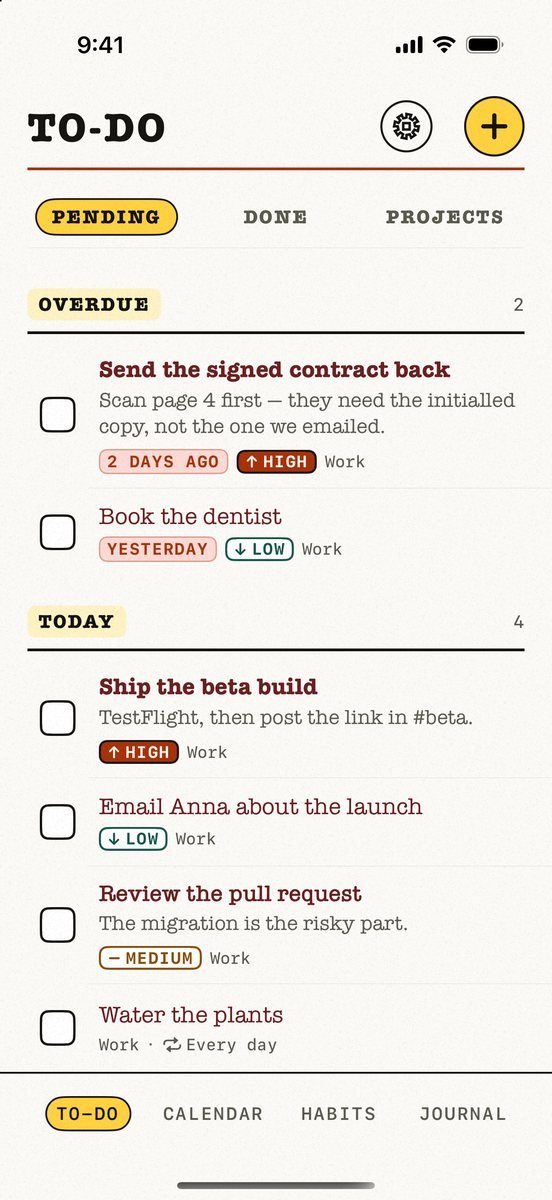
- Best for
- Anyone who wants the whole day — tasks, appointments, habits and a diary — behind one icon, with nothing to pay and nothing to sign up for.
- Highlights
- Four tabs — To-Do, Calendar, Habits, Journal — so the daily check is one app, not three.
- The Calendar tab holds your own appointments in the app. Your Apple or Google events can be layered on top as an optional, opt-in, read-only overlay you switch on in Settings; it is not merely a viewer for someone else's calendar.
- Habits take real schedules (daily, weekdays, N times a week, every N days), and the streak forgives a day the habit was never scheduled for. There is a month history grid and a 365-day record strip.
- The Journal is a plain private diary: bold and italic apply live as you type, you browse month by month, and you can search it.
- Apple Watch app, Home Screen and Lock Screen widgets, and Siri/Shortcuts App Intents. Sync runs through your own iCloud — no Kalend account, no server of ours, no analytics.
- Pricing
- Free; no subscription, no ads, no paid tier; the only purchase is an optional tip
- Platforms
- iPhone, iPad, Apple Watch, Mac and Apple Vision; iCloud sync. On the App Store since 17 August 2026, and it needs iOS 18 or later
- Watch out
- It is brand new — version 1.0 landed on 17 August 2026 — so there are no ratings and no reviews yet to judge it by. There is no timeline or time-blocking view, so if you plan by dragging blocks around a day, Structured does that and this does not. Apple platforms only: no Android, no web, nothing shared with a partner or a team, no natural-language capture out of your email, and the habit statistics are deliberately plain.
Apple Calendar + Reminders + Journal (built in)
- Best for
- Nearly everyone starting out — it is already on the phone, and since iOS 18 the two halves finally talk to each other.
- Highlights
- Scheduled reminders appear inside the Calendar app: tap Calendars at the bottom, then switch on Scheduled Reminders. Timed ones land at their time, all-day ones sit in the strip at the top.
- You can create a reminder without leaving Calendar — the + button at the top offers Event or Reminder. Deleting it from Calendar does not delete it from Reminders.
- iOS 26 adds capture routes that skip the app entirely: a Reminders button in Control Centre and on the Action button, and Apple Intelligence can suggest reminders from text or a web page you share to it.
- Journal is free, runs on iPhone, iPad and Mac, and its Insights view tracks a journaling streak and the days you wrote. Writing time is logged to Health as Mindful Minutes.
- Auto-Categorize sorts a long list into sections on its own, if you have Apple Intelligence; iOS 26.2 adds urgent reminders that fire an alarm even on silent or through a Focus.
- Pricing
- Free, built in; no purchase, no extra account
- Platforms
- iPhone, iPad, Mac, Apple Watch (Journal: iPhone, iPad, Mac)
- Watch out
- It is still three apps with three icons, and there is no habit tracking anywhere in it — the only streak Apple counts is the journaling one, not "went for a walk". Several of the newer capture tricks are Apple Intelligence features, so they need a recent iPhone; on an older handset you are back to typing.
Structured
- Best for
- People who need to see the day as a vertical timeline and drag blocks around it, rather than read a list.
- Highlights
- The free tier gives you the drag-and-drop timeline itself, an Inbox for catching stray ideas, sub-tasks with notes, a Pomodoro timer, Live Activities and interactive widgets.
- Free sync across iPhone, iPad, Mac and Apple Watch — the cross-device part is not paywalled.
- Colour coding and per-task icons make the timeline readable at a glance, and it ships with VoiceOver, Voice Control and a dyslexia-friendly font.
- Widely used and actively maintained — tens of thousands of ratings on the App Store and updates landing monthly.
- Pricing
- Free tier plus a subscription (monthly, yearly, or a one-off lifetime unlock)
- Platforms
- iPhone, iPad, Mac, Apple Watch, Apple Vision
- Watch out
- The one thing most people install it for is not free: connecting your Apple Calendar and Reminders is a Pro feature, per Structured's own App Store listing. So is anything recurring — repeating tasks and routines — along with automatic rescheduling of missed tasks and the AI planning. On the free tier you are hand-typing today into a second app every morning, which is the opposite of what you wanted.
TickTick
- Best for
- Someone who wants tasks, a habit tracker and a focus timer under one roof and syncing to a laptop or an Android phone too.
- Highlights
- Habit tracking with streaks sits in the same app as the task list, so one open covers both.
- Built-in Pomodoro timer, recurring tasks, subtasks and checklists.
- Genuinely cross-platform — iPhone, iPad, Apple Watch, Mac and the web — which the Apple-only options here are not.
- Actively developed, with updates shipping every few weeks and a large, long-standing user base.
- Pricing
- Free tier plus a subscription
- Platforms
- iPhone, iPad, Apple Watch, Mac, web, Android, Windows
- Watch out
- The calendar is where the free tier bites. TickTick's own App Store listing puts subscribing to external calendars and the grid calendar view behind Premium, and TickTick's blog puts task duration — setting both a start and an end time — there too, which is to say time blocking is the paid feature. The same listing caps the free tier at five habits, so the habit tracker runs out sooner than you would expect. Statistics and custom smart lists are Premium as well, attachments are capped hard on free, and there is no journal or reflection side at all. Everything also lives on TickTick's servers under a TickTick account.
Habitica
- Best for
- People who bounce off ordinary habit trackers and need the streak to cost them something — here, a health bar.
- Highlights
- Habits, dailies and to-dos are all first-class, and habits can be ticked more than once a day or scored negatively.
- Genuinely open source — the codebase is public on GitHub, and there are community self-hosted forks.
- Actively maintained in 2026, with seasonal content and server fixes still shipping.
- The core loop — habits, streaks, levelling, gold — works without paying; the subscription buys cosmetics, gems and convenience rather than the tracker itself.
- Pricing
- Free and open source, with an optional subscription and one-off gem purchases
- Platforms
- iPhone, iPad, Apple Vision, Android, web
- Watch out
- The game is the point and also the problem: you are managing an avatar, parties and quests on top of managing your life, and plenty of people quietly stop. On Apple hardware it is iPhone and iPad only — no Apple Watch app — and it does nothing for appointments or reflection, so it is an addition to your setup rather than a replacement for it. Its App Store rating is noticeably softer than the others here, in the high threes.
Day One
- Best for
- The reflection half of the routine, if Apple's Journal feels too thin and you want prompts, search and proper structure.
- Highlights
- The free Basic plan takes unlimited text entries and unlimited journals — the cap is on media and devices, not on writing.
- End-to-end encryption is on every plan, including the free one, per Day One's own pricing page.
- Daily prompts, a calendar and streak view, and location and weather stamped onto entries.
- Long-established and still updated constantly; now owned by Automattic.
- Pricing
- Free tier plus a subscription (two paid tiers)
- Platforms
- iPhone, iPad, Apple Watch, Mac, Apple Vision, Android, web
- Watch out
- The free plan syncs to one device and allows one photo per entry. That means your diary is stranded on the phone — no reading it on the Mac, and a thin safety net if the phone goes in a lake — unless you subscribe. Note too that the price differs between Day One's website and the App Store listing, so check in-app before assuming a figure.
Finch
- Best for
- Someone whose day plan keeps failing for motivational rather than organisational reasons — it handles the small habits and the reflection in one gentle place.
- Highlights
- Goals and daily self-care tasks work like a habit tracker, with the streak feeding a virtual bird you raise.
- Guided bullet-journal prompts, a mood tracker, breathing exercises and sleep wind-downs cover the reflection gap.
- No ads in the free version — the money comes from the Finch Plus subscription, not advertising.
- Very heavily used and updated constantly — tens of thousands of ratings and releases landing within hours.
- Pricing
- Free tier plus a subscription (Finch Plus)
- Platforms
- iPhone, iPad, Apple Vision, Android
- Watch out
- It is a self-care app, not a planner: there is no calendar, no appointments, and nothing that will tell you when your 2pm is. The pet framing and the nudging are genuinely divisive — if being asked how you are feeling by a bird irritates you, you will delete it in a week. Some goal organisation, such as grouping goals into journeys, sits behind Finch Plus.
What to install, and in what order
The pattern across this category is easy to miss until you have paid for the wrong thing twice: the free tiers are generous with the parts that are cheap to build and stingy with the one part you came for. Structured gives away the timeline and charges for connecting it to your calendar. TickTick gives away the task list and charges for putting a start and an end time on a task, which is time blocking under another name. Day One gives away unlimited writing and charges for reading it on a second device.
So work in this order. Run the stock routine for two weeks first — it is free, it is already installed, and for a lot of people the Scheduled Reminders toggle alone is the whole fix. Then name the specific thing that broke. If it was habits, add one tracker and leave the rest alone. If it was reflection, Day One or Finch. If it was that you plan by dragging blocks around, Structured is the only one here that does that, and you will probably end up paying for Pro.
If what broke was the three-icons problem — you check two apps and quietly abandon the third — then an all-in-one is the honest answer, and that is what Kalend is: four tabs, your own iCloud, no account, no ads, no paid tier. The trade-off we would state plainly is that it has no timeline view at all, it is Apple-only with no Android or web version, and it is brand new — free on the App Store since 17 August 2026, with no ratings or reviews yet to check it against. If any of those matter to you, one of the other six is a better bet this week.
Common questions
Can you plan your whole day on an iPhone without paying for anything?
Yes, for appointments and tasks. Calendar and Reminders now share one view, and Journal covers reflection, all at no cost. The gap is habit tracking, which nothing built into iOS does, and the fact that you are opening three apps instead of one.
How do I see my reminders inside Apple Calendar?
Open Calendar, tap Calendars at the bottom of the screen, and switch on Scheduled Reminders. Reminders with a time appear at that time in the day view; all-day ones sit in the strip along the top. Deleting a reminder from Calendar does not remove it from the Reminders app.
Is there a free daily planner app for iPhone with no ads?
Apple's own apps carry no ads and cost nothing. Of the third-party options here, Kalend is free with no ads and no paid tier at all, and Finch's free version carries no ads either. Structured, TickTick and Day One are ad-free too, but keep their best planning features behind a subscription.
How do I do time blocking on an iPhone for free?
The free method is to create real calendar events rather than tasks: give each block a start and end time in Apple Calendar and let the day view show the gaps. Structured's free tier gives you a drag-and-drop timeline, but connecting it to your calendar and reminders is a Pro feature, and TickTick charges for setting both a start and an end time on a task.
Can Apple Reminders track habits?
Not really. A repeating reminder will nag you daily, but ticking it off leaves no record you can look back at, so there is no streak and no history. The only streak Apple counts anywhere is the writing streak in Journal's Insights view.
Do I need three separate apps, or can one do the whole day?
Three apps is workable if you check them in a fixed order every morning. If the checking is what keeps failing, an all-in-one is worth trying: Kalend puts tasks, calendar, habits and a journal in one app for free, and TickTick covers tasks, habits and focus on its free tier, though not the calendar.
Is Structured's free version enough on its own?
Only if you are happy retyping the day. The free tier includes the timeline, the inbox, sub-tasks and a Pomodoro timer, but calendar and reminders integration is Pro, and so are repeating tasks and routines. Without those you are hand-entering the same events every morning.
Which free planner keeps my data private?
Apple's apps and Kalend both sync through your own iCloud rather than a company server, and Kalend has no account and no analytics. Day One encrypts entries end to end on every plan including the free one. TickTick, Habitica and Finch all store your data on their servers behind an account.
Published · Updated · No affiliate links











 MMA.
MMA. Trending
 Bold
Bold Top
Top