Disclosure: Jotter is ours.
Short answer
The fastest route is a Lock Screen control or the Action button, set to open a new note: one press and you are typing. Apple Notes’ Quick Note does this for free. Our pick is Jotter, whose New Note control opens a blank page with the keyboard up, and whose Siri phrase — “Jot down in Jotter” — saves a note without opening the app at all.
The thought arrives at the worst moment: at the till, at a red light, half asleep. The seconds between “I need to write this down” and actually typing are where most notes get lost, and on a default iPhone there are a lot of them — unlock, find the app, wait, tap the new-note button, then type.
Almost all of that can be set up away, once. Below are seven shortcuts, fastest first. Each works with Apple Notes, and most work with any notes app that supports iOS controls, widgets and Siri. After that, four apps built for fast capture.
Seven shortcuts, fastest first
- Put a note button on the Lock Screen. Since iOS 18 the two buttons at the bottom of the Lock Screen can be anything. Touch and hold the Lock Screen, tap Customize, then Lock Screen, remove the torch or camera button and add a note control — Quick Note from Notes, or any notes app that offers one. It is the one shortcut you can find without looking.
- Give the Action button to notes. On iPhone 15 Pro and later models, open Settings → Action Button, swipe to Controls, and choose a new-note control. One press on the side of the phone, and you are typing.
- Add it to Control Center. Swipe down from the top-right corner, tap +, then Add a Control, and search for “note”. Notes offers Quick Note; other apps list their own.
- Double-tap the back of the phone. Settings → Accessibility → Touch → Back Tap → Double Tap, then pick a shortcut that opens a new note. Notes apps that support Shortcuts list a new-note action you can build one from.
- Say it. “Make a note” sends dictation to Apple Notes. Apps that support Siri shortcuts add their own phrases.
- Use a widget. A Home Screen widget that opens straight to a new note saves the tap on the app’s new-note button. Put it on the first page, bottom row, where your thumb already is.
- Send, don’t switch. For a link, a photo or a paragraph you are already looking at, tap Share in that app and send it to your notes app, into a new note or one that already exists.
Two settings make the Lock Screen route better. In Settings → Apps → Notes, Access Notes from Lock Screen lets you start a new note without unlocking — it saves, while your other notes stay hidden. And on iPad, a swipe up from the bottom-right corner with Apple Pencil (or a finger, if corner gestures are on) opens Quick Note over whatever you are doing.
Notes made with Quick Note on iPhone land in their own Quick Notes folder. Check it now and then, or they pile up out of sight.
At a glance
| App | Best for | Pricing |
|---|---|---|
| Jotter (ours) | A notes app that is ready before you finish the thought | Free, nothing locked |
| Apple Notes | Free, fast capture that is already on your phone | Free, built in |
| Drafts | People who capture text first and decide where it goes later | Free tier plus subscription |
| Google Keep | Quick lists shared with people on Android | Free (Google account) |
The apps in detail
Jotter
Ours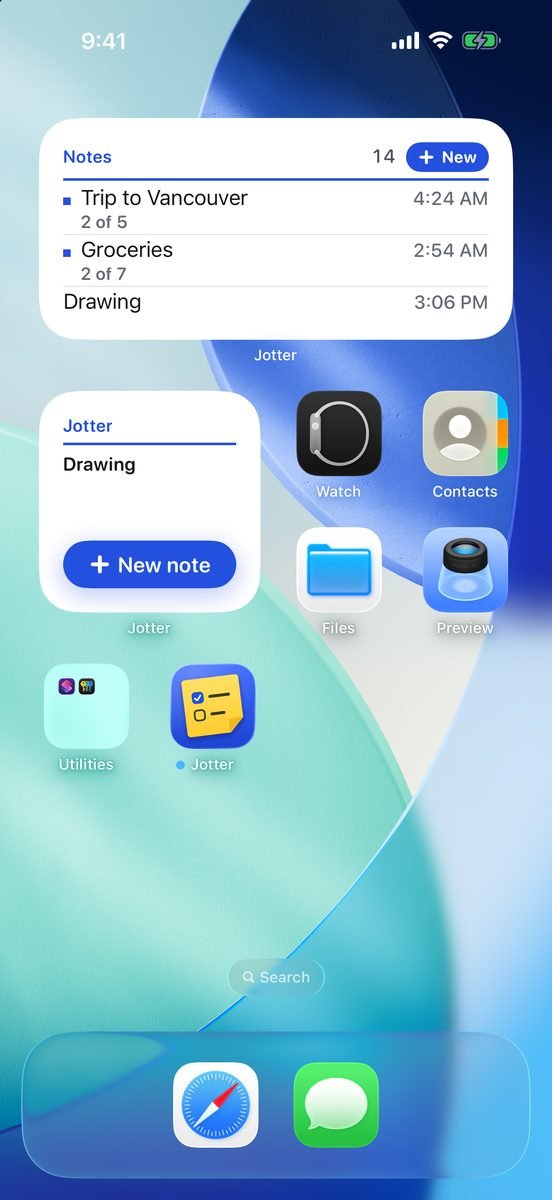
- Best for
- A notes app that is ready before you finish the thought
- Highlights
- A New Note control for Control Center, the Lock Screen or the Action button, opening a blank page with the keyboard up
- “Jot down in Jotter” asks Siri for the words and saves the note without opening the app; “Add to a note in Jotter” appends to one you already have
- New-note widgets for the Home Screen and Lock Screen, and a Share button that saves into a new or existing note
- Hold New Note for handwriting, a scan or a voice note, and a separate New list button starts a checklist
- Pricing
- Free, no subscription — an optional tip in Settings unlocks nothing
- Watch out
- No Apple Watch app, and nothing outside iPhone and iPad for now.
Apple Notes
- Best for
- Free, fast capture that is already on your phone
- Highlights
- Quick Note control for Control Center, the Lock Screen and the Action button
- New notes from the Lock Screen without unlocking, if you allow it
- “Make a note” works with Siri
- Records audio with a live transcript on iPhone 12 and later
- Pricing
- Free, built in
- Watch out
- Quick Note opens a small sheet rather than the full app, and its notes land in a separate Quick Notes folder that is easy to forget.
Drafts
- Best for
- People who capture text first and decide where it goes later
- Highlights
- Opens to a new, blank draft every time
- Apple Watch and Mac apps for capture anywhere
- Actions send text on to other apps, email or files
- Free for capture
- Pricing
- Free; Drafts Pro is $1.99 a month or $19.99 a year
- Watch out
- Drafts is an inbox rather than an archive: the idea is to move text on to other apps, which is one more step if you just wanted a notes app. Custom actions and extra widgets are Pro.
Google Keep
- Best for
- Quick lists shared with people on Android
- Highlights
- Home Screen widgets for your notes and lists
- Checklists, labels and reminders by time or place
- The same notes on Android and the web
- Free
- Pricing
- Free, with a Google account
- Watch out
- Needs a Google account, and opening it lands on your notes rather than on a blank page.
The habit matters more than the app
Any of these routes beats hunting for an icon. Pick one — the Lock Screen button is the easiest to remember — and use it for a week before adding a second. The goal is that capturing a thought takes less effort than remembering it.
Common questions
How do I make a quick note on iPhone?
Swipe down from the top-right corner and tap Quick Note in Control Center. If it is not there, tap +, then Add a Control, and search for “note”. You can also put a note button on the Lock Screen, or say “Make a note” to Siri.
Can I take a note without unlocking my iPhone?
With Apple Notes, yes. Turn on Access Notes from Lock Screen in Settings → Apps → Notes, and you can start a new note from the Lock Screen while your other notes stay hidden.
Where do Quick Notes go on iPhone?
Into a folder called Quick Notes in the Notes app.
What is the fastest note-taking app for iPhone?
Drafts and Jotter both open straight to a blank page ready for typing, and Jotter can also save a note through Siri without opening at all. The fastest free option already on your phone is Apple Notes’ Quick Note.
Published · No affiliate links











 MMA.
MMA. Trending
 Bold
Bold Top
Top