Disclosure: Jotter is ours.
Short answer
In Apple Notes, tap the checklist button above the keyboard and every line you type becomes a box. For shopping, a Reminders list with its type set to Groceries sorts items into aisles for you. Our pick for speed is Jotter: tap New list, or type [] and a space at the start of any line, and you have a checkbox — and ticked items sink below what is still to do.
The iPhone has two built-in places for a checklist, and they are good at different things. Notes is for a list that lives inside something — a packing list under the trip details, the steps under a recipe. Reminders is for a list of things to do, with dates, places and, since iOS 17, a grocery mode that sorts by aisle.
Here is how to make one in each, the settings worth changing, and a faster way to start a list when you are typing anyway.
In Apple Notes
- Start the list. Open a note and tap the checklist button in the toolbar above the keyboard. Type an item and press Return for the next box; press Return on an empty line to stop.
- Tick, reorder, indent. Tap a circle to tick it. Touch and hold an item to drag it somewhere else, and swipe right on it to indent it under the one above.
- Send ticked items to the bottom. In Settings → Apps → Notes → Sort Checked Items, choose Automatically. Done items sink, and what is left stays at the top.
- Share it. Tap the Share button and invite people to collaborate. Everyone can tick items off the same list.
In Reminders, for shopping
- Make a grocery list. Tap Add List, name it, and set List Type to Groceries (iOS 17 and later, with iCloud turned on for Reminders).
- Add items and let it sort. Milk goes to Dairy, apples to Produce. Drag anything it misfiles into the right section.
- Share the list so the whole household adds to it and ticks from it.
- Find what you ticked. Completed items are hidden by default; tap the More button and choose Show Completed.
The faster way: type the box
Both of those start with a button. If you are already typing, reaching for the toolbar breaks the flow. In Jotter you type [] and a space at the start of a line and it becomes a checkbox; - and a space makes a bullet, and # a heading. Tick one and it fills, strikes through and then sinks below what is still to do, and the note list shows how many are done, like “2 of 7”. Untick all resets the list for next week, and Clear ticked empties it.
At a glance
| App | Best for | Pricing |
|---|---|---|
| Jotter (ours) | Starting a list in one tap, or without reaching for a toolbar at all | Free, nothing locked |
| Apple Notes | Checklists inside notes, shared with family | Free, built in |
| Apple Reminders | Grocery lists and anything with a due date | Free, built in |
| Google Keep | Shared lists between iPhone and Android | Free (Google account) |
| AnyList | Households who shop from recipes | Free tier plus subscription |
The apps in detail
Jotter
Ours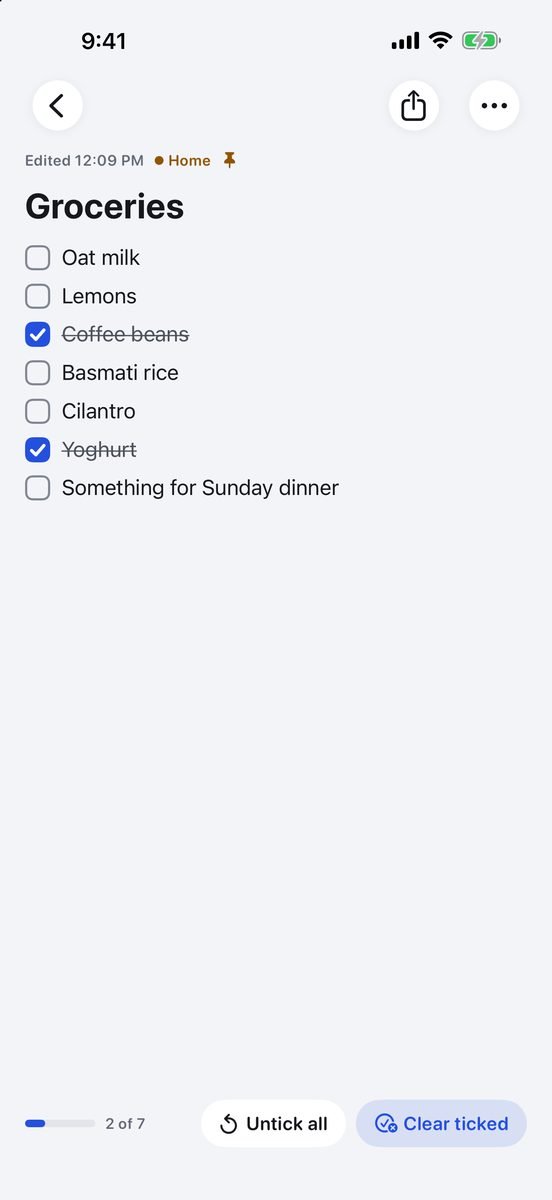
- Best for
- Starting a list in one tap, or without reaching for a toolbar at all
- Highlights
- Tap New list, or type
[]and a space at the start of a line - Tick an item and it fills, strikes through and sinks below what is still to do — there is a setting if you would rather it stayed put
- The note list and widget show progress, like “2 of 7”
- A list can sit in a note with text, photos and handwriting, and it is free with no account
- Tap New list, or type
- Pricing
- Free, no subscription — an optional tip in Settings unlocks nothing
- Watch out
- Items have no due dates of their own — a note can carry one reminder, but for per-item deadlines use Reminders.
Apple Notes
- Best for
- Checklists inside notes, shared with family
- Highlights
- A checklist button above the keyboard
- Ticked items can sort themselves to the bottom
- Share a note so others can tick items with you
- Drag to reorder, swipe to indent
- Pricing
- Free, built in
- Watch out
- A checklist here is formatting, not a to-do list: items have no dates or reminders of their own.
Apple Reminders
- Best for
- Grocery lists and anything with a due date
- Highlights
- Groceries lists sort items by aisle automatically
- Due dates, locations, priorities and subtasks
- Shared lists for the household
- Siri adds items hands-free
- Pricing
- Free, built in
- Watch out
- Completed items disappear from view by default, which is confusing on a packing list you want to see all of. Groceries sorting needs iCloud.
Google Keep
- Best for
- Shared lists between iPhone and Android
- Highlights
- Checklist cards with drag-to-reorder
- Share with anyone who has a Google account
- Reminders by time or place
- Free
- Pricing
- Free, with a Google account
- Watch out
- Needs a Google account, and lists live on Google’s servers.
AnyList
- Best for
- Households who shop from recipes
- Highlights
- Sorts items by store category
- Shared lists that update live for everyone
- Recipes that add their ingredients to the list
- Apple Watch app
- Pricing
- Free; AnyList Complete is a paid upgrade
- Watch out
- Built for shopping and recipes, so it is the wrong tool for packing lists or to-dos, and several of its most useful extras need AnyList Complete.
Which to use when
- A list inside a note — packing, a recipe, a project: Apple Notes, or Jotter if you want to start one in a single tap.
- Groceries: Reminders with the Groceries list type, or AnyList if you cook from recipes.
- Anything with a deadline: Reminders. A checklist in a notes app does not nag you, and that is sometimes exactly why you want one.
Common questions
How do I make a checklist in Notes on iPhone?
Open a note and tap the checklist button above the keyboard. Every line you type becomes a box you can tick.
How do I add checkboxes in Notes on iPhone?
Open a note and tap the checklist button in the toolbar above the keyboard. Each line you type becomes a checkbox; press Return on an empty line to stop the list.
How do I sort checked items in iPhone Notes?
Go to Settings → Apps → Notes → Sort Checked Items and choose Automatically.
Can I share a checklist on iPhone?
Yes. In Notes, tap Share and invite people to collaborate on the note. In Reminders, share the list itself, and everyone can add and tick items.
What is the best app for a grocery list on iPhone?
Reminders, with the list type set to Groceries: it is free, sorts by aisle and shares with the household. AnyList is the specialist if you shop from recipes.
Published · Updated · No affiliate links











 MMA.
MMA. Trending
 Bold
Bold Top
Top