Disclosure: Jotter is ours. The advice works with any app, or with pen and paper.
In short
Our pick is Jotter (ours, free): start a list in one tap, ticked items sink below what’s left, and Untick all resets it for next week. For a list the household shares, use what’s built in: Reminders sorts groceries by aisle, and Notes shares a checklist inside a note. AnyList and Google Keep also do shared lists, and Packr does packing.
- Same list every week? Pick an app that resets it, not one that files it away.
- Sharing with family? Reminders or Notes, both free and built in.
- Grocery list that sorts by aisle: Reminders, with the list type set to Groceries.
At a glance
Seven list apps for iPhone and the job each does best. Jotter is first because it’s ours, and every app, ours included, gets a “Watch out” below. Prices are a model, not a number, because numbers change.
| App | Best for | Price model |
|---|---|---|
| Jotter (ours) | Lists you reuse every week: groceries, packing, the weekly clean | Free, no subscription; an optional tip unlocks nothing |
| Apple Notes | A checklist inside a note, shared with family | Free, built in |
| Apple Reminders | Grocery lists sorted by aisle, and lists with dates | Free, built in |
| AnyList | Households who shop together and cook from recipes | Free, with an optional yearly AnyList Complete subscription |
| Microsoft To Do | Lists with due dates, if you live in Outlook | Free |
| Google Keep | Shared checklists that also open on the web | Free |
| Packr | Packing lists built from your trip | Free with ads; Premium is an in-app purchase |
Apple Notes checklists
Apple Notes
Notes is already on your iPhone. Open a note, tap the Checklist button and type an item; every return adds the next one. Tap the empty circle to tick it. Drag items to reorder them, and swipe right on one to indent it under the item above.
To keep finished items out of the way, go to Settings → Apps → Notes → Sort Checked Items and choose Automatically.
Sharing is where Notes shines: tap Share and invite people to collaborate, and everyone sees the list change as it happens. They need to be signed in to an Apple Account with Notes on in iCloud, and a locked note can’t be shared this way. Full steps: make a checklist in Notes on iPhone.
Best for: A list that belongs inside something else, like the packing list under the trip details, shared with family on iPhones.
Watch out: A checklist is formatting inside a note, so an item can’t have its own date or alert, and your lists sit among all your other notes.
Reminders lists
Apple Reminders
From iOS 17, a Reminders list can have the type Groceries: add a list, name it, tap List Type and choose Groceries. Items then sort themselves into categories such as Produce, Meat and Frozen Foods. Drag a misfiled item to the right section and the list remembers next time. Groceries lists need iCloud turned on for Reminders. Step by step: how to make a grocery list on iPhone.
A ticked item disappears from the list. Tap the More button and choose Show Completed to see it again, or Clear to delete what’s done.
Share a list and the people who accept can add, edit and tick items, and you can assign one to someone by typing @ and their name. Everyone needs an Apple Account with Reminders on in iCloud.
Best for: Grocery lists that sort by aisle, shared with the household, and anything with a date, time or place.
Watch out: Ticked items are hidden by default: handy in the shop, confusing on a packing list you want to see whole. Grocery sorting needs iCloud and a language Apple supports.
Apple Reminders on the App Store
Jotter (ours): lists that reset
Jotter
Jotter is our notes app, and lists are what it does best. Tap New, then List, name it, and every return adds the next item. Or type [] and a space at the start of any line.
Tick an item and it fills, strikes through and, a moment later, sinks below what’s still to get (a switch in Settings, under Lists, turns that off). A bar under the list shows your progress with Untick all, which empties every box for next week, and Clear ticked, which removes what you’re done with and can be undone.
While a list with items left is open, the screen stays on, so it doesn’t lock between aisles (also a switch). The notes list shows each list’s progress, like “2 of 7”, and every list gathers under Checklists. There is no account: lists stay on your device and sync between your own iPhone and iPad through your iCloud. More on the Jotter page.
Best for: Lists you use again and again, like groceries, packing or the weekly clean, with nothing to sign up for.
Watch out: No shared lists. Jotter syncs only between your own devices, so you can send a copy as text or a PDF, but two people can’t tick the same list. Items have no dates; a note can carry one reminder, and it doesn’t repeat. iPhone and iPad only, on iOS 18 or later.
Other list apps worth a look
AnyList
Built for household grocery lists. Share one with your partner or housemates and watch items get ticked off as they shop. Lists sort into categories like Produce, Dairy and Deli that you can rearrange to match your store, and recipes turn into a shopping list in one tap.
Best for: Families who shop together and cook from recipes.
Watch out: Much of what the listing advertises, including the meal-planning calendar, photos on items and the Mac, PC and Apple Watch apps, is in AnyList Complete, a paid subscription with individual and household plans.
Microsoft To Do
A free app for shopping lists and task lists, with My Day for planning today, steps inside a task, one-time or repeating due dates, and lists you can share. Emails you flag in Outlook show up as tasks.
Best for: People already in Outlook or Microsoft 365 who want lists with dates.
Watch out: Your lists are hosted on Microsoft 365, and it’s a task app first: more than you need for a shopping list you tick and reset.
Microsoft To Do on the App Store
Google Keep
Notes and checklists with labels and colours, reminders by time or place (your grocery list can pop up at the store), and shared lists you can watch get ticked off live. It works on phones, tablets, computers and the web.
Best for: Sharing a list with someone who isn’t on an iPhone, since it runs in a browser too.
Watch out: Your lists live with Google, and the App Store privacy label lists data linked to you, including location, contact info and what you write.
Packr
A packing-list app: give it your destination, dates and activities and it builds the checklist, and some quantities adjust to how long you’re staying. You can make your own lists, assign items to a bag, filter by traveller, and share or print the checklist.
Best for: Trips, when you want a packing list built for where you’re going.
Watch out: The free version contains ads, Premium is an in-app purchase (monthly and lifetime options are listed), and the privacy label says some data may be used to track you.
A list app or a to-do app?
The difference shows when you tick something. A to-do app is for tasks with deadlines, like calling the dentist by Friday: tick it and it’s filed away as done. A list app is for things you need again, like groceries or packing: next week you untick it and start over.
If most of what you write down has a date, compare the best free to-do list app for iPhone instead. If you want lists inside your notes, see our best notes app for iPhone guide. Plenty of people use both: a to-do app for anything dated, a list app for what they buy or pack.
Reusing a checklist every week
The habit that saves the most time: stop making new lists. Make each one once, keep it, and reset it.
- One list per job. Groceries, Packing, Weekly clean. Put everything on it in the order you’ll get to it, like your store’s aisles.
- Let finished items move. Jotter sinks them, Notes does with Sort Checked Items on, and Reminders hides them.
- Reset, don’t rewrite. In Jotter, tap Untick all. In Notes, untick the items; Apple’s guide suggests unchecking everything to start over. In Reminders, choose Show Completed, then tap the filled circles.
- Keep a master copy for lists that change. In Jotter, More → Duplicate opens a copy, ticks included; Untick all on the copy and edit it for this trip.
- Add things the moment you run out, and pin the list so it’s one tap away.
- Prune monthly. Delete what you no longer buy. Clear ticked in Jotter, or Clear in Reminders, removes finished one-offs.
Where these facts come from
Checked on 21 October 2026. Apple Notes and Reminders: Apple Support’s Create a checklist with Notes, Share notes and collaborate on iPhone, If you can’t collaborate in the Notes app, Create grocery lists in Reminders, Complete items in Reminders and Share lists and collaborate in Reminders. AnyList, Microsoft To Do, Google Keep and Packr: their App Store listings. Jotter: its App Store listing (version 1.3) and the app itself. Features and prices change, so check the listing before you rely on one.
How to make a list you reuse in Jotter
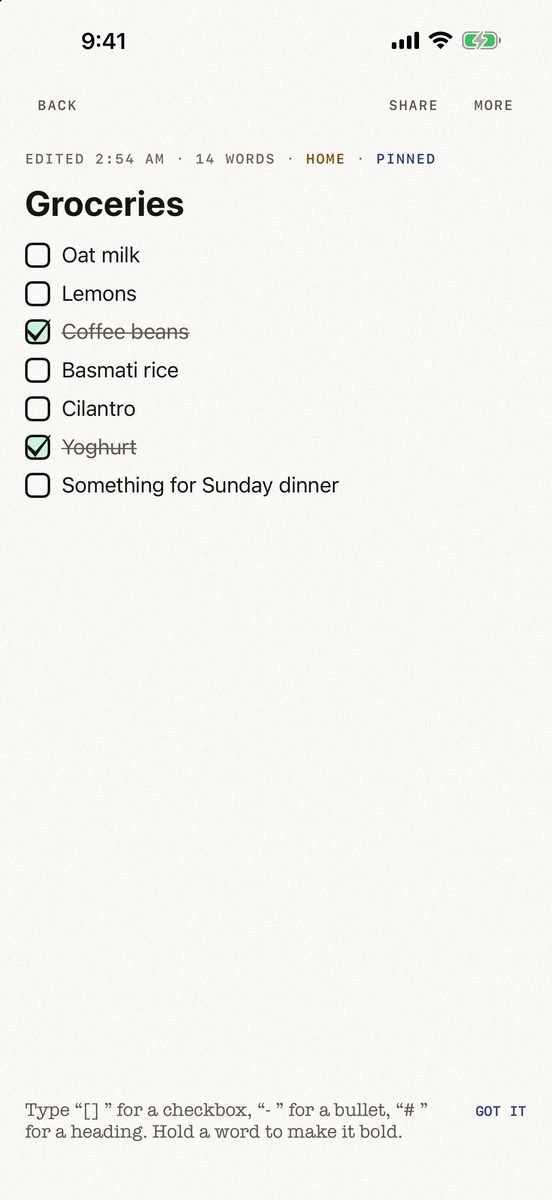
- Tap New, then List. Name it and press return. Every return adds the next item. Or type [] and a space at the start of any line.
- Tick as you shop. A ticked item fills, strikes through and sinks below what’s still to get. The screen stays on while items are left.
- Reset it for next week. Tap Untick all under the list. Clear ticked removes what you’re done with instead, and you can undo it.
- Keep a master copy. For packing lists, open the More menu and tap Duplicate, then untick the copy. Pin the lists you use every week.
Jotter is free, with no account, no subscription and no ads, on iPhone and iPad with iOS 18 or later. Lists sync between your own devices through your iCloud. They can’t be shared for someone else to tick.
Common questions
What is the best list app for iPhone?
For lists you reuse, Jotter (ours, free): ticked items sink and Untick all resets the list. For lists the family shares, Reminders and Notes are built in, and AnyList and Google Keep are made for it.
What is the best free checklist app for iPhone?
Apple Notes and Reminders are free and already installed. Jotter is free with nothing locked, and Google Keep and Microsoft To Do are free too. AnyList and Packr have paid upgrades.
How do I reuse a checklist on iPhone?
Untick it instead of making a new one. In Jotter, tap Untick all. In Reminders, tap More, choose Show Completed and untick the items. In Notes, untick the items to start over.
Can I share a list on iPhone?
Yes. In Notes, tap Share and invite people to collaborate; in Reminders, share the list and everyone can add and tick items. Both need an Apple Account with iCloud. Jotter can’t share a list for others to tick; it sends a copy as text or a PDF.
Is there a list app without an account?
Jotter has none: lists stay on your device and sync through your own iCloud. Notes and Reminders use the Apple Account already on your iPhone. AnyList, Google Keep and Microsoft To Do keep your lists on their makers’ servers.
Published · No affiliate links










 MMA.socialUFC fan ratings
 Trending
 Bold
Bold Top
Top