Disclosure: Jotter is ours. The advice works with any app, or with pen and paper.
In short
Keep one grocery list and reuse it: add items as you run out, tick them off in the store, then untick everything next week. Apple Notes and Reminders both do checklists; Jotter makes it a one-tap list where ticked items sink to the bottom.
- One list, reused every week.
- Add items the moment you run out.
- Order it by the store’s aisles.
In Apple Notes
Open Notes, start a note, tap the checklist button and type an item; press return for the next. Tap the circles to tick them off in the store.
In Reminders
Create a list called Groceries and add items. Reminders can sort a grocery list into sections for you, and you can share the list with family.
Make it faster every week
- Keep the list pinned so it’s always one tap away.
- Add things when you use the last one, not when you’re at the store.
- Order the list like your store: produce, dairy, frozen.
- Reuse it: untick everything instead of starting over.
How to do it in Jotter
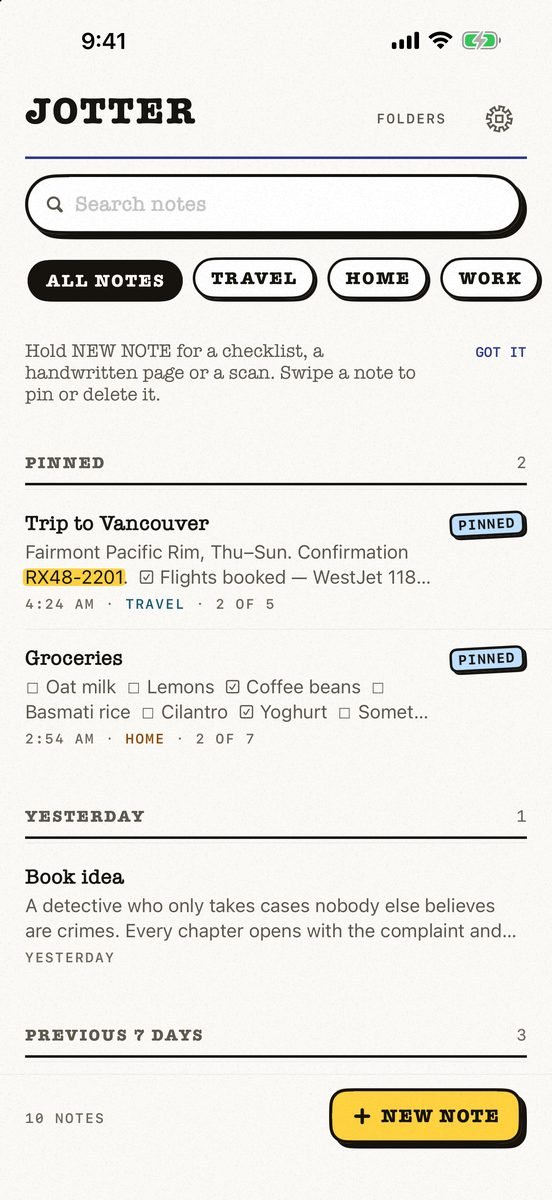
- Tap New, then list. Name it, press return, and every return adds the next item.
- Tick in the store. A ticked item fills, strikes through and sinks below what is still to get.
- Reuse it next week. Untick the lot and start again — and finish a list for a little burst of confetti.
- Add from anywhere. A New note widget, a Control Center button, or Siri: “Jot down in Jotter”.
Jotter is free, with no account and no ads. Pin the grocery list so it’s always at the top.
Common questions
How do I make a grocery list on my iPhone?
Use a checklist in Notes, a list in Reminders, or a list in Jotter — and reuse it every week.
Can I share a grocery list on iPhone?
Yes — Reminders and Notes lists can be shared with family through iCloud.
How do I reuse a checklist?
In Jotter, untick the whole list after shopping and it’s ready for next week.
Is Jotter free?
Yes — every feature is free, with no subscription and no ads.
Published · No affiliate links










 MMA.socialUFC fan ratings
 Trending
 Bold
Bold Top
Top