Disclosure: ScrollCop is ours. The advice works with any app, or with pen and paper.
In short
First check that App & Website Activity is on: Apple says the report only exists after you turn on Screen Time. In iOS 27 go to Settings → Screen Time → Manage Screen Time; if you see Turn On App & Website Activity, tap it. Then open the report from Daily Average (iOS 27) or See All App & Website Activity (iOS 26), and check Share Across Devices if the numbers include, or miss, your iPad or Mac.
- No report at all? App & Website Activity is probably off. Turning it off turns off reporting.
- Numbers look wrong? Share Across Devices mixes in every iPhone, iPad and Mac on your Apple Account.
- In iOS 27 the report is under Daily Average; in iOS 26 it’s under See All App & Website Activity.
First: which iOS is on the phone?
Apple renamed a lot of Screen Time in iOS 27, so the fix depends on your version. Check under Settings → General → About. iOS 27 has Screen Time Schedule, Time Allowances and Manage Screen Time. iOS 26 has Downtime, App Limits and See All App & Website Activity. The steps below give both.
Fix 1: turn on App & Website Activity
This is the switch behind the whole report. Apple’s iOS 26 guide says turning off App & Website Activity “turns off reporting”, along with Downtime, App Limits and Always Allowed. Apple’s iOS 27 guide says you get the weekly report “after you turn on Screen Time”.
- iOS 27: Settings → Screen Time → Manage Screen Time. If you see Turn On App & Website Activity, tap it. (The same button also shows under Screen Time Schedule and Time Allowances.)
- iOS 26: Settings → Screen Time → App & Website Activity → Turn On App & Website Activity.
Apple’s guides don’t say whether hours from before you turned it on come back, so expect the report to start from when it’s on.
Fix 2: look in the right place for the report
The report moved in iOS 27, which is why many people think it vanished.
- iOS 27: Settings → Screen Time → tap Daily Average, then Week or Day. Scroll down for Pickups and Notifications.
- iOS 26: Settings → Screen Time → See All App & Website Activity, then Week or Day.
Looking for an older week? Apple says you can swipe left and right on your summaries to see your history. For what each graph and number means, see how to read Screen Time on iPhone.
Fix 3: numbers wrong, or another device mixed in
Screen Time can add up every device on your Apple Account. Apple says that with Share Across Devices on, your Screen Time settings and usage data are shared across your iPhone, iPad and Mac signed in to the same Apple Account, and you can see your combined activity. That’s the usual reason the total is higher than your iPhone alone, or why a device seems to be missing.
- iOS 27: Settings → Screen Time → Manage Screen Time → Share Across Devices. Apple says this needs iOS 27, iPadOS 27, macOS 27, watchOS 27 or visionOS 27 or later on all your Apple devices, so update the iPad or Mac that isn’t showing up.
- iOS 26: Settings → Screen Time → Share Across Devices (you may need to scroll down). To see one device on its own, tap See All App & Website Activity → Devices and pick your iPhone.
Another device missing? Apple’s sync only covers devices signed in to the same Apple Account, so check each one under Settings → your name.
Fix 4: apps missing or shown in grey
Screen Time sorts your activity into categories like Entertainment and Creativity. Apple’s iOS 26 guide adds: “Screen Time activity that doesn’t fit into a category may appear grey in your Screen Time summary.” A grey slice isn’t lost time; it’s time that has no category. Switch between Day and Week too: an app you used once may only show up on the day you used it.
Fix 5: the widget or weekly report isn’t showing
Apple says the Screen Time widget shows information from your Screen Time summary, and the larger the widget, the more it shows. So if the report is empty, the widget will be too: do Fix 1 first. Missed the Screen Time Weekly Report notification? Apple says that if it disappears, you can find it in Notification Center. Tapping it opens your summary.
Not updating? What Apple doesn’t say
Apple’s guides don’t say how often the report refreshes, and they don’t list fixes for a report that seems stuck, so we won’t guess at a delay or a trick. What Apple does document: synced reports need the same Apple Account, Share Across Devices on, and version 27 or later on every device. If the stuck numbers are on your child’s iPhone, Apple’s family steps are in Screen Time not working on a child’s iPhone.
Where these steps come from
Checked on 21 November 2026 against Apple’s iPhone User Guide: Set up Screen Time for yourself on iPhone (iOS 27) and Get started with Screen Time on iPhone (iOS 26). The quotes above are Apple’s. Menu names change with updates; Apple’s guide has a version picker at the top if you’re on an older iOS.
Once the report works: ScrollCop
- Read the report. Find the two or three apps at the top of Most Used. Those are the ones worth a limit.
- Pick those apps in ScrollCop. Tap a tile, or “Choose from your phone” to open Apple’s Screen Time picker for apps and websites.
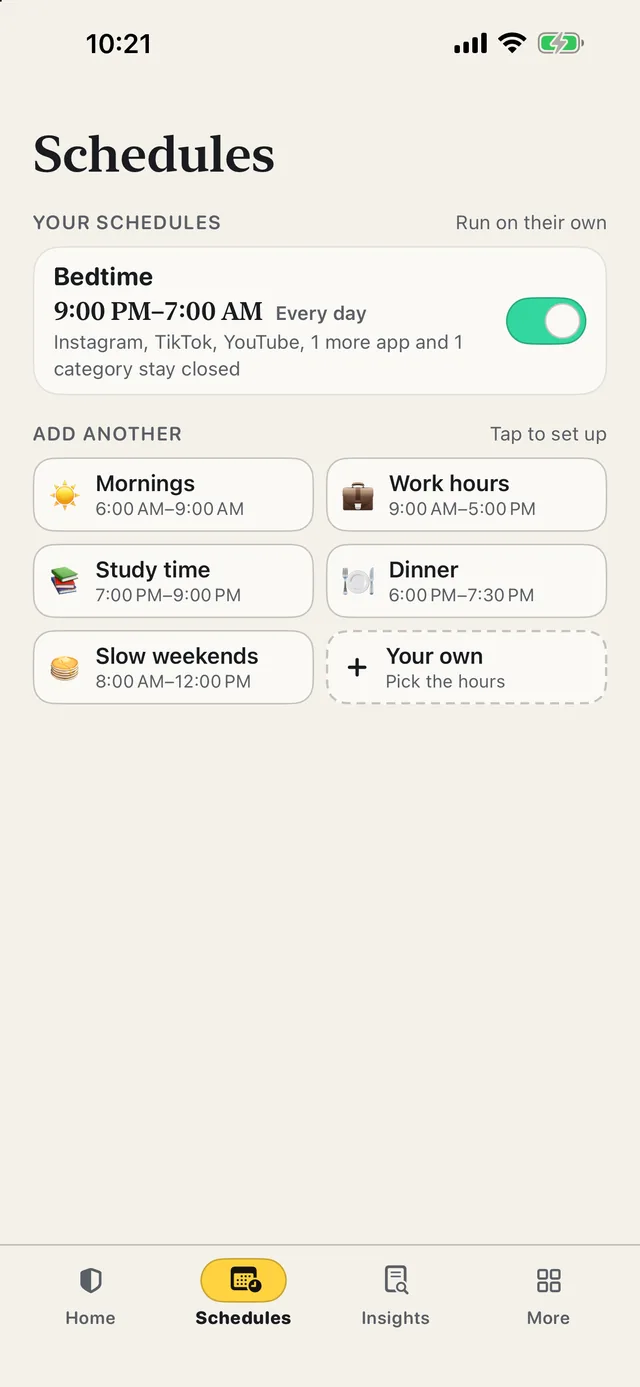
- Set a daily limit, a length or a schedule. A daily limit gives about 30 minutes of an app, then it closes until tomorrow. Or block for an evening, or on a Bedtime schedule every day.
- Pick who can end a block early. Nobody, a friend with a one-time PIN, a key at home (a code on your fridge or an NFC sticker), or Walk it off: 1,000 real steps.
ScrollCop 4.0 is free on the App Store, with no account, no subscription and no ads; optional tips only say thanks. It needs iOS 18 or later. It uses Apple’s Screen Time to block apps, but it doesn’t replace the Screen Time report: its Insights count the time you kept apps blocked, not your usage.
Common questions
Why is Screen Time not showing on my iPhone?
Most often App & Website Activity is off. Apple says turning it off turns off reporting. In iOS 27 go to Settings → Screen Time → Manage Screen Time and tap Turn On App & Website Activity if you see it; in iOS 26 it’s under Settings → Screen Time → App & Website Activity.
Why is Screen Time not showing apps or app usage?
Check that App & Website Activity is on, then open the report: Daily Average in iOS 27, See All App & Website Activity in iOS 26. Apple says activity that doesn’t fit into a category may appear grey, and switching between Day and Week shows different apps.
Why is my Screen Time showing the wrong device or wrong data?
With Share Across Devices on, Apple combines usage from every iPhone, iPad and Mac on your Apple Account. In iOS 26, tap See All App & Website Activity → Devices to see your iPhone alone; in iOS 27 the switch is under Manage Screen Time.
Why is Screen Time not updating on my iPhone?
Apple doesn’t document a refresh delay or a fix for a stuck report. For synced reports Apple says you need the same Apple Account, Share Across Devices on, and iOS 27 or later on every device (version 27 on iPad and Mac too).
Screen Time not showing up for my child?
Apple says you and your child each need your own Apple Account, with your child’s in your Family Sharing group, and every device updated. See our guide to Screen Time not working on a child’s iPhone.
Is ScrollCop free?
Yes. Every feature is free, with no subscription and no ads. There are optional one-time tips in Settings, and nothing is locked behind them.
Published · No affiliate links











 MMA.
 Trending
 Bold
 Top