Disclosure: ScrollCop is ours. The advice works with any app, or with pen and paper.
In short
iPhone’s own Downtime can schedule a block, but when you set it for yourself it comes with an “Ignore Limit” button. For a schedule that actually holds, use an app built on Screen Time with its own schedules — like ScrollCop, where each schedule blocks its own apps every day, even with the app closed.
- Pick the hours you actually lose, not the whole day.
- Give each time of day its own apps: YouTube at study time, everything at bedtime.
- Take away the easy way out — no Ignore button, or lock the schedule while it’s on.
Option 1: Downtime, built into iPhone
Open Settings → Screen Time → Downtime, turn on Scheduled, and pick the days and hours. During Downtime only the apps you allow can open.
It works well for children, because a parent holds the Screen Time passcode. For yourself it has a gap: when you hit a blocked app, “Ignore Limit” is one tap away. At 11 pm, one tap wins.
If you want to keep using Downtime, ask someone you trust to set the Screen Time passcode for you. That turns the Ignore button into a real door.
Option 2: A schedule per time of day
The better fix is to stop blocking “everything” and block the right things at the right times. Most people don’t need YouTube gone all day — they need it gone between 7 and 9 pm when the essay is due.
- Study time: YouTube, Reddit, games.
- Work hours: Instagram, TikTok, X, news.
- Dinner: everything social, so the phone stays face down.
- Bedtime: everything except calls, messages and alarms.
Start with one schedule for the hour you lose most. Keep it for a week, then add the next.
Why it keeps failing (and what to do about it)
Schedules fail in the same two places: the Ignore button and the settings screen. If you can switch the schedule off in the moment, you will — not because you’re weak, but because the urge is always stronger than the plan made in the morning.
So remove the choice while the schedule is on. Either someone else holds the passcode, or the schedule is locked until its hours end.
How to do it with ScrollCop
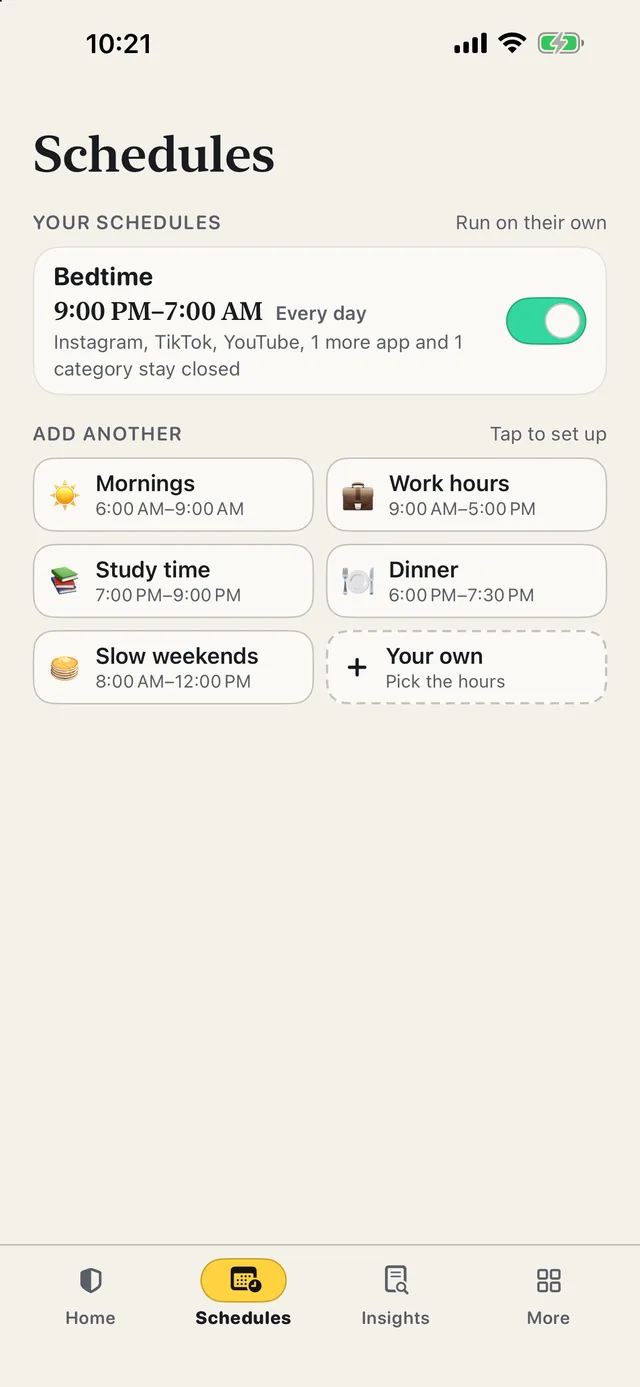
- Pick a quick start. Bedtime, Mornings, Work hours, Study time, Dinner or Slow weekends — or make your own.
- Choose its apps. Tap the big app tiles, or “Choose from your phone” to open Apple’s Screen Time picker with every app you have, whole categories and websites.
- Pick the days. Every day, Weekdays or Weekends, in one tap. It runs automatically, even with ScrollCop closed.
- Lock it if you need to. Turn on “Locked while it’s on” and, during its hours, nobody can switch it off, change it or delete it.
Since ScrollCop 3.0, every block and schedule starts as “Nobody can end it early”, with Me or A friend one tap away. ScrollCop is free, with no account and no subscription, and the blocks are held by iOS, not by the app.
Common questions
Can you block apps on iPhone at certain times without an app?
Yes, with Settings → Screen Time → Downtime. For yourself it has an “Ignore Limit” button unless someone else sets the Screen Time passcode.
How do I lock apps on iPhone for studying?
Make a Study time schedule that blocks only your distractions — YouTube, games, social apps — during the hours you study, and lock it so it can’t be switched off mid-session.
Can I block websites too?
Yes. Apple’s Screen Time picker has a Websites section, and blocked sites are shielded in Safari and other browsers that respect Screen Time.
Is ScrollCop free?
Yes — free, with no subscription, no in-app purchases and no ads.
Published · No affiliate links










 MMA.socialUFC fan ratings
 TrendingPunjabiPunjabi music charts
 BoldOpinionAnonymous hot takes
 TopRankedAppsApp rankings