Disclosure: ScrollCop is ours. The advice works with any app, or with pen and paper.
In short
Start with the two things Apple says most setups need: update every device in your Family Sharing group to the latest software so Screen Time settings sync, and make sure your child has their own Child Account in your Family Sharing group, not a shared one. Then manage everything from your own iPhone under Settings → Family → your child’s name, and check Always Allowed and Allow Unlimited Time.
- Update every device in the family, not just the child’s. The new parental controls need iOS 27 (or iPadOS, macOS, watchOS 27) on all of them.
- Your child needs their own Child Account inside your Family Sharing group.
- Apps still open after the limit? Check Always Allowed, apps with no category, and whether Allow Unlimited Time is on.
First: which Screen Time is on the phone?
Apple redesigned parental controls in iOS 27. The old Downtime and App Limits became Screen Time Schedule and Time Allowances, and a child is now managed from Settings → Family → your child’s name. Apple says that to use the new controls, every device in your Family Sharing group needs version 27 or later of iOS, iPadOS, macOS or watchOS. If some devices can’t update, the family can keep using the previous version of Screen Time. Check each phone under Settings → General → About.
Fix 1: update every device in the family
This is the fix Apple repeats most. Its words: update all devices in your Family Sharing group to the latest software “to ensure that your Screen Time settings sync”. That includes your own iPhone, the child’s iPhone or iPad, and any family Mac or Apple Watch. Apple also says you need the latest software to respond to some of your child’s requests.
Fix 2: give your child their own Child Account
Apple says Screen Time and parental controls need Family Sharing set up, with each family member on their own Apple Account, and a child in the group needs a Child Account. It stresses that the child must not share an account with anyone else, such as a parent or sibling. If the child’s iPhone is signed in with your Apple Account, the limits you set for “them” have no separate person to apply to.
- Set up Family Sharing if you haven’t.
- Create a Child Account for your child if they don’t have one.
- Make sure that account is part of your Family Sharing group.
- Sign the child’s device in with that account.
Fix 3: manage it from your phone, not theirs
Apple recommends managing a child’s Screen Time from the family organizer’s or a parent/guardian’s device. Open Settings → Family → your child’s name, then Screen Time Schedule, Time Allowances or Apps & Websites. When Family Sharing manages your child’s Apple Account, Apple says the organizer or a parent/guardian must set the child’s Screen Time passcode on their own device, not the child’s. If you forgot that code, see forgot Screen Time passcode.
Child’s name missing under Family? Apple says to check that you and your child are each signed in with your own Apple Account and that their account is in your Family Sharing group.
Fix 4: the schedule doesn’t kick in
Screen Time Schedule replaces Downtime. On your device: Settings → Family → your child → Screen Time Schedule, turn on Schedule, tap Add Schedule and pick the days. Then check each time window (Before School, School, After School or your own). Weekdays and weekends can be separate routines, so a schedule set only for weekdays won’t run on Saturday.
Also check the quick buttons on your child’s page. Apple says Change Schedule changes the schedule for the day, so a change made earlier can still be in effect.
Fix 5: apps still open after the time limit
- Always Allowed. Apple says apps and contacts on this list stay available even when your child has used up their Time Allowance. By default FaceTime, Maps, Phone and Messages are always available. Check Settings → Family → your child → Always Allowed and remove anything you didn’t mean to add.
- Apps with no category. Time Allowances count categories like Entertainment, Games and Social Media. Apple says apps that aren’t assigned to a category need their own limit under Additional Time Allowances.
- Match Screen Time Schedule. If this is on, the allowances only apply during certain times in your schedule.
- Allow Unlimited Time. Apple says this quick button gives full access, and time used doesn’t count toward the Time Allowance. If you tapped it for a road trip, turn it back off.
Need the phone put down right now? Pause Device Use on your child’s page blocks most apps and notifications until you turn it back on.
Fix 6: your child’s requests never reach you
Apple’s checklist when requests don’t arrive: update your iPhone to the latest software, make sure you (the organizer or a parent/guardian) are in your child’s contacts, use iMessage with your Apple Account email added and used in the last 30 days, turn on Messages notifications, and sync your iCloud contacts. Apple adds that a request you don’t answer within 24 hours expires, and your child has to send another.
Fix 7: websites still open
Web filtering is a separate switch: Settings → Family → your child → Restrictions → Filtering under Websites, then choose Limit Adult Websites or Ask to Browse. Apple says Ask to Browse works in Safari and other supported browser apps in iOS 27 after upgrading Screen Time. To block one site like YouTube, see how to block YouTube on iPhone.
Where these steps come from
Checked on 7 November 2026 against Apple Support: Use Screen Time to manage your child’s iPhone or iPad, Set up parental controls to manage your child’s iPhone or iPad and Manage your child’s access to apps and app requests (all published 26 October 2026, iOS 27); and Apple Devices for Kids and Families: Set up Screen Time Schedules and Time Allowances, Choose apps and people to always allow, Quickly adjust your child’s Screen Time settings and What’s new with parental controls. Menu names change with updates. If your family is still on iOS 26, Apple’s iPhone User Guide has a version picker at the top.
Limits for your own phone: ScrollCop
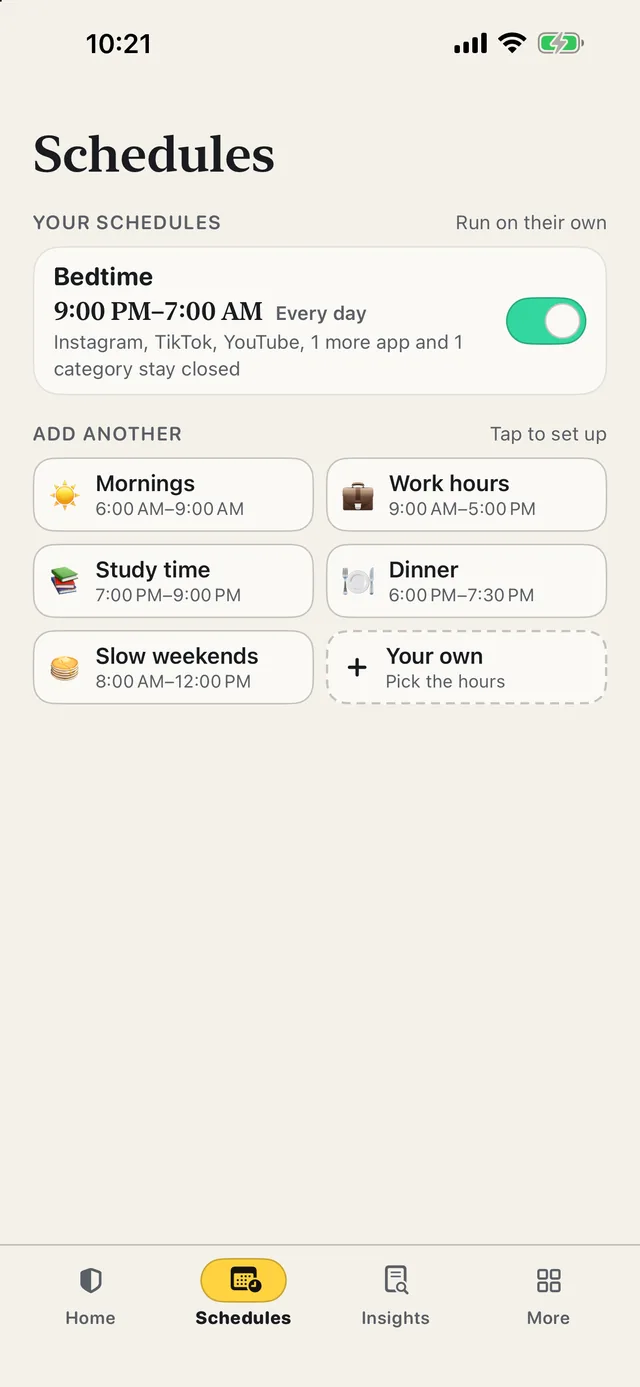
- Pick the apps. Tap a tile, or “Choose from your phone” to open Apple’s Screen Time picker for apps and websites.
- Pick how long, or when. Thirty minutes, an evening, a whole day — or a schedule like Bedtime that runs every day, even with ScrollCop closed.
- Pick who can end it early. Nobody is the default, so it simply opens when time’s up. Or a friend gets a one-time PIN by text, and only that PIN ends it.
- Set the example. Kids notice who’s scrolling at dinner. A Bedtime block on your own apps is a rule you keep too.
ScrollCop 3.2 is free on the App Store, with no account, no subscription and no ads; the blocks are held by iOS, not by the app. It is not a parental-control app and doesn’t manage a child’s device: for that, use Apple’s Screen Time through Family Sharing as above.
Common questions
Why is Screen Time not working on my child’s iPhone?
The usual causes Apple points to: a device in your Family Sharing group isn’t on the latest software, so settings don’t sync, or your child doesn’t have their own Child Account in your Family Sharing group. Update every device, then manage it from your own iPhone under Settings → Family → your child’s name.
Why are Screen Time limits not working on my kid’s iPhone?
Check Always Allowed (those apps stay open after the Time Allowance runs out), give apps with no category their own limit under Additional Time Allowances, and make sure Allow Unlimited Time isn’t on — time used then doesn’t count.
Why is Screen Time not working on Family Sharing?
Apple says each family member needs their own Apple Account, a child needs a Child Account in the group, and every device should be updated so Screen Time settings sync. The new parental controls need version 27 on every device in the family.
Downtime not working on my child’s iPhone?
In iOS 27 Downtime became Screen Time Schedule. On your device go to Settings → Family → your child → Screen Time Schedule, make sure Schedule is on, and check which days and time windows it covers.
Why is my child’s Screen Time not showing on my iPhone?
Apple says to check that you and your child are each signed in with your own Apple Account and that your child’s account is in your Family Sharing group. Then update both devices so settings sync.
Is ScrollCop free?
Yes — free, with no subscription, no in-app purchases and no ads.
Published · No affiliate links











 MMA.
 Trending
 Bold
 Top