Disclosure: ScrollCop is ours. The advice works with any app, or with pen and paper.
In short
Blocking YouTube takes two steps: the app and the website. For the app, give it an App Limit (iOS 26) or put it in a Time Allowance or Screen Time Schedule (iOS 27), or simply delete it. For the website on iOS 26, go to Settings → Screen Time → Content & Privacy Restrictions → App Store, Media, Web, & Games → Web Content, choose Limit Adult Websites and add youtube.com under Never Allow. For a child on iOS 27, use Settings → Family → your child → Apps & Websites.
- Block the app AND youtube.com, or YouTube just moves to Safari.
- iOS 26 website block: Screen Time → Content & Privacy Restrictions → Web Content → Never Allow.
- A block you set yourself is easy to undo. Let someone else hold the passcode, or use a block with no off switch.
Why you need to block two things
YouTube lives in two places on an iPhone: the YouTube app and youtube.com in a web browser. Delete or limit only the app and the same videos are one search away in Safari. So whatever method you pick, cover both.
Check your iPhone version first in Settings → General → About. Apple changed the Screen Time menus in iOS 27: iOS 26 has App Limits and Downtime; iOS 27 has Time Allowances and Screen Time Schedule.
Block youtube.com in Safari (iOS 26)
- Open Settings and tap Screen Time. (For a child in your Family Sharing group, tap their name first.)
- Tap Content & Privacy Restrictions and turn it on.
- Tap App Store, Media, Web, & Games, then Web Content.
- Select Limit Adult Websites, tap Add Website under Never Allow, and type
youtube.com.
Want the opposite — only a short list of sites allowed? Pick Only Approved Websites on the same screen instead. It’s strict, so it suits a young child better than an adult.
Block the YouTube app (iOS 26)
YouTube is not a built-in app, so it isn’t in the Allowed Apps & Features list (that list only hides Apple’s own apps, like Safari or Camera). Your options for the app:
- App Limit: Settings → Screen Time → App Limits → Add Limit, tap the category YouTube is in to open it, select YouTube, then set the time. Step-by-step: how to set time limits on apps on iPhone.
- Downtime: block it for set hours, like every night after 9 pm. See how to block apps on iPhone at certain times.
- Delete it. For a child, Content & Privacy Restrictions → iTunes & App Store Purchases is where Apple puts the restrictions on store purchases and redownloads, so it can’t simply come back.
Block YouTube on iOS 27
In iOS 27, Apple’s guide for adults covers Time Allowances and Screen Time Schedules: open Settings → Screen Time → Time Allowances and give the category YouTube sits in (Entertainment, for example) a small allowance, or leave that category out of the time windows in Screen Time Schedule. Apple notes that if an app declares its website, the allowance covers both, so the limit follows YouTube into Safari.
Allowances work by category, not by single app, so a small Entertainment allowance limits every app in that category. If you want YouTube gone and nothing else touched, a blocker that picks single apps and sites (below) is simpler.
Block YouTube for kids (Family Sharing)
On iOS 26, use the steps above on your own iPhone: Settings → Screen Time, tap your child’s name, then add youtube.com to Never Allow and an App Limit for the app. Set a Screen Time passcode they don’t know.
On iOS 27, Apple moved family controls into Settings → Family. Tap your child’s name, tap Apps & Websites, tap the Add button and enter YouTube to block the app or the website. Blocked apps stay hidden until you allow them again. Under Restrictions → Filtering you can also choose Approved Websites Only (Apple turns this on by default for Child Accounts under 13), and Ask to Browse makes them ask before visiting a new site in Safari. Every device in the family must be on iOS 27 or later for these settings.
What about Chrome and other browsers?
Apple’s steps above are written for Safari, and Apple’s guides don’t promise the Never Allow list works in every other browser. The safe move: block or limit the other browser apps too (Chrome, Firefox and so on), or, for a child, restrict App Store purchases so a second browser can’t appear. Then check by opening youtube.com in each browser left on the phone.
Only want to cut back? YouTube’s own limits
If blocking is too much, the YouTube app has its own timers (YouTube Help, iPhone):
- Shorts feed limit: You tab → Settings → Time management → Shorts feed limit. You can set it all the way down to zero.
- Take a break reminder: profile picture → Settings → General → Remind me to take a break, then pick how often. It pauses the video until you dismiss it.
- Bedtime reminder: profile picture → Settings → General → Remind me when it’s bedtime, then pick the start and end times.
The catch: all three can be dismissed with a tap. YouTube says so itself for the Shorts limit — you can dismiss or ignore it. They’re nudges, not blocks.
Why your YouTube block isn’t working
- You blocked the app but not the site (or the other way round).
- You know the passcode. A Screen Time limit you set for yourself can be ignored once reached. Let a friend or partner set the Screen Time passcode in Settings → Screen Time → Lock Screen Time Settings.
- YouTube is in Always Allowed. Anything there skips limits and schedules.
- Another browser is installed that you didn’t limit.
- App & Website Activity is off. Turning it off turns off the limits with it.
Where these steps come from
Checked on 24 October 2026 against Apple’s iPhone User Guide — Block apps, app downloads, websites, and purchases (iOS 26), Set Screen Time Schedules and Time Allowances (iOS 27) and Block features or content with Screen Time (iOS 27) — Apple’s Block or allow access to apps and websites on your child’s device, and YouTube Help for iPhone: Set a Shorts feed limit, Take a break reminder and Set a bedtime reminder. Menu names change with updates; Apple’s guide has a version picker at the top.
Block the YouTube app and youtube.com in one go: ScrollCop
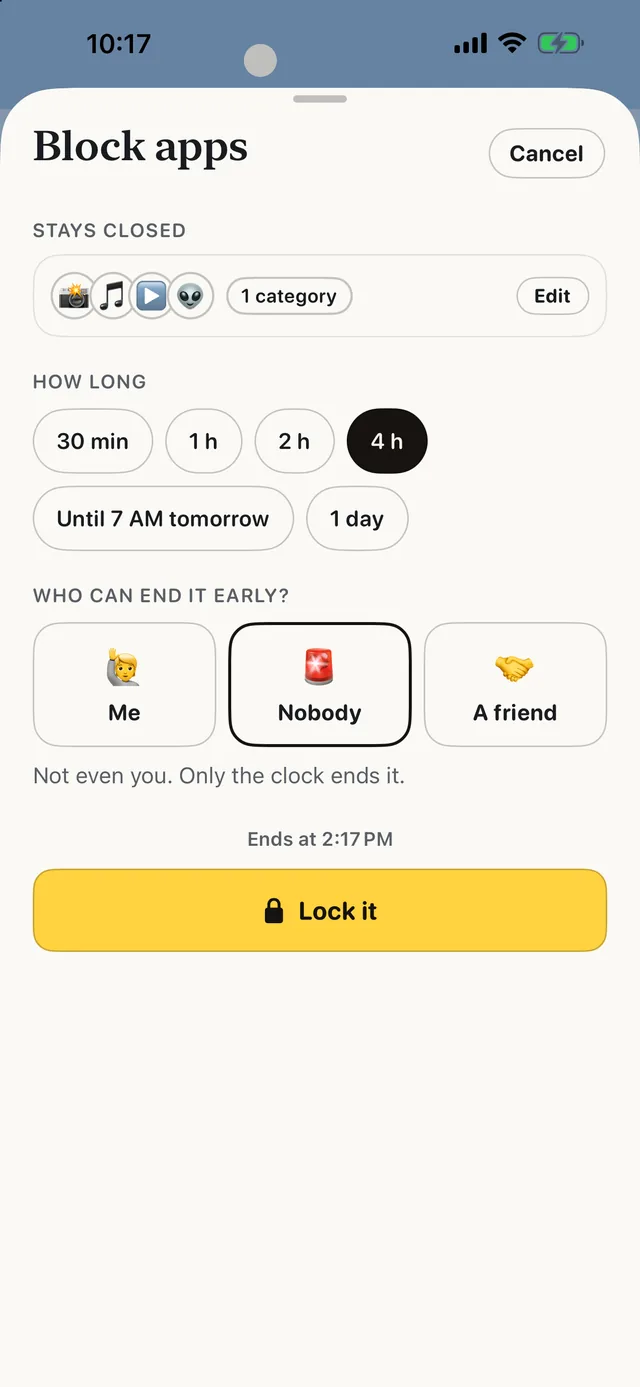
- Pick YouTube. Tap the YouTube tile, or “Choose from your phone” to open Apple’s Screen Time picker, which has a Websites section for youtube.com too.
- Pick how long, or when. Thirty minutes, an evening, until 7 AM, a whole day — or a schedule like Bedtime or Study time that runs every day, even with ScrollCop closed.
- Pick who can end it early. Nobody is the default, so it opens when time’s up. Or a friend gets a one-time PIN by text, and only that PIN ends it.
- Open YouTube and… you get a Screen Time shield with no Ignore button. Blocked sites are shielded in Safari and other browsers that respect Screen Time.
ScrollCop 3.1 is free on the App Store, with no account, no subscription and no ads; the blocks are held by iOS, not by the app. One limit: Screen Time blocks whole apps and sites, so ScrollCop can block YouTube but not only YouTube Shorts.
Common questions
How do I block YouTube on iPhone?
Block both the app and the website. Give the app an App Limit or Downtime (iOS 26) or a Time Allowance or Schedule (iOS 27), or delete it, and add youtube.com to the Never Allow list under Screen Time → Content & Privacy Restrictions → Web Content.
How do I block YouTube on iPhone Safari?
On iOS 26: Settings → Screen Time → Content & Privacy Restrictions → App Store, Media, Web, & Games → Web Content → Limit Adult Websites, then Add Website under Never Allow and type youtube.com.
How do I block YouTube on iPhone with parental controls?
On iOS 26, tap your child’s name in Settings → Screen Time and use Content & Privacy Restrictions and App Limits. On iOS 27, go to Settings → Family → your child → Apps & Websites and add YouTube to the blocked list.
How do I block YouTube on iPhone in Chrome?
Apple’s website controls are written for Safari. To be safe, also block or limit Chrome and any other browser app, then test youtube.com in each one.
Can I block only YouTube Shorts on iPhone?
Screen Time can’t block part of an app. YouTube’s own Shorts feed limit (You → Settings → Time management) can be set to zero, but YouTube lets you dismiss it.
Is ScrollCop free?
Yes — free, with no subscription, no in-app purchases and no ads.
Published · No affiliate links










 MMA.socialUFC fan ratings
 Trending
 Bold
Bold Top
Top