Disclosure: ScrollCop is ours. The advice works with any app, or with pen and paper.
In short
On iOS 26, go to Settings → Screen Time → App Limits → Add Limit, pick a category or tap into it to pick single apps, tap Next and set the time. On iOS 27 Apple renamed this Time Allowances: Settings → Screen Time → Time Allowances, then set a time per category. Either way, a limit you set for yourself can be ignored once it’s reached unless a Screen Time passcode you don’t know is guarding it.
- iOS 26: Settings → Screen Time → App Limits → Add Limit.
- iOS 27: Settings → Screen Time → Time Allowances (per category, plus a daily total).
- Limits can be ignored by default. Let someone else set the passcode, or use a block that has no off switch.
Which iPhone version do you have?
Apple changed the Screen Time menus in iOS 27, so the steps depend on your version. Check it in Settings → General → About. If you see App Limits and Downtime under Screen Time, follow the iOS 26 steps. If you see Time Allowances and Screen Time Schedule, follow the iOS 27 steps.
Screen Time has to be on first. On iOS 26 that’s Settings → Screen Time → App & Website Activity → Turn On App & Website Activity; on iOS 27 the same button appears when you open Time Allowances.
iOS 26: set a time limit with App Limits
- Open Settings and tap Screen Time.
- Tap App Limits, then Add Limit.
- Select one or more categories, like Games or Social Networking. To limit one app (say YouTube), tap the category name to open it, then select just that app.
- Tap Next and set how much time is allowed each day.
- Want weekends to be different? Tap Customize Days and set a time per day.
- Save it with the button at the top right.
If you pick several apps or categories in one limit, the one time you set applies to all of them, so give an app its own limit if you want it to have its own time. To remove a limit later, tap App Limits, swipe left on it and tap Delete.
iOS 27: set a time limit with Time Allowances
In iOS 27, Time Allowances work by category (Entertainment, Games, Social Media and so on) plus a total for the whole day. You can use apps in a category until they hit that category’s allowance or the daily total, whichever comes first.
- Open Settings → Screen Time → Time Allowances.
- Drag the top slider (or tap − / +) to set your total daily time.
- Under Time Allowances, tap a category and drag its slider to set its time.
- No category for what you want? Tap Manage Categories, tap +, and pick one.
- Want the allowance only at certain times of day? Turn on Match Screen Time Schedule and add the category to a time window under Screen Time Schedule.
Apple’s note: if an app has a website it declares, its allowance covers the website too, so the limit follows you into Safari.
Keep some apps open no matter what
Phone, Messages, Maps or a health app shouldn’t lock at 10 pm. Go to Settings → Screen Time → Always Allowed and add the apps and people you always want to reach. They stay available during Downtime or a schedule and after a limit is used up.
Why your screen time limit is not working
- It can be ignored by default. Apple says it plainly: Screen Time limits can be ignored once reached. When you set the limit yourself and know the passcode (or have none), the limit screen is a speed bump, not a wall.
- Screen Time is off. Turning off App & Website Activity also turns off App Limits, Downtime and Always Allowed. Check it’s still on.
- The limit is on another device. If Share Across Devices is off, each iPhone, iPad and Mac keeps its own limits; if it’s on, the same limits apply on all of them.
- The app is in Always Allowed. Anything in that list skips limits. Take it out.
- You picked the category, not the app (or the other way round). Open the limit and check exactly what it covers.
How to make a limit stick when it’s for yourself
The fix is to take the passcode out of your own hands. In Settings → Screen Time → Lock Screen Time Settings, let a partner, friend or flatmate type a four-digit passcode you don’t see. Now changing or ignoring the limit needs them. Apple also offers Screen Time Passcode Recovery with your Apple Account, so set that up if you might ever need to reset it.
The catch: you have to ask someone every time you want to change a setting, and it’s easy to talk yourself into removing the passcode on a good day. If what you really want is “no Instagram after 9 pm, no arguments”, a schedule or block that you can’t switch off in the moment usually works better than a daily allowance. See how to block apps on iPhone at certain times and app blockers you can’t turn off.
Setting time limits for a child
For a child in your Family Sharing group, the iOS 26 steps are the same: in Settings → Screen Time, tap your child’s name first, then App Limits. Set a Screen Time passcode for them so only you can change it. On iOS 27 Apple keeps the family controls in its Apple Devices for Kids and Families guide, and all devices in the family must be on iOS 27 or later to use Time Allowances.
Where these steps come from
Checked on 21 October 2026 against Apple’s iPhone User Guide: Set Screen Time Schedules and Time Allowances (iOS 27), Set schedules with Screen Time (iOS 26), Get started with Screen Time (iOS 26) and Screen Time passcode (iOS 26). Menu names can change with iOS updates; Apple’s guide has a version picker at the top.
A limit with no Ignore button: ScrollCop
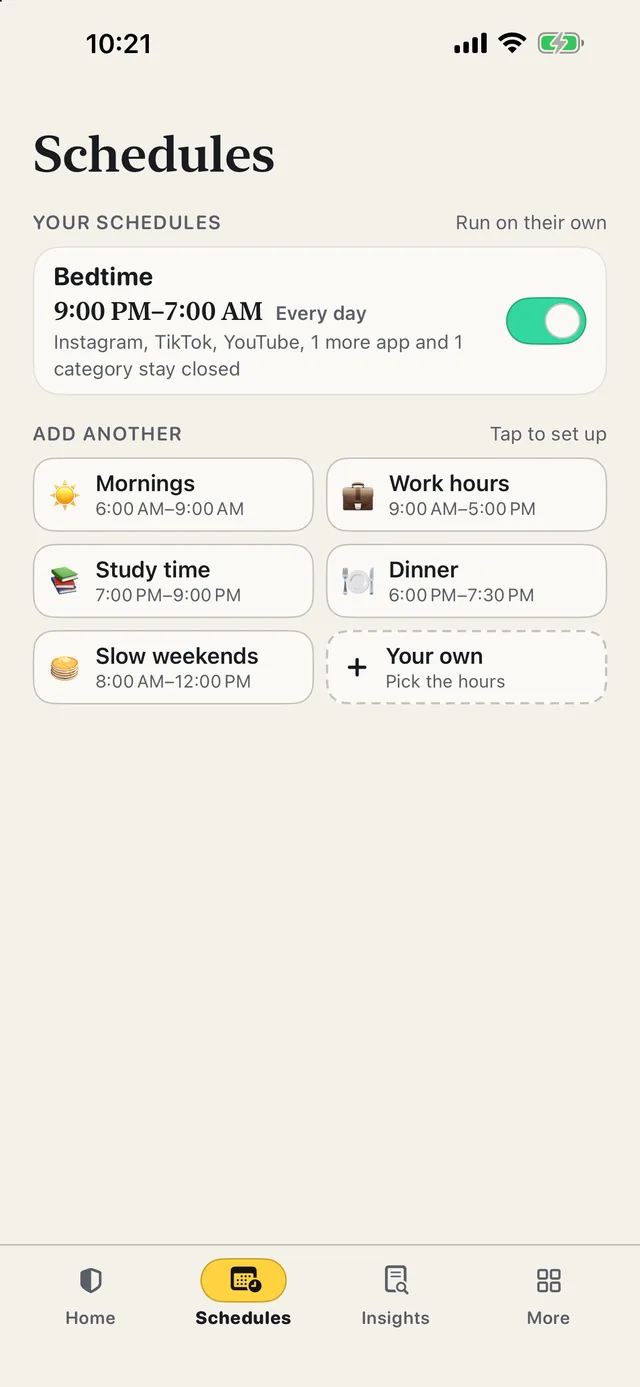
- Pick the apps. Tap the big app tiles, or “Choose from your phone” to open Apple’s Screen Time picker with every app, whole categories and websites.
- Pick how long, or when. Thirty minutes, an evening, until 7 AM, a whole day — or a schedule like Bedtime or Study time that runs every day, even with ScrollCop closed.
- Pick who can end it early. Nobody is the default, so it opens when time’s up. Or a friend gets a one-time PIN by text, and only that PIN ends it. Schedules ask “Who can switch it off?” too.
- Open a blocked app and… you get a Screen Time shield with no Ignore button, plus the plan you made for the moment the urge hits.
ScrollCop 3.1 is on the App Store now. Free, with no account, no subscription and no ads; the blocks are held by iOS, not by the app.
Common questions
How do I set a time limit on apps on iPhone?
On iOS 26: Settings → Screen Time → App Limits → Add Limit, pick the apps or categories, tap Next and set the time. On iOS 27: Settings → Screen Time → Time Allowances, then set a time per category.
How do I set time limits on specific apps on iPhone?
In App Limits → Add Limit, tap a category’s name instead of its circle to see the apps inside, then select only the app you want, such as YouTube or Instagram.
How do I set a time limit on the YouTube app on iPhone?
Add an App Limit, tap the category YouTube sits in to open it, select YouTube, then set the time. If YouTube’s website is declared by the app, the limit covers it in Safari too.
Why is my screen time limit not working on iPhone?
Most often because limits can be ignored by default when you know the Screen Time passcode, or because App & Website Activity was turned off, or the app is in Always Allowed.
How do I limit screen time on iPhone for myself?
Set App Limits or Time Allowances, then ask someone you trust to set the Screen Time passcode so you can’t ignore them. Or use a blocker where nobody, or only a friend, can end a block early.
Is ScrollCop free?
Yes — free, with no subscription, no in-app purchases and no ads.
Published · No affiliate links










 MMA.socialUFC fan ratings
 Trending
 Bold
Bold Top
Top