Disclosure: ScrollCop is ours. The advice works with any app, or with pen and paper.
In short
Open Settings → Screen Time → See All App & Website Activity. Week shows your daily average and a bar for each day, split by category colour; Day shows today hour by hour. Under the chart are Most Used (apps), Pickups (how often you picked the phone up, and when the first one was) and Notifications. The number to watch is the time in the two or three apps you want to use less — not the total.
- Week view = daily average; Day view = hour by hour.
- Pickups often tell you more than total time.
- Track the few apps you care about, not the grand total.
Where to find it
Open Settings → Screen Time and tap See All App & Website Activity. Switch between Week and Day at the top. If you use more than one Apple device with the same Apple ID, the report can include all of them — tap Devices to pick just your iPhone.
Reading the week graph
- Daily Average is the big number at the top, with how it compares to last week.
- Each bar is one day. The colours split it by category, such as Social, Entertainment or Productivity & Finance; the key sits under the chart.
- The horizontal line across the bars marks your average, so you can see which days ran over.
Reading the day graph
Day view shows a bar for each hour. It’s the most useful chart on the page: it shows when you lose time. A tall bar at 11 pm or 7 am tells you exactly which hour to fix.
Most Used, Pickups and Notifications
Most Used ranks apps and websites by time; tap one to see its own daily average. Pickups counts how many times you picked the phone up, and First Pickup shows when the day started on a screen. Notifications shows which apps call you back most — those are the first to switch off.What a “normal” number is
There isn’t a useful normal. Four hours of maps, calls and reading is a different day from four hours of short videos. Ignore the total and pick the two or three apps you want less of; that’s the number to bring down.
Insights in plain words with ScrollCop
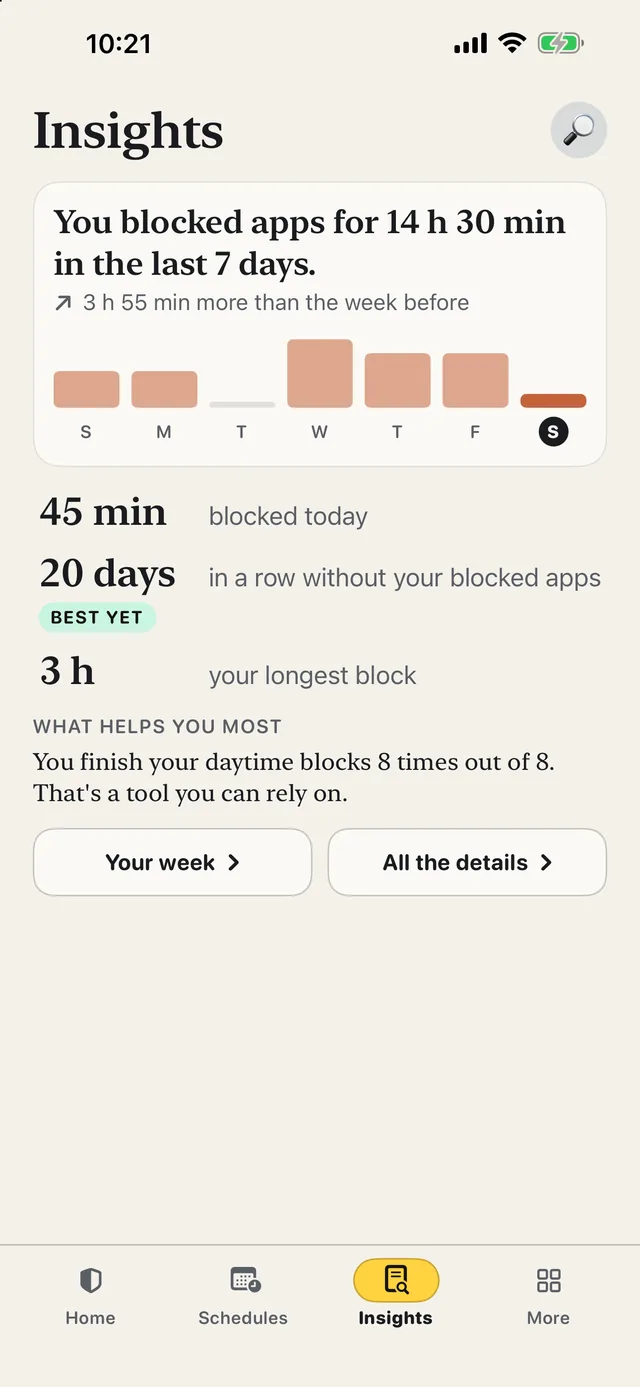
- Since ScrollCop 3.0, Insights starts with one sentence about your week. Like “You blocked apps for 14 h 30 min in the last 7 days”, with the change from the week before.
- A simple chart, and three plain numbers. Time blocked today, days in a row without your blocked apps, and your longest block.
- Everything else is one tap away in All the details. Each number comes with a line saying what it means.
- All counted on your phone. No account, no server, no guilt notifications.
ScrollCop 3.0 is on the App Store now. Free, no account, no ads, and nothing leaves your phone.
Common questions
How do I read my Screen Time on iPhone?
Settings → Screen Time → See All App & Website Activity. Week shows your daily average and a bar per day by category; Day shows each hour. Below are Most Used, Pickups and Notifications.
What does the line on the Screen Time graph mean?
It marks your daily average for the week, so you can see which days were above or below it.
What are pickups in Screen Time?
How many times you picked up and woke your iPhone, with the time of your first pickup of the day.
Why is my Screen Time so high?
Often it includes other devices on the same Apple ID, or apps like maps and music playing in the background. Tap Devices to see just your iPhone, then look at Most Used.
Published · No affiliate links











 MMA.
MMA. Trending
 Bold
Bold Top
Top