Disclosure: Jotter is ours. The advice works with any app, or with pen and paper.
In short
Open the photo or screenshot in Photos, touch and hold a word until it’s highlighted, drag the handles over the text you want and tap Copy. If nothing highlights, tap the Live Text button — lines of text inside a frame — in the corner first. With the Camera, point it at the text and tap the same button. It’s called Live Text, and it’s built into the iPhone XS and later.
- Photos: touch and hold the words → Copy.
- Camera: point it at the text, tap the Live Text button.
- Nothing selects? Settings → General → Language & Region → Live Text.
From a photo or screenshot
- Open the picture in Photos.
- Touch and hold a word until it’s highlighted, then drag the handles over the text you want.
- Tap Copy, and paste it anywhere: a note, a message, a search box.
If touching the words selects nothing, tap the Live Text button in the corner of the photo (lines of text inside a frame). The text lights up and you can select it. The same works on pictures in Safari.
With the Camera, without taking a photo
- Open the Camera and point it at the text — a sign, a page, a label.
- When a yellow frame appears around it, tap the Live Text button.
- Touch and hold to select the words, then tap Copy.
You can also tap a phone number to call it, a web address to open it, or Translate to read it in your own language.
Typing into a box and want the words from a piece of paper? Tap the box, tap Scan Text in the menu that appears, and point the camera at the page — the words go straight in.
Live Text not working?
- Turn it on: Settings → General → Language & Region → Live Text.
- For the Camera, also check Settings → Camera → Show Detected Text.
- Live Text needs an iPhone XS, XR or later.
- It reads a set list of languages; if yours isn’t on it, nothing will highlight.
- Tiny, blurry or very decorative text often won’t read. Zoom in, or take a sharper photo in good light.
From a PDF or a scan
If a PDF has real text, touch and hold it in Files or Books and copy it. A scanned PDF is a picture of text, so there’s nothing to select. Two workarounds:
- Take a screenshot of the page, open it in Photos and use Live Text.
- For small print or many pages, turn the pages into sharp images with our free PDF to JPG tool (it runs in Safari and uploads nothing), save them to Photos and copy the text from there.
On a Mac or a Windows PC
- Mac: open the image in Preview or Photos, drag across the text to select it, then press Command-C. Live Text on the Mac needs macOS Monterey or later.
- Windows 11: take a snip with the Snipping Tool (Windows key + Shift + S), open it in the Snipping Tool, click Text actions, then Copy all text.
- Android: Google Lens, in the Google app or Google Photos, does the same job.
Make it findable later
Copied text is only useful if you can find it again. Paste it into the note it belongs to — the recipe, the trip, the warranty — instead of keeping a pile of screenshots. For writing you did by hand, see how to convert handwriting to text.
How to do it in Jotter
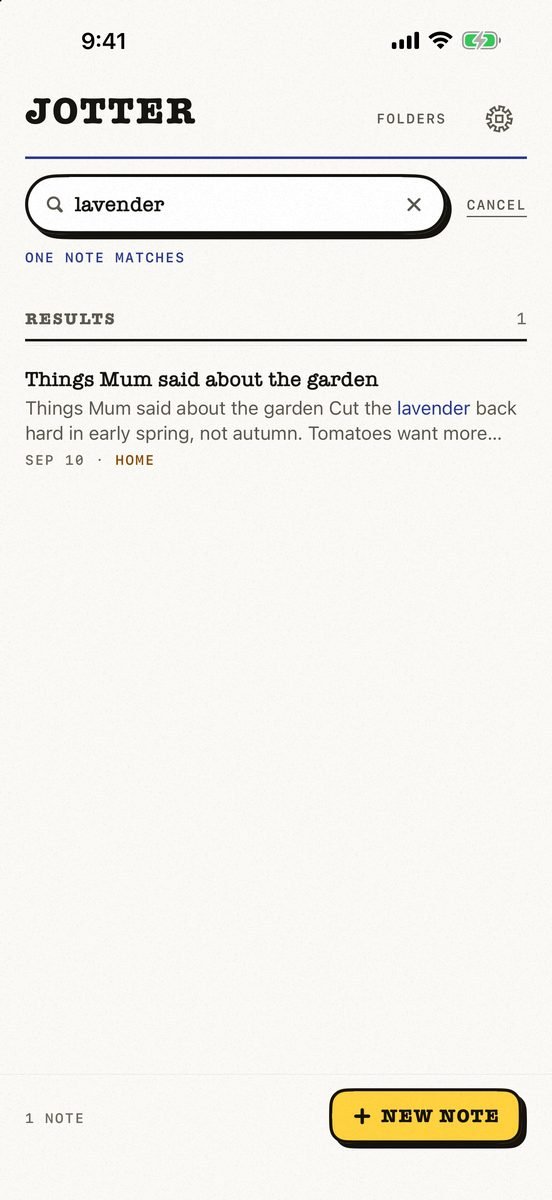
- Share the picture to a note. Use the Share button in Photos, or any app, to add it to a new note or one you already have.
- Jotter reads the words. The text in your photos and scans is read on your device with Apple’s Vision framework, a moment after you add them.
- Search for any word in it. A word or two, in any order — Jotter shows you the sentence it found, even when it was inside a picture.
- Handwriting too. Handwritten pages are read on the device so search finds them, or turn them into typed text with More → Convert to text.
Jotter is free, with no account and no ads, and needs iOS 18 or later. Handwriting, photo text and voice notes are read on your device, never uploaded.
Common questions
Why can’t I copy text from a picture on my iPhone?
Check that Live Text is on in Settings → General → Language & Region, that your iPhone is an XS, XR or later, and that the text is in a supported language and sharp enough to read.
Can iPhone copy handwritten text from a photo?
Often, yes. Live Text reads clear handwriting as well as print, as long as the writing is neat and the photo is sharp. Check names and numbers afterwards.
How do I copy text from a PDF image on iPhone?
A scanned PDF is a picture, so take a screenshot of the page or convert the page to a JPG, then open it in Photos and use Live Text.
How do I copy text from a picture on a Mac?
Open it in Preview or Photos, drag across the text to select it and press Command-C. It needs macOS Monterey or later.
Published · No affiliate links











 MMA.
MMA. Trending
 Bold
Bold Top
Top