Disclosure: Jotter is ours. The advice works with any app, or with pen and paper.
In short
On iPad, Apple Notes can turn handwriting into typed text: select what you wrote with Apple Pencil and choose Copy as Text. Scribble goes further and converts as you write in any text field. For handwriting on paper, point the Camera at it and use Live Text. In Jotter, open a drawing’s More menu and choose Convert to text.
- Notes on iPad: select the writing → Copy as Text.
- Scribble turns Pencil writing into text as you go.
- Paper notes: Camera → Live Text.
In Apple Notes on iPad
- Open a note and tap the pen button to show the drawing tools.
- Write with Apple Pencil.
- Select the handwriting — the lasso tool in the tool palette works well.
- Tap Copy as Text, then paste it wherever you want it, in the same note or another app.
Scribble: convert as you write
With Scribble on (Settings → Apple Pencil → Scribble), you can write with Apple Pencil straight into any text field — a note, a search box, a message — and iPad turns it into typed text as you go. Scratch out a word to delete it.
Scribble is best for short bits of text. For pages of lecture notes, write them as ink and convert later.
Handwriting on paper: Live Text
Open the Camera, point it at the page, and tap the Live Text button when it appears. Then select the words and copy them. For a photo you already took, open it in Photos and touch and hold the words. This works on iPhone as well as iPad.
Clear, dark writing on plain paper in good light gives the best results.
Tips for cleaner results
- Print rather than joined-up writing if accuracy matters.
- Write on lines, at a steady size.
- Always check names, numbers and dates after converting.
- Keep the handwritten original until you’ve checked the text.
Do you even need to convert it?
If you only want to find your notes later, you might not. Some apps read handwriting in the background so search finds it while it stays as ink. We compare the options in free handwriting note apps for iPad and iPhone.
How to do it in Jotter
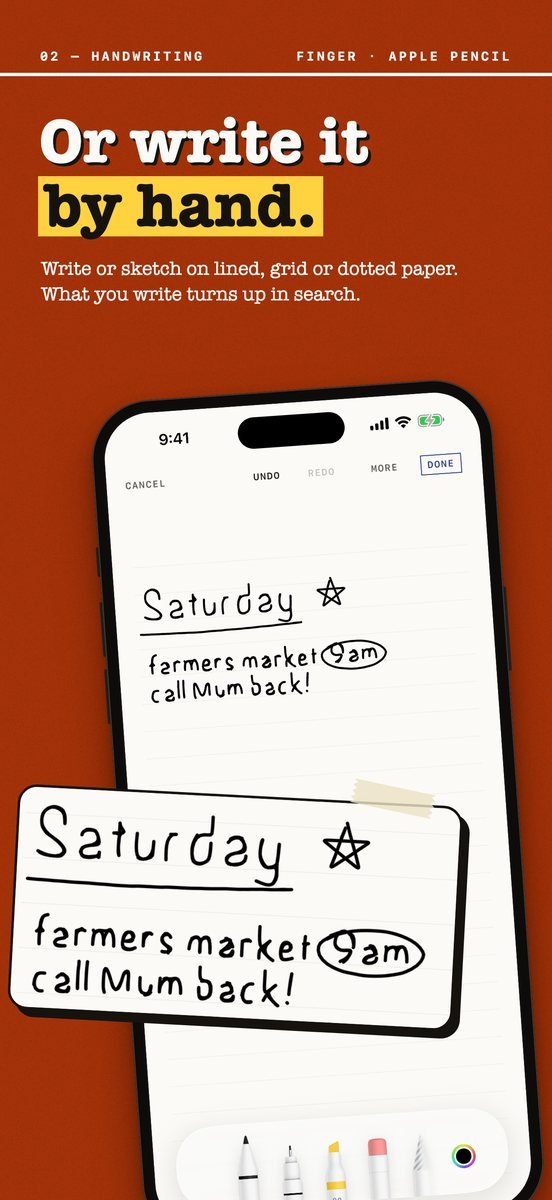
- Start a handwritten page. Hold the New note button and choose a handwritten page, or add a drawing to any note — on blank, lined, grid or dotted paper.
- Write with Apple Pencil or your finger. Apple Pencil on iPad, your finger on iPhone. The page grows as you write.
- Tap More → Convert to text. Your handwriting becomes typed text, read on your device with Apple’s Vision framework.
- Or leave it as ink. Jotter reads your handwriting in the background, so search finds it either way.
Jotter is free, with no account and no ads, and needs iOS 18 or later. Your handwriting is read on your device and never uploaded.
Common questions
Can iPad convert handwriting to text?
Yes. In Apple Notes, select your handwriting and tap Copy as Text, or turn on Scribble to convert Apple Pencil writing as you go.
How do I convert handwriting to text on iPhone?
For writing on paper, use Live Text in the Camera or Photos. For handwriting drawn with your finger, use a notes app that converts it, such as Jotter: More → Convert to text.
Is there a free app that converts handwriting to text?
Apple Notes, Scribble and Live Text are built in and free. Jotter is free too, with no subscription.
Does Jotter send my handwriting anywhere?
No. Jotter reads handwriting on your device with Apple’s Vision framework, and there is no Jotter server.
Published · No affiliate links











 MMA.
MMA. Trending
 Bold
Bold Top
Top