Disclosure: ScrollCop is ours. The advice works with any app, or with pen and paper.
In short
Apple says it plainly: “By default, Screen Time limits can be ignored once reached.” To stop that, set a Screen Time passcode (Settings → Screen Time → Lock Screen Time Settings), then turn on the block setting: Block at Downtime on iPhone and iPad, “Block at end of limit” on Mac. For a limit on your own phone, the passcode only works if you don’t know it.
- Limits can be ignored by default. That’s Apple’s design, not a bug.
- The fix Apple documents is a Screen Time passcode plus the block setting.
- On your own phone, have someone else set the passcode, or use a block with no Ignore button.
Why Screen Time lets you ignore the limit
If your time-limit screen offers One More Minute or Ignore Limit, nothing is broken. Apple’s iPhone User Guide says: “By default, Screen Time limits can be ignored once reached.” Out of the box, a limit is a reminder you can tap past.
Apple’s guides never use the words “One More Minute” or “Ignore Limit”, and they don’t list a switch that removes those buttons on their own. What they do describe is two things that turn a reminder into a block: a Screen Time passcode and a block setting.
Step 1: set a Screen Time passcode
Apple says that once a Screen Time passcode is set, it “must be entered before you can change the settings you’ve chosen for yourself or a child”. On Mac, Apple adds that it is also required “to allow more time when limits expire”.
- iOS 26, for yourself: Settings → Screen Time → scroll down → Lock Screen Time Settings, then enter a four-digit passcode twice.
- iOS 26, for a child: Settings → Screen Time → your child under Family → Manage Screen Time → Lock Screen Time Settings.
- iOS 27, for yourself: Settings → Screen Time → Passcode & Management → Lock Screen Time Settings.
Don’t reuse the code that unlocks the phone. If you ever lose it, see forgot Screen Time passcode.
Step 2: turn on the block setting
Apple’s iOS 26 guide: “If you set a Screen Time passcode for yourself or your child, you can choose whether apps are completely blocked or just dimmed during downtime.”
- Go to Settings → Screen Time (tap your child’s name first if it’s for them).
- Tap Downtime.
- Turn on Block at Downtime.
Apple describes the difference: with Block at Downtime on, restricted apps “can’t be opened during downtime” and appear dimmed with an hourglass icon. With it off, “you see a reminder that it’s downtime, but you can choose to continue using the apps.”
No Block at Downtime switch? Per Apple, the choice only exists once a Screen Time passcode is set, so do Step 1 first.
On Mac: “Block at end of limit”
Apple’s Mac User Guide (macOS 26) names the setting for app limits directly. In System Settings → Screen Time → App Limits, click Add Limit, or move the pointer over a limit and click Edit. Then, in Apple’s words: “If you want to block the app when the limit expires, select ‘Block at end of limit.’”
Apple’s iPhone guide doesn’t list this switch by name for App Limits. It sends you to the passcode and Block at Downtime instead, which is why the steps above use those.
If it’s your own phone
A passcode you chose is a passcode you know, so at 11 p.m. you can type it and carry on. Apple also offers Screen Time Passcode Recovery, which lets you reset a forgotten passcode with your Apple Account. Handy, but it means a code you set yourself is never really out of reach.
The version that holds: ask a partner, friend or roommate to type the passcode and keep it to themselves. More on that in how to set time limits on apps on iPhone. If you’d rather not hand anyone your phone, skip to ScrollCop below.
If it’s your child’s iPhone or iPad
- Set the passcode yourself. Apple says that when Family Sharing manages your child’s account, the organizer or a parent/guardian must set the child’s Screen Time passcode on their own device, not the child’s.
- Your child can ask; you decide. Apple’s iOS 26 guide: if your child requests more screen time, you can approve or decline the request in Settings → Screen Time or in Messages.
- They learned the code? Apple’s tip: change the passcode, then turn on Downtime for the remainder of the day.
- Get told when it’s used. Apple says a parent/guardian receives a notification when the child’s Screen Time passcode is used on their device (iOS 18.5 or later on both).
Limits still not holding? Work through Screen Time not working on a child’s iPhone.
What about iOS 27?
iOS 27 replaced App Limits and Downtime with Time Allowances and Screen Time Schedule, and moved the passcode to Settings → Screen Time → Passcode & Management. Apple’s iOS 27 guide doesn’t describe the screen you see when an allowance runs out, or mention Block at Downtime, so we won’t guess. Set the passcode first, then check how the limit screen behaves on your phone.
Where these steps come from
Checked on 14 November 2026 against Apple’s own guides. iPhone User Guide, iOS 26: Set schedules with Screen Time, Create, manage, and keep track of a Screen Time passcode and Set up parental controls. iOS 27: Create, change, or remove a Screen Time passcode and Set Screen Time Schedules and Time Allowances. Mac User Guide: Set time limits for apps and websites in Screen Time on Mac (macOS 26) and Set up Screen Time for yourself on Mac. Apple Support: Use Screen Time to manage your child’s iPhone or iPad. Menu names change with updates.
A limit with no Ignore button: ScrollCop
- Pick the apps. Tap a tile, or “Choose from your phone” to open Apple’s Screen Time picker for apps and websites.
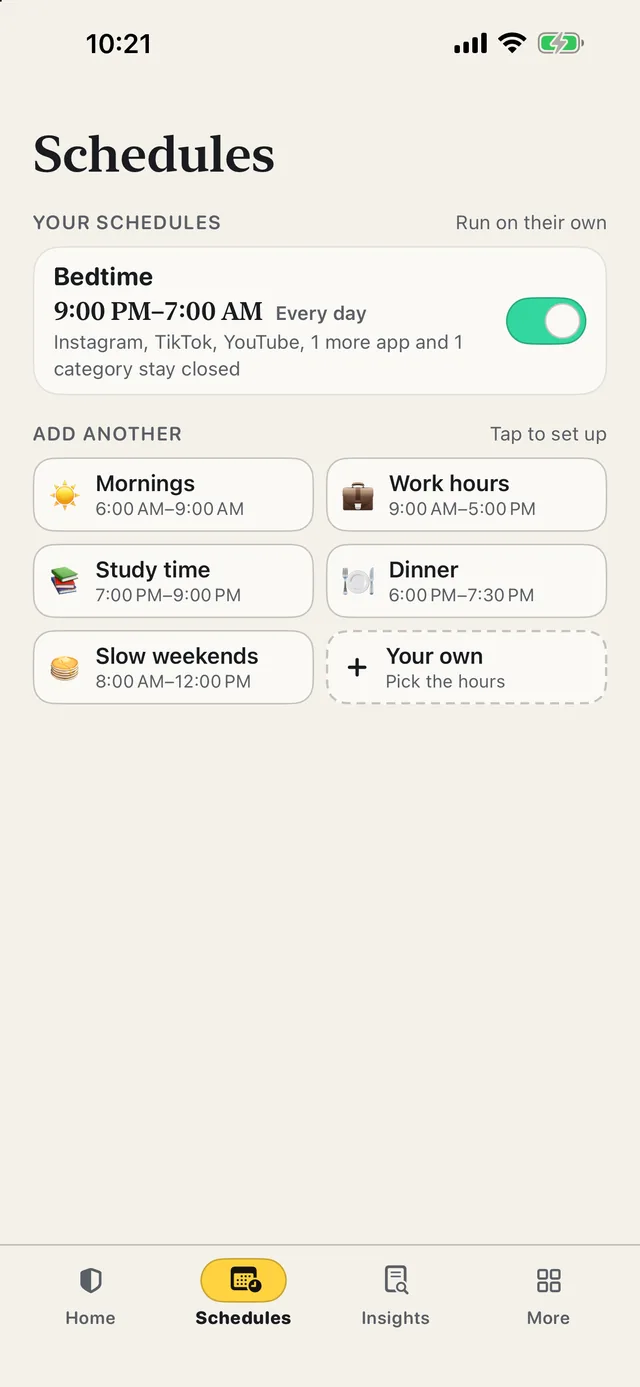
- Set a daily limit, a length or a schedule. A daily limit gives about 30 minutes of an app, then it closes until tomorrow. Or block for an evening, or on a Bedtime schedule every day.
- Pick who can end a block early. Nobody, a friend with a one-time PIN, a key at home (a code on your fridge or an NFC sticker), or Walk it off: 1,000 real steps.
- Meet the shield. Open a blocked app and you get a Screen Time shield with no Ignore button.
ScrollCop 4.0 is free on the App Store, with no account, no subscription and no ads; optional tips only say thanks. It needs iOS 18 or later and is built for your own iPhone or iPad. It is not a parental-control app: for a child’s device, use Apple’s Screen Time as above.
Common questions
How do I turn off One More Minute in Screen Time?
Apple’s guides don’t list a switch that removes One More Minute by itself. What Apple documents is this: limits can be ignored by default, and a Screen Time passcode plus the block setting (Block at Downtime on iPhone, “Block at end of limit” on Mac) is how you prevent it.
How do I get rid of Ignore Limit on Screen Time?
Set a Screen Time passcode under Settings → Screen Time → Lock Screen Time Settings, then turn on Block at Downtime under Settings → Screen Time → Downtime. Apple says blocked apps then can’t be opened during downtime.
Why does Screen Time let me ignore the limit?
Because that is the default. Apple’s iPhone User Guide says: “By default, Screen Time limits can be ignored once reached.”
Why is Block at End of Limit missing on my iPhone?
Apple’s guide says the choice between blocked and just dimmed appears if you set a Screen Time passcode. Set one first. Apple names “Block at end of limit” in its Mac guide; its iPhone guide describes Block at Downtime.
How do I stop my child from ignoring the Screen Time limit?
Set their Screen Time passcode from your own device and turn on Block at Downtime. If they ask for more time, you can approve or decline in Settings → Screen Time or in Messages. If they learn the passcode, Apple says to change it.
Is ScrollCop free?
Yes. Every feature is free, with no subscription and no ads. There are optional one-time tips in Settings, and nothing is locked behind them.
Published · No affiliate links











 MMA.
 Trending
 Bold
 Top