Disclosure: Jotter is ours. The advice works with any app, or with pen and paper.
In short
For photos, select them in Photos, tap Share → Print, then pinch out on the preview and share or save the PDF that opens. Or save the photos to Files, select them and choose Create PDF from the ••• menu. For a note, a web page or a document, Share → Print → pinch out works almost everywhere. It’s all built in and free — no app needed.
- Photos: Share → Print → pinch out on the preview.
- Files: select → ••• → Create PDF (it merges PDFs too).
- Paper: scan it, don’t photograph it.
Photos to PDF: the Print trick
- In Photos, tap Select and choose the photos.
- Tap Share, scroll down and tap Print.
- On the Print Options screen, pinch out on the page preview, as if zooming in.
- A PDF opens. Tap Share and choose Save to Files, Mail or Messages.
Photos or files to PDF in the Files app
- Save the photos to Files: select them in Photos, tap Share → Save to Files and pick a folder.
- Open that folder in Files, tap the ••• button at the top and choose Select, then select the photos.
- Tap ••• at the bottom right and choose Create PDF.
For a single photo, touch and hold it in Files and look for Create PDF (under Quick Actions on some versions). Prefer a browser? Our free JPG to PDF tool takes JPG, PNG and HEIC photos, lets you reorder them and pick A4 or Letter pages with a margin, and builds the PDF without uploading anything.
A note, web page or document to PDF
- Apple Notes: open the note, find Print in the Share or ••• menu, then pinch out on the preview.
- Safari: tap Share, then Options under the page title, choose PDF and save it to Files. Or take a screenshot, tap the preview, choose Full Page and save the whole page as a PDF.
- Word, Google Docs and most other apps have their own export or “send a copy” option with PDF. Anything with Print can use the pinch-out trick.
Paper to PDF: scan it
For a letter or a form, scan rather than photograph it: in Notes or Files, choose Scan Documents and hold the phone over the page. The scan is cropped and straightened, and Files saves it as a PDF. Our guide on how to scan documents on iPhone has the steps.
Combine PDFs into one
In Files, select the PDFs (and photos, if you like), tap ••• and choose Create PDF: they become one file. Check the page order afterwards. If it’s wrong, or you only need some of the pages, our free PDF Merge & Split lets you set the order before merging, or pull out a page range — in Safari, with nothing uploaded.
Make the PDF smaller
- Scan in black and white or greyscale if colour doesn’t matter: tap the filter button while you scan.
- Shrink big photos before you turn them into a PDF — see how to compress photos on iPhone.
- Leave out pages nobody needs.
How to do it in Jotter
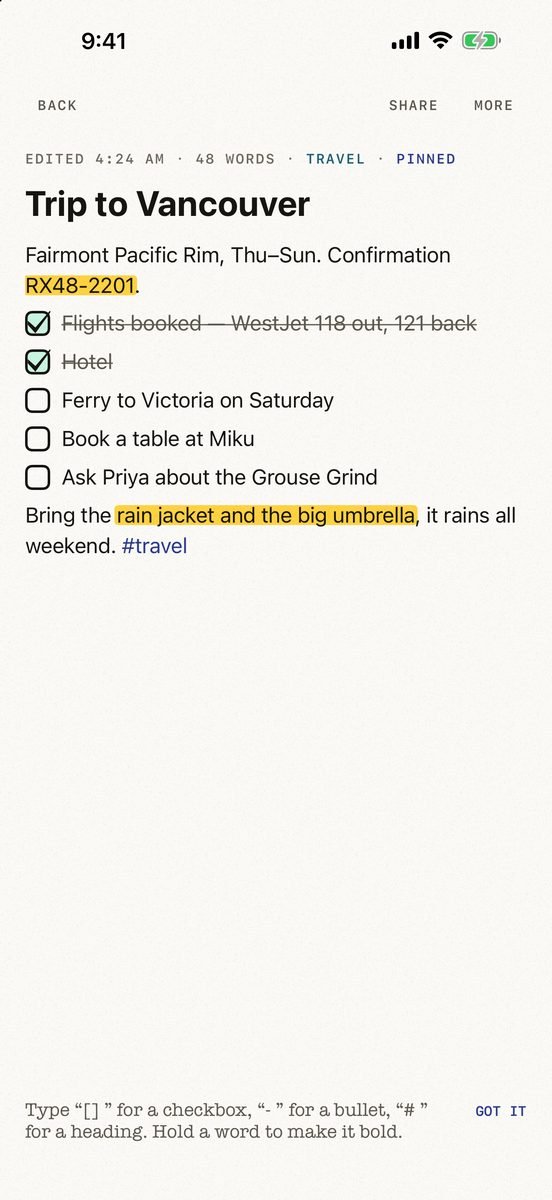
- Put it all in one note. Words, checklists, photos and scanned documents sit in the same note.
- Open the More menu and choose Export as PDF. Share it, print it or save it to Files.
- Or send it as text. Export as text from the same menu, or use Share at the top of the note.
- Find it again later. Search reads titles, text, tags and the words inside your pictures and scans.
Jotter is free, with no account and no ads, and needs iOS 18 or later. Need every note at once? Settings → Export all notes saves them as Markdown files with their pictures beside them.
Common questions
Can I make a PDF on iPhone without an app?
Yes. Use Share → Print and pinch out on the preview, Create PDF in the Files app, or Scan Documents in Notes or Files. All are built in and free.
How do I convert a photo to PDF on iPhone?
Select the photo in Photos, tap Share → Print, then pinch out on the preview and save the PDF. Or save it to Files, touch and hold it and choose Create PDF.
How do I combine PDF files on iPhone?
In the Files app, select the PDFs, tap the ••• button and choose Create PDF. To control the page order, use a merge tool that lets you reorder the files first.
How do I save a web page as a PDF on iPhone?
In Safari, tap Share, then Options, choose PDF and save it to Files. Or take a screenshot, choose Full Page and save it as a PDF.
Published · No affiliate links











 MMA.
MMA. Trending
 Bold
Bold Top
Top