Disclosure: Jotter is ours. The advice works with any app, or with pen and paper.
In short
In Apple Notes, open a note, tap the camera (or paperclip) button and choose Scan Documents; the Files app has Scan Documents in its ••• menu. Hold the phone over the page and it captures, crops and flattens it. Jotter does the same, and makes the text in your scans searchable.
- Notes and Files can both scan — no extra app.
- Good light and a dark background give the cleanest scan.
- Save as PDF to share it.
With Apple Notes
- Open Notes and start a note.
- Tap the camera (or paperclip) button and choose Scan Documents.
- Hold the iPhone over the page; it captures automatically, or tap the shutter.
- Adjust the corners, tap Keep Scan, then Save.
With the Files app
Open Files, tap ••• at the top and choose Scan Documents. The scan saves straight to a folder as a PDF.
Tips for a clean scan
- Put the paper on a dark, plain surface.
- Use daylight; avoid your own shadow.
- Flatten folded pages under a book first.
- Scan every page of a document into the same scan so it becomes one PDF.
Find it later
A scan you can’t find is a lost scan. Keep scans in the note they belong to — the receipt with the warranty note — and use an app that can search the words inside images.
How to do it in Jotter
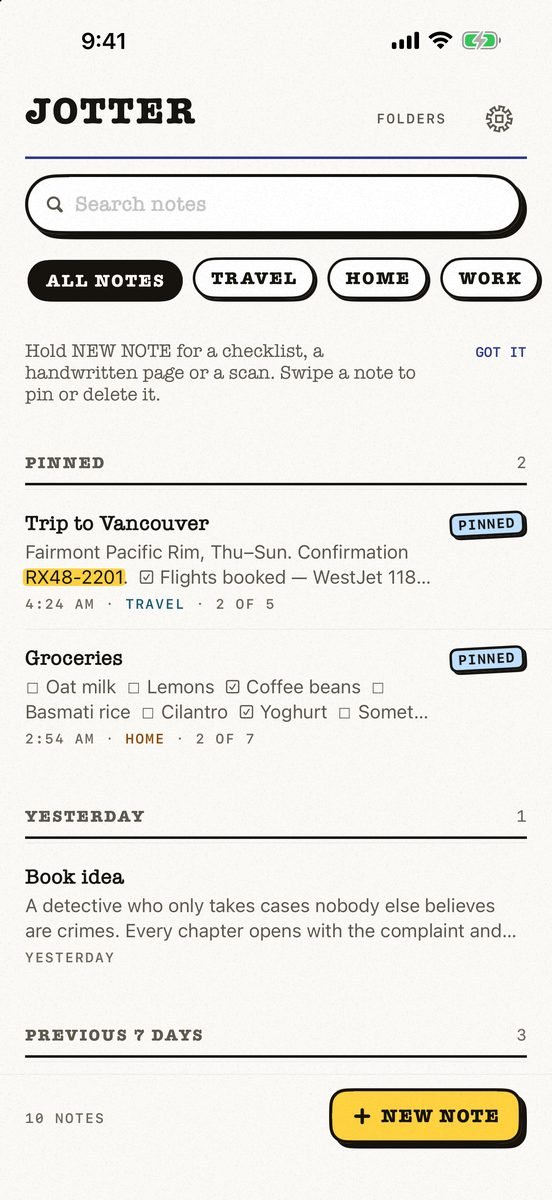
- Tap New, then scan. Scanned documents sit in the note beside your words.
- Search the words inside. The text in your pictures and scans is read on your device and turns up in search.
- Keep private scans locked. A note that holds something private can be locked behind Face ID.
- Share or export. Export a note as a PDF or text, or everything as Markdown with the files beside it.
Jotter is free, with no account; your scans stay on your device and in your own iCloud.
Common questions
How do I scan a document on my iPhone for free?
Use Scan Documents in the Notes app or the Files app — no extra app needed.
How do I scan to PDF on iPhone?
Scan with the Files app to save a PDF directly, or share a scan from Notes as a PDF.
Can I search text in scanned documents?
Yes — Jotter reads the text in scans on your device so you can search it.
Where do scans go?
In Notes and Jotter, into the note; in Files, into the folder you choose.
Published · No affiliate links










 MMA.socialUFC fan ratings
 Trending
 Bold
Bold Top
Top