Disclosure: Jotter is ours. The advice works with any app, or with pen and paper.
In short
The Photos app has no compress button, but there are easy ways around it. Emailing? Mail offers Small, Medium and Large sizes. For a file to upload, open our free Image Compressor in Safari, pick the photo, set about 80% quality and a maximum width of around 1600 pixels, and download the smaller copy — that usually lands under 1 MB. Your original stays untouched.
- Email: choose Mail’s Small, Medium or Large.
- Forms and uploads: about 80% quality, about 1600 px wide.
- Send the small copy, keep the original.
Why iPhone photos are so big
A photo from a recent iPhone is usually several megabytes: lots of pixels, saved at high quality. That’s great for printing and zooming, and more than most email limits, upload forms and websites want.
Two things make a photo smaller: fewer pixels (resizing or cropping) and stronger compression (a lower quality setting). Do both and a big photo becomes a small one that still looks fine on a screen.
For email: let Mail shrink it
- In Mail, write the message and add the photos.
- Look for the image size option at the top of the message, or tap Send and wait for the prompt.
- Choose Small, Medium or Large. Mail shows how big the message will be for each.
Gmail caps attachments at 25 MB. If a message is still too big, Mail can offer Mail Drop, which puts the attachments in iCloud and sends a download link instead, for files up to 5 GB.
For a form or website: compress it in your browser
Upload forms often set a limit, such as 1 MB or 2 MB. Our free Image Compressor works in Safari on your iPhone, and nothing is uploaded:
- Open the Image Compressor and tap the drop area to choose photos from your library.
- Set Quality to about 80% — the sweet spot for photos.
- Type a Max width, such as 1600, to cut the pixels too.
- Check the before and after sizes, then download. The copy saves to the Files app, in Downloads by default.
Need an exact size, such as a square profile picture? The Image Resizer sets an exact width and height in pixels, with presets for common sizes.
Crop it, or batch it with Shortcuts
- Crop: in Photos, tap Edit → Crop and cut away what you don’t need. Fewer pixels make a smaller file, and Revert undoes it later.
- Shortcuts: build a shortcut with Select Photos, Resize Image (say, 1600 wide), Convert Image (JPEG, with a lower compression quality) and Save to Photo Album. Run it whenever you need small copies of a batch.
- Messages: Settings → Apps → Messages → Low Quality Image Mode sends smaller photos in Messages, to save data.
How small is small enough?
- Email or chat: 1600 to 2000 pixels on the long side looks sharp on any screen.
- A form with a 1 MB limit: about 1600 pixels at 80% quality usually fits.
- Printing: don’t shrink it — send the original.
- Text in the photo, like a receipt or a screenshot: use a higher quality, around 90%, so the letters stay crisp.
Want room on your iPhone? That’s different
Compressing makes a smaller copy; your original stays in Photos at full size. If the goal is space on the phone, see iPhone storage full? How to free up space — iCloud Photos with Optimize iPhone Storage does it without touching the quality of your originals.
Applying for something? Keep it together in Jotter
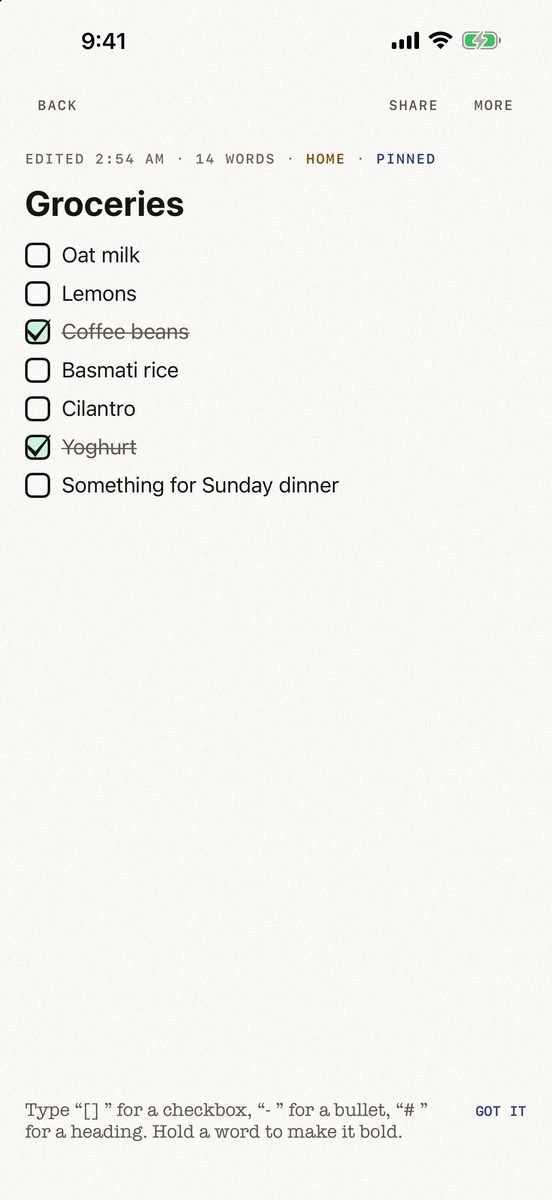
- Start a checklist of what you need. A rental application, an insurance claim, a passport renewal: tap New, then List, and every return adds the next item.
- Add the photos and scans to the same note. Photos, scanned documents and files sit beside your words and your list.
- Search reads the pictures too. The text in your photos and scans is read on your device, so a policy number inside a photo turns up in search.
- Lock what’s private. A note that holds an ID can be locked behind Face ID.
Jotter is free, with no account and no ads, and needs iOS 18 or later. Photo text is read on your device, never uploaded. Locking hides a note inside Jotter; it isn’t encryption.
Common questions
How do I reduce the MB size of a photo on iPhone?
Make a smaller copy: choose a smaller size when you email it, crop it, or open a browser compressor, set about 80% quality and a maximum width, and download the copy.
How do I make a picture smaller than 1 MB?
Resize it to about 1600 pixels on the long side and save it as a JPG at around 80% quality. That usually brings a phone photo under 1 MB.
Does compressing a photo reduce its quality?
A little. At around 80% quality most photos look the same on a screen. Keep the original for printing.
How do I send a large photo by email from iPhone?
Choose Small, Medium or Large when Mail offers, or let Mail Drop send a download link for attachments up to 5 GB.
Published · No affiliate links











 MMA.
MMA. Trending
 Bold
Bold Top
Top