Disclosure: Jotter is ours. The advice works with any app, or with pen and paper.
In short
Open Settings → General → iPhone Storage to see what’s using the space, then start with the biggest wins: offload apps you don’t use, empty Recently Deleted in Photos, turn on iCloud Photos with Optimize iPhone Storage, and clear out old message attachments. Buying more iCloud storage doesn’t free space on the phone by itself — only features that move files off the iPhone do.
- Settings → General → iPhone Storage shows what’s big.
- Offload apps: the app goes, its data stays.
- iCloud Photos with Optimize keeps the full-size photos in iCloud.
Step 1: see what’s using the space
- Open Settings → General → iPhone Storage and give it a few seconds to add everything up.
- The bar at the top splits your storage into groups such as Apps, Photos, Messages, iOS and System Data.
- Below it are suggestions, like Offload Unused Apps or Review Large Attachments, with how much each would free.
- Then comes every app, biggest first. Tap one to see its App Size (the app itself) and Documents & Data (what it has saved).
Work from the top of that list. One video app full of downloads or one long group chat can matter more than fifty small apps.
Quick wins that don’t touch your photos
- Offload apps you don’t use. Tap an app in iPhone Storage, then Offload App. The app is removed but its documents and data stay; tap its icon to download it again. To do it automatically, turn on Offload Unused Apps in Settings → Apps → App Store (on older iOS, Settings → App Store).
- Delete downloads in streaming apps. Downloaded shows, playlists and podcast episodes add up fast. Remove them inside each app; for Apple Music, Optimize Storage in Settings → Apps → Music lets the iPhone remove songs you haven’t played in a while when space runs low.
- Trim Messages. In iPhone Storage, tap Messages → Review Large Attachments and swipe away old videos and GIFs. Or set Settings → Apps → Messages → Keep Messages to 1 Year — that deletes older messages and their attachments, so save anything you want first.
- Clear Safari’s data. Settings → Apps → Safari → Clear History and Website Data. It signs you out of websites.
- Empty your Downloads folder. In the Files app, look in Downloads for big files you’ve already dealt with.
- Reinstall apps with a huge cache. If an app’s Documents & Data is far bigger than you’d expect, deleting and reinstalling it clears the cache — and anything saved only on the phone, so check the app syncs first.
Free up space without deleting photos
Photos and videos are usually the biggest group. You can keep every one of them and still get room back:
- Turn on iCloud Photos with Optimize iPhone Storage. Settings → Apps → Photos (on older iOS, Settings → Photos): turn on iCloud Photos, then choose Optimize iPhone Storage. Full-size originals stay in iCloud and the phone keeps smaller versions, downloading the original when you open one. It frees space gradually, as the phone needs it. You’ll need enough iCloud storage for your library — the free plan is 5 GB.
- Merge duplicates. In Photos, scroll down to Utilities → Duplicates and tap Merge. Photos keeps the highest-quality copy and moves the rest to Recently Deleted.
- Empty Recently Deleted. Deleted photos wait in Utilities → Recently Deleted for about 30 days, and they still use space. Select → Delete All gets the room back now — but there’s no undo.
- Copy them to a computer, then delete them from the phone. With iCloud Photos on, deleting on the iPhone deletes from iCloud too, so copy first: how to transfer photos from iPhone to a PC or Mac.
Stop it filling up again
- Videos: Settings → Camera → Record Video. 4K at 60 fps looks great and takes far more space than 1080p at 30 fps; the screen itself shows roughly how much a minute takes at each setting.
- Photo format: Settings → Camera → Formats → High Efficiency saves photos as HEIC, which are noticeably smaller than JPGs. If someone can’t open them, convert HEIC to JPG when you share, not when you shoot.
- Screenshots: if you took one to remember a line of text — an address, a code, a recipe — copy the words into a note and delete the picture.
- Photos you keep only as records, like receipts, labels or where you parked, don’t need full size. Shrink copies with our free Image Compressor, which runs in Safari without uploading anything, keep the copies in Files and delete the originals.
“Storage full” even with iCloud?
iPhone storage and iCloud storage are separate. Paying for more iCloud space doesn’t make room on the phone, and an iCloud backup doesn’t remove anything from it — a backup is a copy.
What does move files off the phone is iCloud Photos set to Optimize iPhone Storage. If it’s set to Download and Keep Originals, every full-size photo is still on the iPhone. And check which warning you’re seeing: “iCloud Storage Full” means your iCloud plan is full, not the phone.
System Data: what it is and how to shrink it
System Data is caches, logs and temporary files that iOS and your apps keep. It grows and shrinks on its own, and iOS clears some of it when space runs low. You can’t delete it directly, but these usually help:
- Restart the iPhone.
- Clear Safari’s history and website data.
- Keep messages for 1 year instead of forever.
If System Data is enormous and won’t come down, the last resort is to back up the iPhone, erase it and restore from the backup. Make sure the backup has finished before you erase anything.
Not enough space for an iOS update?
An update needs free space to unpack. If there isn’t enough, the iPhone may offer to remove some apps temporarily and reinstall them after the update. Or update from a computer: connect the iPhone to a Mac (in Finder) or a Windows PC (in the Apple Devices app or iTunes) and choose Check for Update. The computer downloads the update, so the phone needs less free space.
Keep the words, not the screenshot, with Jotter
- Copy the text out of the screenshot. In Photos, touch and hold the words until Live Text selects them, then tap Copy.
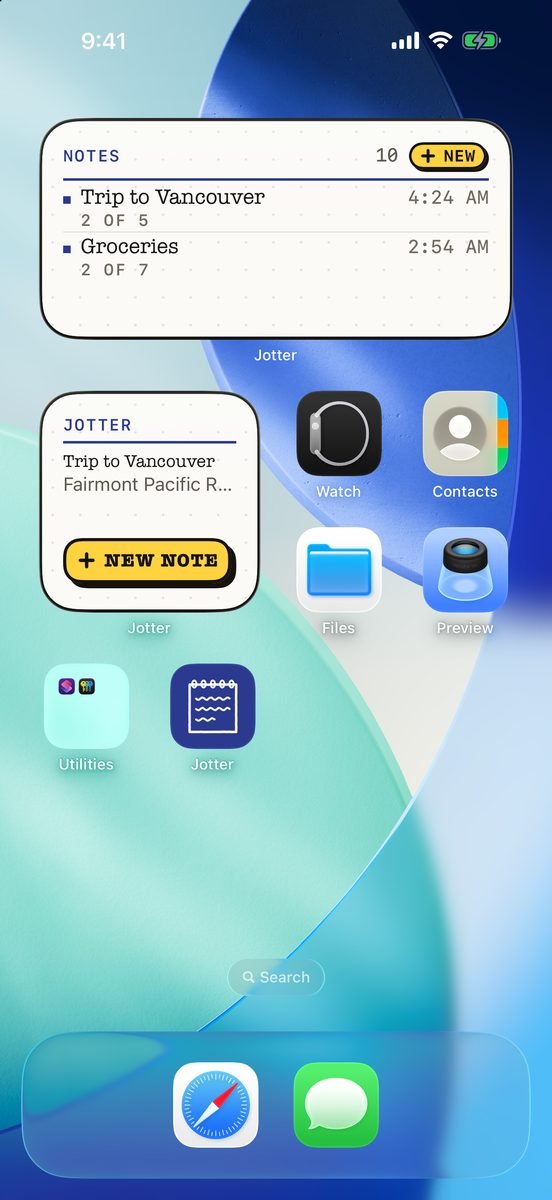
- Paste it into a note in a second. The New note widget on your Home Screen or Lock Screen, the Control Center button, or Siri: “Jot down in Jotter”.
- Delete the screenshot. Then empty Recently Deleted in Photos to get the space back straight away.
- Find it by any word. A word or two, in any order — Jotter shows you the sentence it found.
Jotter is free, with no account and no ads, and needs iOS 18 or later. Notes sync through your own iCloud, and a line of text takes up far less room than a picture of it.
Common questions
Why is my iPhone storage full when I have iCloud?
iPhone storage and iCloud storage are separate. An iCloud backup is a copy and frees nothing on the phone. Turn on iCloud Photos with Optimize iPhone Storage to keep full-size photos in iCloud instead of on the iPhone.
What is System Data on iPhone and how do I clear it?
It is caches, logs and temporary files kept by iOS and your apps, and it changes on its own. Restarting, clearing Safari’s data and keeping fewer old messages usually shrink it. Backing up, erasing and restoring is the last resort.
How do I free up space on iPhone without deleting photos?
Offload apps you don’t use, delete streaming downloads, remove large message attachments, clear Safari’s data, and turn on iCloud Photos with Optimize iPhone Storage. Or copy your photos to a computer before deleting them from the phone.
Does offloading an app delete its data?
No. Offloading removes the app but keeps its documents and data. Tap its icon to download it again and carry on where you left off, as long as it is still on the App Store.
Published · No affiliate links











 MMA.
MMA. Trending
 Bold
Bold Top
Top