Disclosure: Jotter is ours. The advice works with any app, or with pen and paper.
In short
On a Mac, open the photo in Preview and choose File → Export → JPEG. On iPhone, copy the photos in Photos and paste them into a folder in the Files app — they paste as JPGs. On any phone or computer, our free Image Converter turns HEIC into JPG in the browser without uploading anything. To stop new HEICs, set Settings → Camera → Formats to Most Compatible.
- Mac: Preview → File → Export → JPEG.
- iPhone: copy in Photos, paste into Files.
- Stop new HEICs: Camera → Formats → Most Compatible.
What HEIC is, and why your iPhone uses it
HEIC is the format iPhones save photos in when the camera is set to High Efficiency. The files are noticeably smaller than JPGs at the same quality, which saves storage. The catch: some Windows PCs, websites and older apps can’t open them.
Often you don’t need to convert anything yourself. When you share photos by Mail or Messages, or copy them to a computer with the right setting (below), the iPhone may convert them to JPG for you.
On iPhone: convert photos you already have
- In Photos, select the photos, tap Share and choose Copy Photo (or Copy Photos).
- Open the Files app and go to a folder, such as On My iPhone.
- Touch and hold an empty spot and tap Paste. The photos land as JPG files, ready to upload or attach.
For a big batch, the Shortcuts app can do it in one go: a shortcut with Select Photos, Convert Image (set to JPEG) and Save to Photo Album converts as many as you pick.
On iPhone: stop saving new photos as HEIC
Go to Settings → Camera → Formats and choose Most Compatible. New photos save as JPG and videos as H.264. Photos you already took stay HEIC.
The trade-off is space: JPGs are bigger, so the iPhone fills up faster, and some video options, like 4K at 60 fps, need High Efficiency. Plenty of people keep High Efficiency and convert only the photos they share.
Copying photos to a computer? Set Settings → Apps → Photos → Transfer to Mac or PC to Automatic, and photos copied with a cable arrive as JPGs.
On a Mac
- Preview: open the HEIC file, choose File → Export, set Format to JPEG, pick the quality and save. For several, open them all in Preview, select every thumbnail in the sidebar, choose File → Export Selected Images and pick JPEG under Options.
- Finder: select the files, Control-click and choose Quick Actions → Convert Image, then JPEG.
- Photos: select the photos, choose File → Export → Export Photos and set Photo Kind to JPEG.
On Windows 11 or 10
Windows opens HEIC once Microsoft’s HEIF Image Extensions and HEVC Video Extensions are installed from the Microsoft Store (the HEVC one may cost a small fee). Then open the photo in Paint and choose File → Save as → JPEG picture.
Don’t want to install anything? Use a browser converter instead.
Anywhere: convert in your browser
Our free Image Converter works on iPhone, Android, Mac, Windows and Chromebook: drop in HEIC photos, choose JPG and download. It runs entirely in your browser, so your photos are never uploaded — unlike many converter sites, which send them to a server first. Converting a batch? Download all saves them in one zip file.
Need the photos as one document instead, say for a form? JPG to PDF accepts HEIC too, and makes one PDF with a page per photo.
Photo of a document? Keep it in Jotter
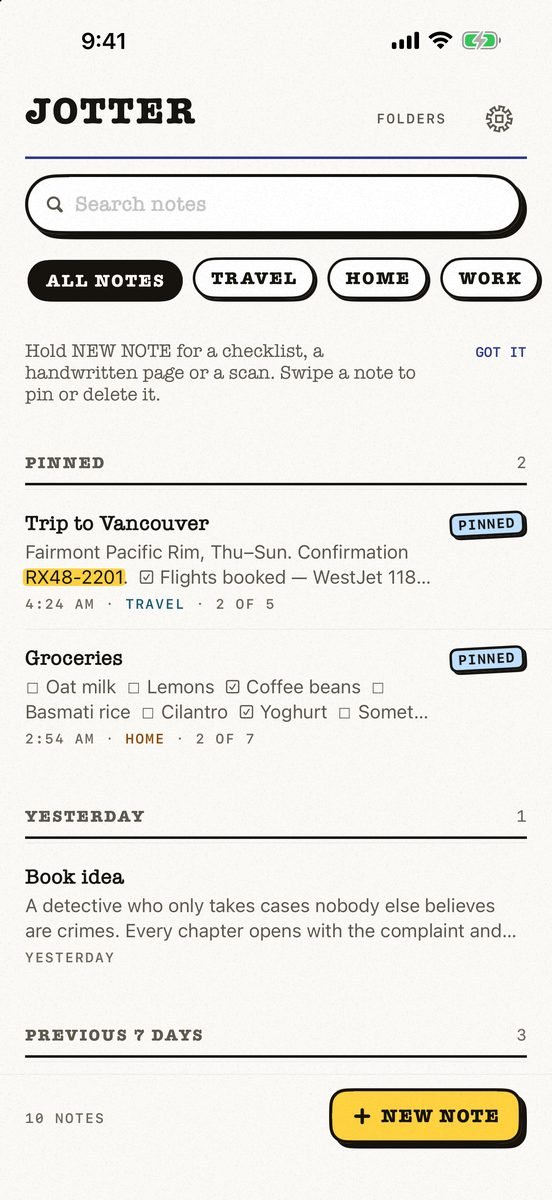
- Scan the page instead of photographing it. Scanned documents sit in the note they belong to, beside your words and checklists.
- Search finds the words in it. The text in your pictures and scans is read on your device, so one word from the page brings the note back.
- Send it as a PDF. Open the note’s More menu and choose Export as PDF — a format almost any website or office takes.
Jotter is free, with no account and no ads, and needs iOS 18 or later. Photo text is read on your device, never uploaded.
Common questions
How do I change HEIC to JPG in iPhone settings?
Go to Settings → Camera → Formats and choose Most Compatible. New photos save as JPG; photos you already took stay HEIC, so convert those separately.
Does converting HEIC to JPG lose quality?
A little, because JPG is a lossy format, but at a high quality setting the difference is very hard to see. The JPG file is usually larger than the HEIC.
Why can’t I open HEIC files on Windows?
Windows needs Microsoft’s HEIF and HEVC extensions from the Microsoft Store to open them. Or convert the files to JPG in a browser converter.
Is it safe to use an online HEIC to JPG converter?
Many online converters upload your photos to their server. The Image Converter on this site runs in your browser, so the photos never leave your device.
Published · No affiliate links











 MMA.
MMA. Trending
 Bold
Bold Top
Top