Disclosure: ScrollCop is ours. The advice works with any app, or with pen and paper.
In short
Open Control Center (swipe down from the top-right corner), tap Focus, then Do Not Disturb; tap the … beside it to have it switch off after an hour or this evening. To make it automatic, go to Settings → Focus → Do Not Disturb and add a schedule.
- Control Center → Focus → Do Not Disturb, or ask Siri.
- Settings → Focus lets chosen people, apps and repeat calls through.
- Do Not Disturb hides alerts; it doesn’t stop you opening the apps.
Turn on Do Not Disturb in two taps
- Open Control Center: swipe down from the top-right corner (on an iPhone with a Home button, swipe up from the bottom edge).
- Tap Focus, then Do Not Disturb. A moon appears in the status bar and on the Lock Screen.
- To give it an end, tap the … next to Do Not Disturb and pick For 1 hour, Until this evening or Until I leave this location.
Or ask Siri: “Turn on Do Not Disturb.” Tap the same button again to turn it off.
What Do Not Disturb actually does
It silences calls, alerts and notifications, and stops them lighting up the screen. Nothing is lost: notifications still collect in Notification Center for later, and your Clock alarms still go off.
Silent mode is different. The Ring/Silent switch (or the Action button on newer models) only mutes sounds — banners still appear and the screen still lights up. Do Not Disturb hides the interruptions themselves.Let the important people through
Go to Settings → Focus → Do Not Disturb:
- People: add anyone whose messages and calls should always get through, and choose who else can call you.
- Allow Repeated Calls: leave it on. A second call from the same person within three minutes rings, so someone who really needs you can get through by calling twice.
- Apps: add apps that must reach you, and decide whether time-sensitive notifications, like a delivery at the door, can break through.
- Emergency Bypass: for one or two people, open their contact, tap Edit → Ringtone and turn on Emergency Bypass. Their calls ring even in Do Not Disturb and Silent mode.
Schedule it every night (and turn off notifications at night)
In Settings → Focus → Do Not Disturb, tap Add Schedule and choose Time — say 10:00 PM to 7:00 AM, every day. You can also start it at a location, like the office or the gym, or when you open a particular app.
For bedtime there’s also the Sleep Focus, which follows the sleep schedule you set in the Health app.
Under Options you can hide silenced notifications from the Lock Screen, dim it, and hide the red badges on app icons, so a glance at the phone at night shows nothing to pull you in.
Silence one person or one app
One chat: in Messages, swipe left on the conversation and tap the bell to hide its alerts. Tap it again to undo. WhatsApp and most chat apps have a Mute option in the chat’s info. One app: go to Settings → Notifications, tap the app and turn off Allow Notifications — or keep them but untick Lock Screen, so they only show when you go looking. Batch the rest: Scheduled Summary, on the same Notifications screen, gathers non-urgent notifications and delivers them at the times you choose.Do Not Disturb on a Mac, and why it turns itself on
On a Mac: click Control Center in the menu bar, click Focus and choose Do Not Disturb. Schedules and allowed people live in System Settings → Focus. Turning on by itself? Check three places: a schedule in Settings → Focus, a sleep schedule in the Health app, and Share Across Devices — with that on, starting a Focus on your Mac or iPad starts it on your iPhone too. The Driving Focus can also switch on when your iPhone thinks you’re driving.Do Not Disturb hides notifications. It doesn’t stop you checking.
A quiet phone helps, but Instagram and TikTok still open the second you pick it up. If the problem is you opening the apps rather than them buzzing you, you need a block, not a Focus — see how to block apps on iPhone at certain times and 10 settings that make your phone less addictive.
Working at a computer? Turn on Do Not Disturb and start a 25-minute countdown in our Online Timer. It beeps when time is up, even from a background tab; then take five minutes and go again.
Close the apps on the same schedule with ScrollCop
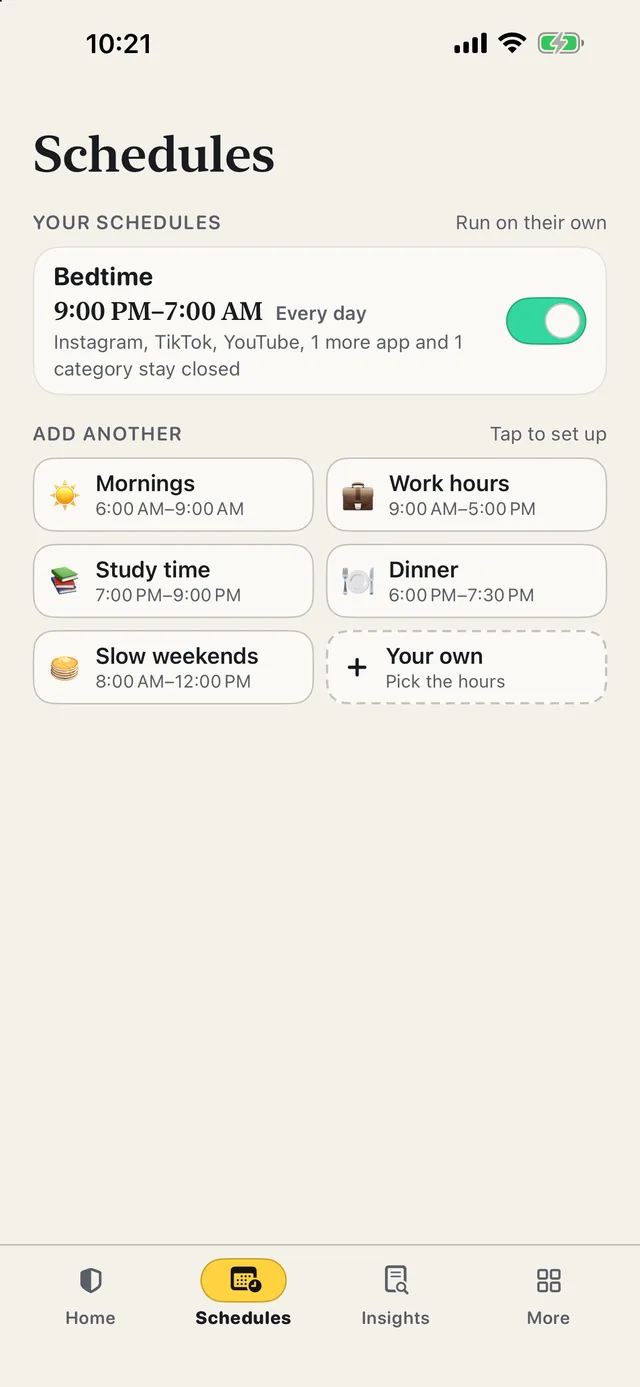
- Tap the apps that pull you in. Instagram, TikTok, YouTube, whole categories or websites. Calls, Messages and Maps stay open unless you add them.
- Make it a schedule. Start from Bedtime, Mornings, Work hours, Study time, Dinner or Slow weekends, or pick your own hours. Each schedule runs every day, even with ScrollCop closed.
- Choose who can end it early. You, nobody, or a friend who gets a one-time PIN by text. Since ScrollCop 3.0, every block starts on Nobody.
- Try to open one, and it won’t. Blocked apps disappear from the Home Screen and show a Screen Time shield with no Ignore button.
Until ScrollCop 3.0 arrives, the App Store still lists it as Reset - Block Apps, and it blocks the same way. Free, no account, no ads, nothing leaves your phone.
Common questions
How do I turn on Do Not Disturb on my iPhone?
Swipe down from the top-right corner to open Control Center, tap Focus, then tap Do Not Disturb. Tap the … next to it to choose when it turns off.
Will calls come through on Do Not Disturb?
Only from the people you allow in Settings → Focus → Do Not Disturb → People, plus a second call from the same person within three minutes if Allow Repeated Calls is on. Contacts with Emergency Bypass always ring.
How do I turn on Do Not Disturb for one person?
To silence one person, swipe left on their conversation in Messages and tap the bell. To let one person through while everything else is silenced, add them under People in the Do Not Disturb settings.
Do alarms go off in Do Not Disturb?
Yes. Alarms you set in the Clock app ring in Do Not Disturb and in Silent mode.
Published · No affiliate links











 MMA.
MMA. Trending
 Bold
Bold Top
Top