Disclosure: Gathr is ours. The advice works with any app, or with pen and paper.
In short
Copy the link, paste it into a free QR code generator, and download the code as a PNG for screens or an SVG for print. Use a static code — the link is stored in the pattern itself, so it never expires — and test it with two phones before you print anything.
- Copy the exact link first; the code is only as good as the link.
- Static codes never expire; many “free” dynamic ones do.
- Test on two phones, then print it big enough.
Step by step: a QR code for any link
- Copy the link. Open the page, tap the address bar and copy the whole address, starting with https://.
- Open a QR code generator. Our free QR Code Generator works in any browser, with no sign-up, and nothing is uploaded.
- Choose Website and paste the link. The code updates as you type.
- Keep it dark on light. You can change the colours, but a dark code on a white background scans best. Leave error correction on Medium.
- Download it. PNG for screens, slides and messages; SVG for anything printed, because it stays sharp at any size.
- Test it. Scan it with an iPhone and an Android phone, and check it opens the right page.
How to make a QR code on iPhone without an app
You don’t need to install anything:
- In Safari or any browser: open the QR Code Generator, paste your link and tap Download PNG. On iPhone the picture goes to your Downloads in the Files app, ready to share.
- In Chrome: tap Share on the page you want and choose Create a QR Code. On a computer, right-click the page instead.
- In Shortcuts: make a shortcut with the Generate QR Code action, paste the link into it, and add Quick Look to show the result.
Getting the right link: Google Forms, reviews, Docs, Instagram
- Google Form: click Send, choose the link tab, tick Shorten URL if you like, and copy it.
- Google reviews: in your Google Business Profile, choose Ask for reviews (sometimes called Get more reviews) and copy the short link it gives you.
- Google Doc or Drive file: click Share, set General access to Anyone with the link, then Copy link. Skip this and people who scan hit a “request access” page.
- Instagram or Facebook: copy your profile link from the app’s share menu. Instagram also makes its own QR code when you tap Share profile.
- A menu or price list: put it on a page you control and link to that page, so you can change the menu without reprinting the code.
Static vs dynamic: why some free QR codes stop working
A static QR code holds your link in the pattern itself. Nothing sits in between, so it works for as long as the link does.
A dynamic QR code holds a short link that belongs to the QR company, which then sends people on to yours. That lets you change the destination and count scans — but if the free trial ends, the subscription lapses or the company closes, every printed copy stops working. Many “free QR code generator” sites only make dynamic codes and mention the trial later.
If you’ll want to change where it points, make a static code for a page you own, and change the page instead.
How big to print it, and other print tips
- Size: no smaller than about 2 cm (¾ inch) across. A common rule of thumb is a tenth of the scanning distance, so a poster read from 3 metres needs a code about 30 cm wide.
- White border: leave clear space around the code on every side; don’t let text or pictures touch it.
- Contrast: dark code, light background. Light-on-dark codes and pale colours fail on many phones.
- Shorter links scan more easily: a short link makes a simpler pattern that copes better with small sizes and bad light.
- Say what it does: a line like “Scan to RSVP” or “Scan for the menu” tells people why it’s worth pointing a camera at.
How to scan a QR code on iPhone, and stay safe
Open the Camera and point it at the code; the link appears in a yellow label — tap it. You can also add a Code Scanner button to Control Center.
Read the address in that label before you tap. QR codes are an easy way to hide a scam link, especially stickers on parking meters, posters and unexpected letters. If the address looks wrong, don’t open it.
Throwing a party? Gathr makes the links and the QR codes
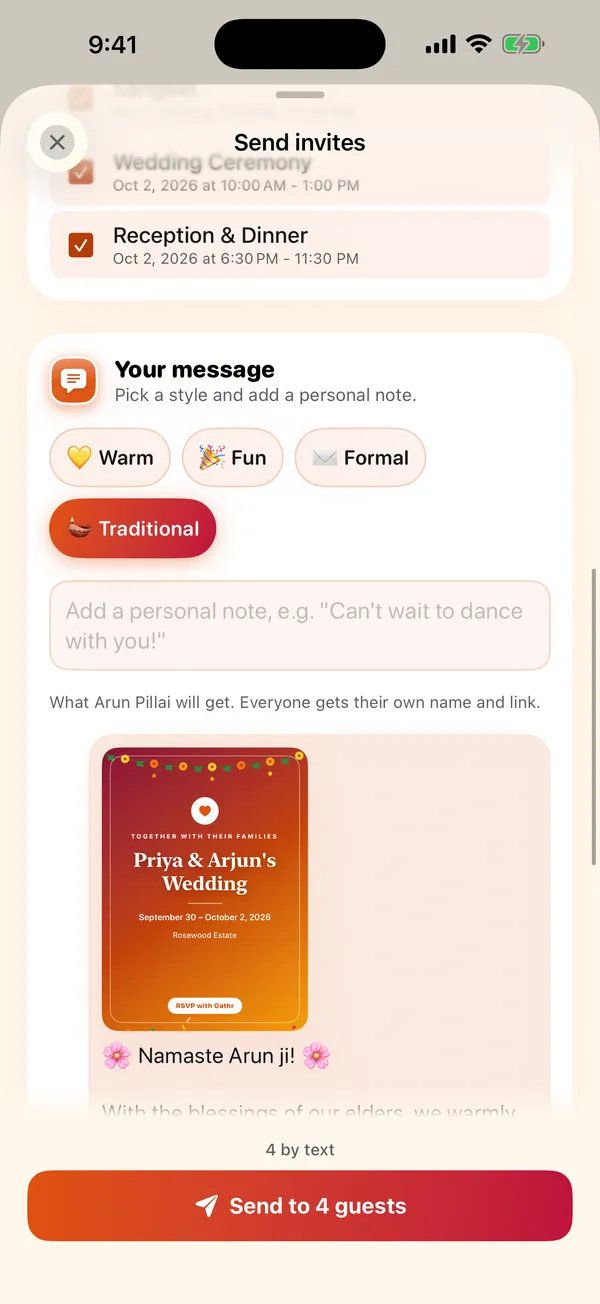
- Set up the event in a minute. Gathr asks what you’re celebrating, the names, the date, the place and a budget, then lets you pick a look.
- Send each guest their own link. By text, WhatsApp or email from your own phone. Each guest gets the invitation card and their own link, and replies in any browser without the app.
- Give guests a free pass with a QR code. Then check them in at the door with your camera. Nothing is sold; it’s a free admission pass.
- Watch the replies come in. See who’s going, who’s a maybe and who hasn’t answered, and remind the quiet ones in two taps.
Gathr is free, with no ads and no charges to you or your guests. You sign in with Apple, Google or email; your guests reply from a link and never need the app. More in how to collect RSVPs online for free.
Common questions
How do I make a QR code for a link for free?
Copy the link, paste it into a free generator such as our QR Code Generator, choose Website, and download the code as PNG or SVG. Static codes like these never expire.
How do I make a QR code on my iPhone without an app?
Open a QR code generator in Safari and download the code, use Chrome’s Share → Create a QR Code, or build a one-step shortcut with the Generate QR Code action in Shortcuts.
Do QR codes expire?
Static QR codes don’t — the link is stored in the pattern. Dynamic codes from QR services can stop working when a free trial or subscription ends, because they send people through the company’s own short link.
Can I change where a QR code goes after printing?
Not with a static code. Point it at a page you control, like your website’s menu page, and update the page instead — or pay for a dynamic code and keep the subscription going.
Published · No affiliate links











 MMA.
MMA. Trending
 Bold
Bold Top
Top