Disclosure: Jotter is ours. The advice works with any app, or with pen and paper.
In short
On iOS 18 or later, the Voice Memos app can transcribe a recording: open it and tap the transcript button, then select and copy the text. Apple Notes can record audio with a live transcript too. In Jotter, a voice note recorded inside a note is transcribed on your device, and the words turn up in search.
- Voice Memos on iOS 18+: open the recording → transcript.
- No recording needed? Dictate straight into a note.
- Check names and numbers before you rely on it.
In Voice Memos
- Open Voice Memos and tap the recording.
- Tap the transcript button (it looks like a speech bubble) to show the text.
- Touch and hold to select the words, tap Copy, and paste them where you need them.
Transcripts need iOS 18 or later, a newer iPhone and a supported language. If you don’t see the button, your iPhone or language may not support it yet.
In Apple Notes
In a note, tap the paperclip button and choose Record Audio. On supported iPhones the transcript appears as you talk, and the recording stays in the note. It’s handy for lectures and meetings where you want the audio and the words together.
Skip the recording: dictate
If you only need the words, tap the microphone on the keyboard and talk; the text appears as you speak. Turn it on in Settings → General → Keyboard → Dictation if you don’t see the microphone. Say “comma” or “new line” where you want them.
Tips for a clean transcript
- Hold the phone close, in a quiet room.
- One person speaking at a time.
- Say names slowly, or spell them out.
- Check every number, date and name afterwards.
- Keep the audio until you’ve checked the text.
Recording other people? Tell them first — it’s polite, and in some places the law requires it.
Make it findable later
A transcript you can’t find is no better than the audio. Keep it in the note it belongs to — the meeting, the class, the idea — and give the note a clear first line. Our guide on how to organize notes on iPhone has a simple system.
How to do it in Jotter
- Record a voice note inside any note. It sits beside your words, photos and checklists.
- Jotter writes it out on your device. Voice notes are transcribed with Apple’s Speech framework; the audio is never sent to a server.
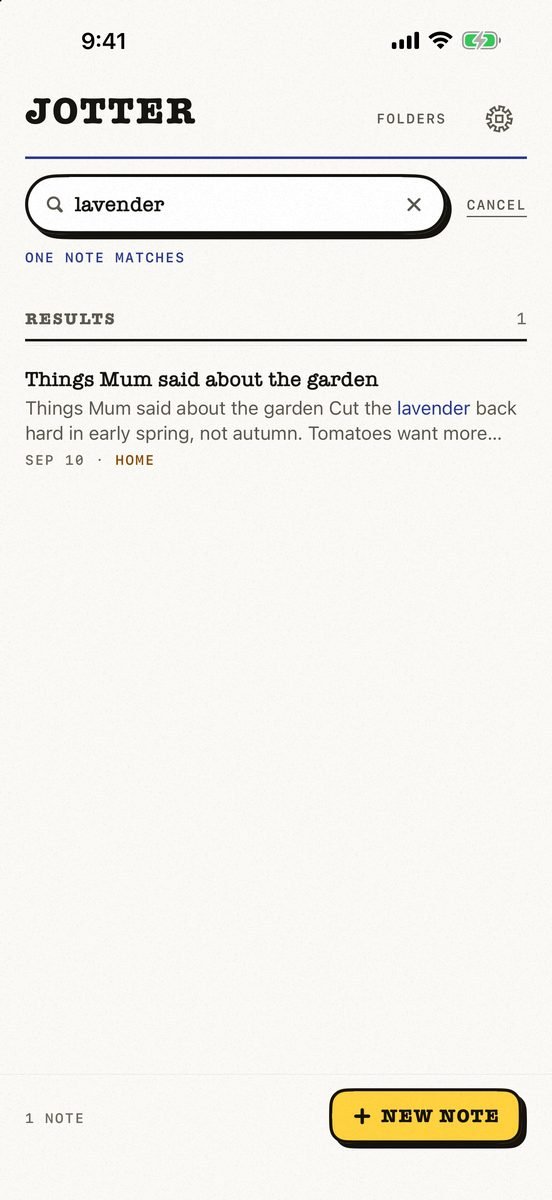
- Find it by what was said. Once a voice note is transcribed, search finds its words — a word or two, in any order.
- Keep listening while you read. From Jotter 1.3, a floating player keeps a voice note playing while you scroll the note.
Jotter is free, with no account and no ads. If your iPhone can’t transcribe your language on the device, Jotter keeps the recording and skips the transcript rather than send it anywhere.
Common questions
Can iPhone transcribe voice memos?
Yes, on iOS 18 or later. Open a recording in Voice Memos and tap the transcript button — on supported iPhones and in supported languages.
How do I turn a voice memo into text for free?
Use the transcript in Voice Memos, record audio in Apple Notes, dictate with the keyboard microphone, or record a voice note in Jotter. All are free.
Why does my Jotter voice note have no transcript?
Your device may not support your language on the device, or Speech Recognition is off: check Settings → Privacy & Security → Speech Recognition → Jotter. New recordings also take a few seconds.
Is my audio uploaded to make the transcript?
Not in Jotter. Voice notes are transcribed on your device with Apple’s Speech framework, and there is no Jotter server.
Published · No affiliate links










 MMA.socialUFC fan ratings
 TrendingPunjabiPunjabi music charts
 BoldOpinionAnonymous hot takes