Disclosure: Jotter is ours. The advice works with any app, or with pen and paper.
In short
To another iPhone, iPad or Mac, keep the devices close with Wi-Fi and Bluetooth on, have them tap your network, and tap Share Password on your unlocked iPhone. For Android phones and Windows laptops, show a Wi-Fi QR code or read out the password: tap the ⓘ next to the network in Settings → Wi-Fi, then tap Password.
- Apple to Apple: tap Share Password when your iPhone asks.
- Android or a laptop: a Wi-Fi QR code, or the password from Settings.
- For guests, print a QR code for a guest network, not your main one.
Share Wi-Fi from iPhone to iPhone, iPad or Mac
This is the one-tap way, and it works between any Apple devices. Before you start, check that:
- Your iPhone is unlocked and already connected to the network.
- Wi-Fi and Bluetooth are on, on both devices, and they’re close together.
- Each of you is in the other’s Contacts, with the email address of your Apple Account.
- On the other device, open Settings → Wi-Fi (or the Wi-Fi menu on a Mac) and tap your network, so it’s waiting for the password.
- On your iPhone, a card pops up offering to share the password. Tap Share Password.
- Tap Done. The other device joins without anyone typing a thing.
When Share Password doesn’t pop up
- Lock and unlock your iPhone, and check it’s on the network you’re sharing.
- Make sure the other device is actually showing the password screen for that network.
- Put the two devices side by side and check Bluetooth is on for both.
- Save the other person in your Contacts with the email address they use for their Apple Account.
- Turn Wi-Fi off and on again on the other device, or restart both.
- Work and school networks that ask for a username as well as a password can’t be shared this way.
Still nothing? Share it the way you would with an Android phone, below.
How to see your Wi-Fi password on iPhone
On recent iOS versions, your iPhone will show you any Wi-Fi password it has saved:
- Open Settings → Wi-Fi.
- Tap the ⓘ next to the network.
- Tap Password and confirm with Face ID, Touch ID or your passcode. Tap Copy if you want to paste it somewhere.
Share Wi-Fi from iPhone to Android with a QR code
Android phones can’t receive Apple’s Share Password card, but almost all of them can join a network by scanning a QR code, from the camera or from their Wi-Fi settings.
- On your iPhone, open the Passwords app, tap Wi-Fi and tap your network.
- Tap Show Network QR Code.
- The other person points their camera at your screen and taps to join.
If your iPhone doesn’t have that option, make the code yourself: in our free QR Code Generator, choose Wi-Fi, type the network name and password, and leave security on WPA / WPA2 / WPA3. The code is made in your browser, nothing is uploaded, and it never expires.
Share Wi-Fi from iPhone to a laptop
A Mac works like an iPhone: pick the network from the Wi-Fi menu and tap Share Password on your iPhone when it asks. A Windows laptop can’t take the Share Password card, so the quickest way is to reveal the password in Settings (above) and type it in. If it’s long, tap Copy and send it to yourself in a message or email you can open on the laptop.No Wi-Fi nearby at all? That’s a different job: Settings → Personal Hotspot lets the laptop use your iPhone’s data, with its own password shown on that screen.
Make a Wi-Fi QR code for guests
If people stay with you often, print a code once and put it where guests look: the fridge, the guest room, the side of the router.
- Use a guest network if your router has one, so the code never gives out your main password.
- Give it a password that’s long but easy to type on a TV remote: three or four random words joined by hyphens. Our Password Generator makes these when you choose Memorable passphrase.
- Download the code as SVG for printing — it stays sharp at any size — or PNG to keep on your phone.
- Change the password and the old code stops working, so make a new one.
Anyone who can photograph the code can join, the same as anyone who can read a password on a sticky note.
Keep the Wi-Fi details in Jotter
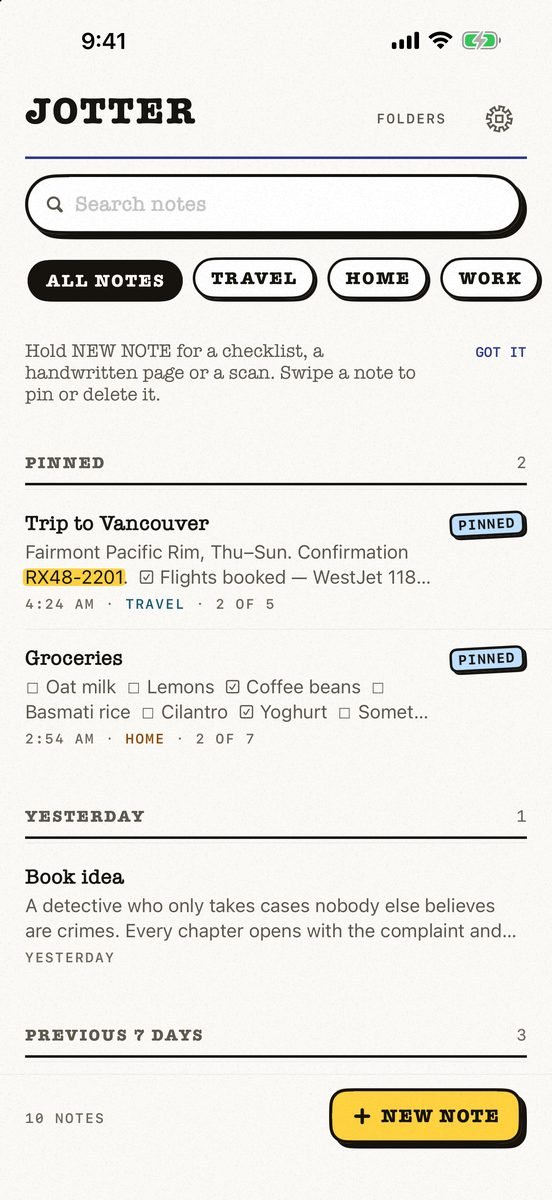
- Make a note for it. Open Jotter and start typing — the first line names the note, so “Wi-Fi at home” is all it takes. Add the network name, the password and where the router lives.
- Add the QR code picture. Photos sit in the note beside your words, so a guest can scan the code straight off your screen.
- Pin it, or lock it. Pin the note to keep it at the top of your list, or lock it behind Face ID if it holds your main password.
- Find it again by any word. Search looks through titles, text, tags and the words inside your pictures.
Jotter is free, with no account and no ads, and needs iOS 18 or later. Notes sync only through your own iCloud. More in how to lock notes on iPhone.
Common questions
How do I share my Wi-Fi password from iPhone to iPhone?
Unlock your iPhone while it’s on the network, keep both phones close with Wi-Fi and Bluetooth on, have the other person tap the network in Settings → Wi-Fi, then tap Share Password on your iPhone. You need to be in each other’s Contacts.
Can I share Wi-Fi from iPhone to Android?
Not with Share Password, but you can with a QR code. On recent iOS versions, open Passwords → Wi-Fi, pick the network and tap Show Network QR Code, or make one in a free Wi-Fi QR code generator. The Android phone scans it to join.
How do I see a Wi-Fi password on my iPhone?
Go to Settings → Wi-Fi, tap the ⓘ next to the network, then tap Password and confirm with Face ID or your passcode. For networks you’re not connected to, tap Edit to see your known networks.
Why is Share Password not showing on my iPhone?
Usually your iPhone is locked or not on that network, Bluetooth is off, the devices are too far apart, or the other person isn’t in your Contacts with their Apple Account email. Work networks that need a username can’t be shared this way.
Published · No affiliate links











 MMA.
MMA. Trending
 Bold
Bold Top
Top