Disclosure: Jotter is ours. The advice works with any app, or with pen and paper.
In short
Open Notes, go back to Folders and tap Recently Deleted, then move the note to another folder. Deleted notes wait there for about 30 days. If it isn’t there, check iCloud.com, your other accounts and search. After 30 days, only a backup made before you deleted it can help, and only for notes that weren’t synced with iCloud.
- Recently Deleted first — about 30 days.
- Then iCloud.com, other accounts and search.
- After that, only an old backup — with a catch.
1. Recently Deleted
- Open Notes and tap back until you see Folders.
- Tap Recently Deleted.
- Tap Edit, select the notes, tap Move and choose a folder.
Each account has its own Recently Deleted, and the folder only shows when something is in it. If you can’t see it, the note may be in another account — or already gone.
2. iCloud.com
On a computer, sign in at iCloud.com and open Notes. It has its own Recently Deleted folder where you can recover notes. Handy if your iPhone is lost, broken or not syncing.
3. Your other accounts
If you have a Gmail, Outlook or other email account on your iPhone with Notes turned on, notes saved there live in that account, not in iCloud. A note deleted there may end up in that account’s own trash, so look there too.
4. Search, and folders you forgot
Plenty of “deleted” notes were only moved. Search from the main Folders screen so every account is included, and try a word from the middle of the note rather than the title.
5. A backup, after 30 days
Notes stored On My iPhone are included in an iPhone backup. Notes synced with iCloud are not — they already live in iCloud — so restoring a backup won’t bring those back.
Restoring a backup also means erasing the iPhone and setting it up from that backup, so anything newer than the backup is lost. Be wary of paid tools that promise to recover any deleted note; ask what they actually read before you pay.
The real fix is a copy you own. Our guide on how to back up notes on iPhone takes ten minutes.
How to do it in Jotter
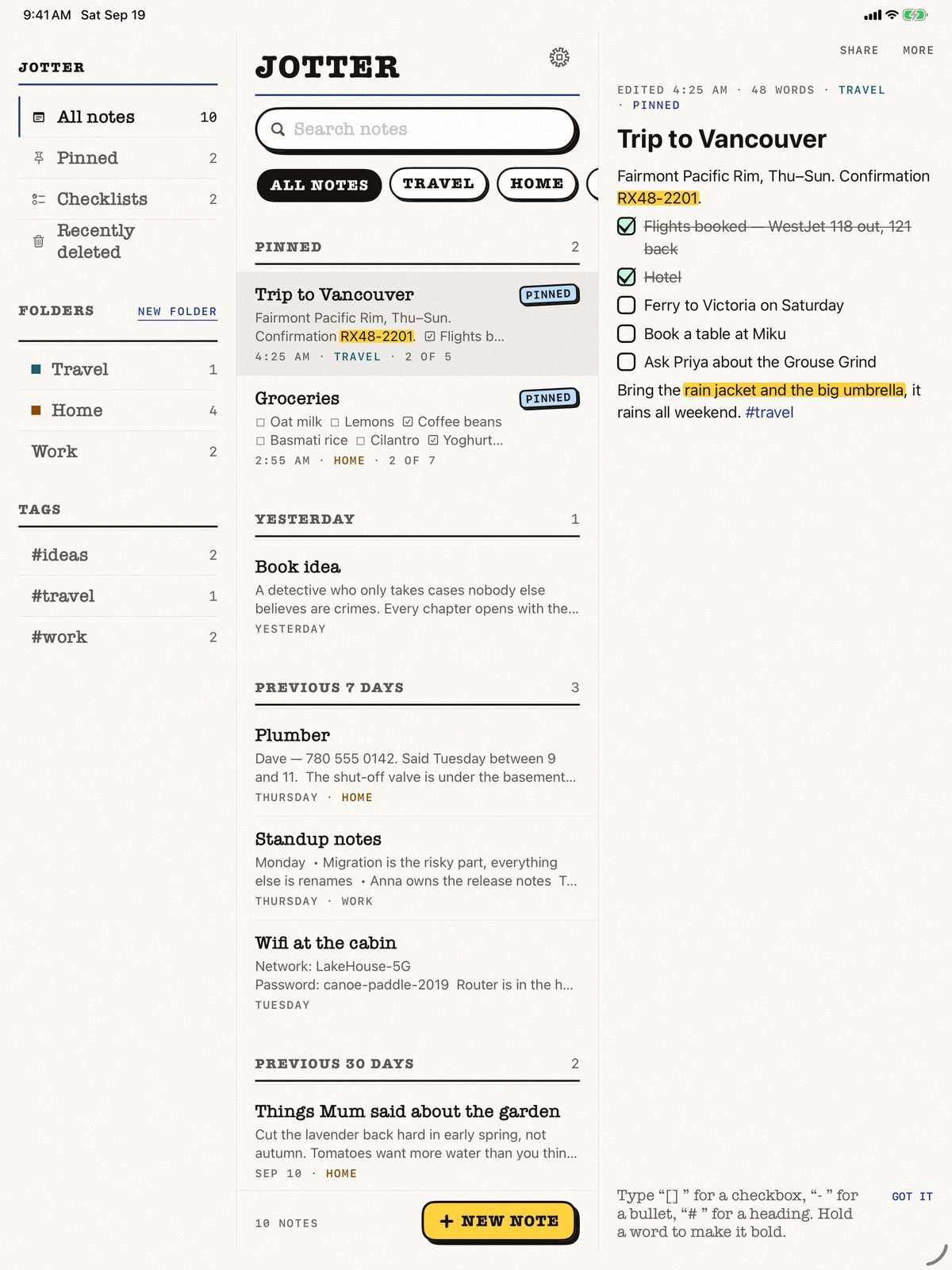
- Tap Undo straight away. As a note goes, Undo is right there in the message — and it brings back the note’s pin and reminder too.
- Open Recently Deleted. It’s in the chips above your notes on iPhone, and in the sidebar on iPad.
- Open the note and choose Restore. From Jotter 1.3 you can restore a note from right inside it.
- Take your time. Deleted notes wait in Recently Deleted for thirty days.
Jotter is free, with no account and no ads. There is no Jotter server, so we can’t recover notes for you — export everything from Settings now and then as your own backup.
Common questions
Where do deleted notes go on iPhone?
Into the Recently Deleted folder of the account they were in, where they stay for about 30 days before they are erased.
Can I recover deleted notes on iPhone after 30 days?
Only from a backup made before you deleted them, and only for notes stored On My iPhone. Notes synced with iCloud are not part of an iPhone backup.
Why is there no Recently Deleted folder in Notes?
It only appears when it has something in it. The note may have been in another account, such as Gmail, or it has already been erased.
How do I recover a deleted note in Jotter?
Tap Undo as it goes, or open Recently Deleted above your notes, open the note and choose Restore. Notes wait there for thirty days.
Published · No affiliate links











 MMA.
MMA. Trending
 Bold
Bold Top
Top