Disclosure: Jotter is ours. The advice works with any app, or with pen and paper.
In short
Turn on iCloud for Notes so every note is stored in your iCloud account as well as on the phone. But sync isn’t a backup — a note you delete disappears everywhere — so also keep a copy you own, saved to Files or a computer now and then. Jotter exports every note as Markdown files in one go.
- Sync keeps devices the same; it doesn’t keep old copies.
- iCloud for Notes, plus an iPhone backup.
- Export a copy you own once a month.
Sync is not a backup
iCloud sync keeps your iPhone, iPad and Mac the same. That’s great until you delete a note or overwrite it by mistake — the change syncs everywhere, too. A backup is a separate copy that doesn’t change when you do.
Step 1: turn on iCloud for Notes
Go to Settings → your name → iCloud, tap See All under Saved to iCloud, then Notes, and make sure it’s on. Your notes are then stored in iCloud and come back on a new iPhone when you sign in.
Check where new notes go: if you have more than one account, the default is in Settings → Apps → Notes (on older iOS, Settings → Notes).
Step 2: back up the iPhone itself
Turn on Settings → your name → iCloud → iCloud Backup, or back up to a computer — Finder on a Mac, or the Apple Devices app or iTunes on Windows.
A phone backup includes notes stored On My iPhone. It doesn’t include notes synced with iCloud, because those are already in iCloud.
Step 3: keep a copy you own
Apple Notes lets you share or export one note at a time, but has no button to export every note at once. On a Mac you can use File → Export as PDF, still one note at a time.
The easiest copy to keep is one in plain files — text or Markdown — saved to Files, a computer or a USB drive. Plain text opens in any app, now or in twenty years.
Backing up notes without iCloud
- Keep notes On My iPhone and back the phone up to a computer.
- Export notes as files and copy them to a computer or drive.
- Do it once a month, and after any big change, like a new phone.
Lost one already? See how to recover deleted notes on iPhone.
How to do it in Jotter
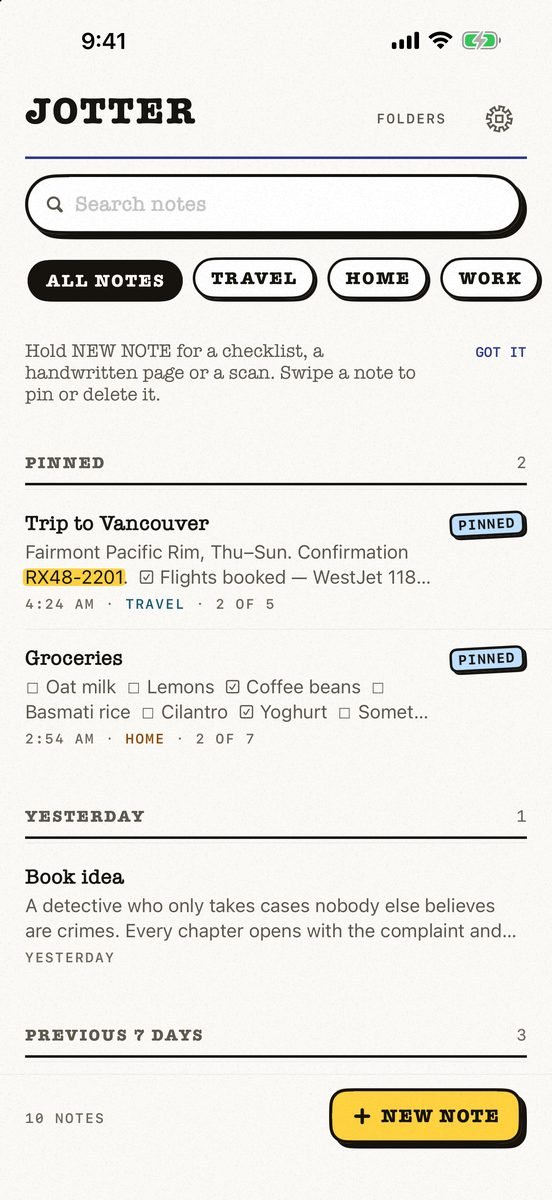
- Sync through your own iCloud. No Jotter account and no Jotter server. Make sure iCloud is allowed for Jotter in Settings → your name → iCloud → Saved to iCloud → See All.
- Open Settings → Export all notes. Every note becomes a Markdown text file, in folders named after yours.
- Pictures and recordings come too. Photos, drawings, scans and recordings sit beside each note.
- Save it somewhere else. Save it to Files or send it to your computer. A single note exports as a PDF or text from its More menu.
Jotter is free, with no subscription and no ads. Markdown is plain text, so any app can open your export.
Common questions
How do I back up my notes on iPhone?
Turn on iCloud for Notes, keep an iCloud or computer backup of the iPhone, and every so often export a copy of your notes to Files or a computer.
How do I back up notes on iPhone without iCloud?
Keep notes On My iPhone and back the phone up to a computer, or export your notes as files and copy them to a computer or drive.
Are notes included in an iCloud backup?
Notes stored On My iPhone are. Notes synced with iCloud are not, because they are already stored in iCloud.
How do I export all my notes from iPhone?
Apple Notes has no export-all button on iPhone. In Jotter, Settings → Export all notes saves every note as Markdown with its pictures and recordings.
Published · No affiliate links











 MMA.
MMA. Trending
 Bold
Bold Top
Top