Disclosure: VaultFlow is ours. The advice works with any app, or with pen and paper.
In short
Make it long, make it random, and use it on one account only. For the few passwords you must remember, string together five or six random words — like orbit-pickle-canyon-velvet-lantern — and let your phone’s password manager create and remember random 16-character passwords for everything else.
- Length and randomness beat symbols and clever swaps.
- A different password for every account; reuse is the real danger.
- Remember a few passphrases; let a password manager hold the rest.
What makes a password strong
Three things, in this order:
- Length. Every extra character multiplies the guesses an attacker needs. Aim for at least 16 characters, or five or more words.
- Randomness. It has to be picked by chance, not by you. People choose names, dates, teams and keyboard patterns — and those are the lists attackers try first.
- Uniqueness. Used on one account only. When one site leaks, attackers try the same email and password everywhere else.
Swapping letters for symbols (P@ssw0rd) or adding ! or 1 to the end barely helps; those tricks are the first ones cracking tools try.
How to make a strong password you can remember: use a passphrase
A passphrase is a few random words strung together. It’s long, so it’s strong, and words are far easier to picture and type than x7#Qv!.
- Pick five or six words at random — from a generator or by rolling dice against a word list, not from your head.
- Join them with hyphens, dots or spaces.
- If a site insists, capitalise each word and add a number.
- Picture a silly scene that links the words, and type it a few times today.
Our Password Generator does step 1 for you: choose Memorable passphrase, pick how many words and how they’re joined, and it can capitalise the words and add a number. It runs in your browser, and nothing is sent anywhere.
For a sense of scale: six random words from a 7,776-word list (the classic Diceware method) are in the same league as a random 12-character password made from every key on the keyboard.
Strong password examples (don’t use these)
Any password printed on a web page is no longer secret, so treat these as patterns, not passwords:
- Weak:
Summer2026!— a word, a year and a symbol, the most common shape there is. - Weak:
Fluffy1987— a pet’s name and a birth year, both easy to find online. - Weak:
qwerty123— a keyboard pattern. - Strong and easy to remember:
orbit-pickle-canyon-velvet-lantern— five random words. - Strong, for a password manager:
q7#Vt2!mLp9xRw4z— 16 random characters.
What about 8-character passwords?
Eight characters is the minimum many sites accept, not a target. If a site allows longer, go longer. If it really caps you at eight, make all eight random — capitals, lower case, numbers and symbols — and turn on two-step verification so the password isn’t the only lock.
Need an exact length, like 12 or 16 characters? The Password Generator goes from 6 to 64 characters, shows a live strength estimate, and can leave out look-alikes such as 0 and O.
How to make a strong password on iPhone
When you create an account in Safari or most apps, your iPhone offers a Strong Password in the password box. Use it, and it’s saved for you and filled in next time on your iPhone, iPad and Mac.
On recent iOS versions everything lives in the Passwords app (on older ones, in Settings → Passwords). It flags passwords that are reused, easy to guess or have shown up in a known data leak — fix those first.
Wherever a site offers a passkey, take it: you sign in with Face ID, and there’s no password to steal at all.
The handful you do need to remember
With a password manager doing the rest, you only need to know a few by heart: your phone’s passcode, your Apple Account or Google account, your main email and your bank. Make those passphrases, and turn on two-step verification for each one.
You don’t need to change a good password on a schedule. Change it when a site tells you it’s leaked, or when you’ve typed it somewhere you shouldn’t have.
The password you should never hand to an app
Your online banking password is meant for you and your bank. Many banks’ online banking terms say you mustn’t share it with anyone, yet some budgeting apps still ask for it so they can read your transactions. Every company that holds it is one more place it can leak from.
Banks don’t ask for your password by text or email either. If a message asks you to “confirm” it, it’s a scam. More in how to track your net worth without linking your bank.
Track your money without a bank login: VaultFlow
- Add your accounts yourself. Chequing, savings, credit cards, your home and loans — there’s no bank or brokerage login anywhere in VaultFlow.
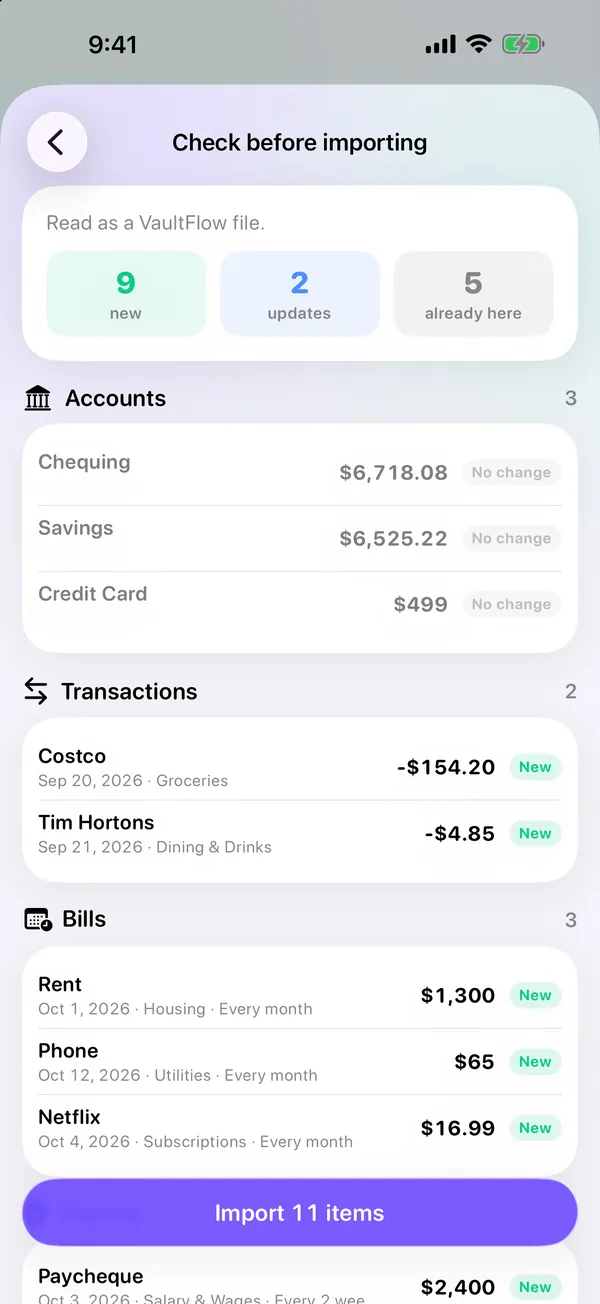
- Or import your statement file. Since VaultFlow 4.0, bring in the CSV, OFX or QFX file your bank’s website already gives you. Duplicates are skipped, and you check everything before it’s added.
- See where you stand. Budgets, recurring bills, goals and your net worth, all in one app.
- Keep it on your phone. VaultFlow has no servers, so your data stays on the iPhone or iPad you use. Settings → Export my data makes a copy whenever you like.
VaultFlow 4.0 is on the App Store now, with budgets, bills, net worth and bank statement import. Free, no subscription, no bank login.
Common questions
How do I make a strong password I can remember?
Use a passphrase: five or six words picked at random by a generator or dice, joined with hyphens or spaces. It’s long enough to be strong and much easier to remember than random characters.
How long should a strong password be?
At least 16 random characters, or five or more random words, for anything important. Eight characters is a minimum, not a goal.
Is it safe to use an online password generator?
Only if the password is made on your device and never sent anywhere. Ours runs in your browser with no server side; a good test for any generator is that it still works with the internet switched off.
Where should I keep my passwords?
In a password manager — on iPhone, the built-in Passwords app, which fills them in for you on your Apple devices. Don’t reuse them, and don’t keep them in an unlocked note or a screenshot.
Published · No affiliate links











 MMA.
MMA. Trending
 Bold
Bold Top
Top